
A WooCommerce exchange price difference is settled one of three ways: an even swap, a linked order the customer pays or a refund. Which one applies depends on how the new item’s price compares with the credit from the returned one.
WooCommerce core has no exchange flow, and its refunding orders guide covers only automatic and manual refunds. We checked every case below against the WPReturns Pro 1.0.0 source and its exchange tests. The screenshots come from our demo store in November 2026.
You will see how the credit is worked out and what each case does to your orders. Then come the price, fee, tax and stock rules, the manual method in plain WooCommerce and the setup in WPReturns Pro.
What Is a WooCommerce Exchange Price Difference?
A WooCommerce exchange price difference is the new item’s price minus the credit from the returned item. The credit is what the customer paid for the returned item, less any return fee you charge. A positive result means the customer owes money, and a negative one means you owe the customer.
In WPReturns Pro the credit starts from the price paid per unit, tax included, times the quantity sent back. A restocking fee rule or the return shipping fee for exchanges comes off it when one applies.
The new item’s price is its store price when the exchange order is created. That happens when you resolve the request, usually after the parcel arrives.
If you charge nothing for exchanges, the credit equals what the customer paid for the returned item. A $40 item with a $5 return fee gives a $35 credit.
Note: The price difference is worked out on the server when the exchange order is built. A customer cannot change it by editing the request form in their browser.
The Three Exchange Cases Compared
Every exchange lands in one of three cases: the same price, a new item that costs more or a new item that costs less. Each case creates a linked exchange order in WooCommerce. What changes is the order status, whether a payment link goes out and whether a refund posts on the original order.
The amounts below are an example with no tax and no return fee, built on a returned $40 T-shirt.
| Case | Example | Exchange order total | Exchange order status | Money movement |
|---|---|---|---|---|
| Same-price swap | $40 T-shirt size M for size L | $0.00 | Processing | None |
| Customer pays the difference | $40 T-shirt for a $55 hoodie | $15.00 | Pending payment | Customer pays $15 through a pay link |
| Store refunds the difference | $40 T-shirt for a $28 cap | $0.00 | Processing | $12 refunded on the original order |
The same three cases as order lines look like this. Each card is one exchange order, with the credit entered as a negative line.
Example exchange orders on a $40 return
Same-price swap
- T-shirt size L
- $40.00
- Exchange credit from order #1042
- -$40.00
- Refund on order #1042
- $0.00
- Exchange order total
- $0.00
Processing. Nothing to pay and nothing to refund.
Customer pays the difference
- Hoodie
- $55.00
- Exchange credit from order #1042
- -$40.00
- Refund on order #1042
- $0.00
- Customer pays
- $15.00
Pending payment. A Pay the difference button goes to the customer.
Store refunds the difference
- Cap
- $28.00
- Exchange credit from order #1042
- -$28.00
- Exchange order total
- $0.00
- Refund on order #1042
- $12.00
Processing. The unused $12.00 is refunded on the original order.
The credit line never goes below the new order’s total. In the third case only $28 of the $40 is used on the exchange order, and the rest goes back as a refund.
Same-Price Swaps: No Money Changes Hands
A same-price swap is the simplest exchange: a different size or color of the same product at the same price. WPReturns Pro creates a new order with the replacement item and an exchange credit line that cancels its full price. The order total is $0.00 and it goes straight to Processing.
Your team fulfills it like any other order. The customer gets the Return resolved email, and the request page shows the new exchange order number.
Nothing touches the payment gateway in this case. That keeps the exchange out of your payment provider’s refund list altogether.
There is one catch. A same-price swap is only free when no fee applies. The fee section below shows how a $4.95 fee turns it into a small payment.
When the Customer Pays the Difference
When the new item costs more, the exchange order holds the replacement at full price plus a negative credit line for the returned value. In the example, $55 minus $40 leaves $15 due. The order is saved as Pending payment with the customer’s original payment method set on it.
WooCommerce’s order statuses guide says a pending order has been “received, but no payment has been made.” That is exactly the state you want until the customer pays the gap.
WPReturns Pro puts a Pay the difference button on the customer’s request page and in the Return resolved email. The button opens the standard WooCommerce order payment page for the exchange order.
Once the payment goes through, WooCommerce moves the order on as it does any paid order. Your fulfillment flow does not need a special step for exchanges.
Our demo screenshots show the cheaper case instead. You will find it in the next section, with the real result line from the request screen.
When the Store Refunds the Difference
When the new item costs less, the credit covers it in full and the exchange order closes at $0.00. The unused part of the credit is refunded on the original order. WooCommerce records it as a normal refund named after the request, such as “WPReturns RMA-00009 price difference”.
That exchange price difference refund follows the Refund goes to choice on the resolve card. The default comes from the Gateway refunds setting, which sends it back through the payment gateway.
If the gateway has no refund support, WooCommerce records the refund only. Its refunds guide warns that manual refunds “do not refund the customer via the payment gateway”. You pay that money back from your provider’s dashboard.
WPReturns > Requests > RMA-00009
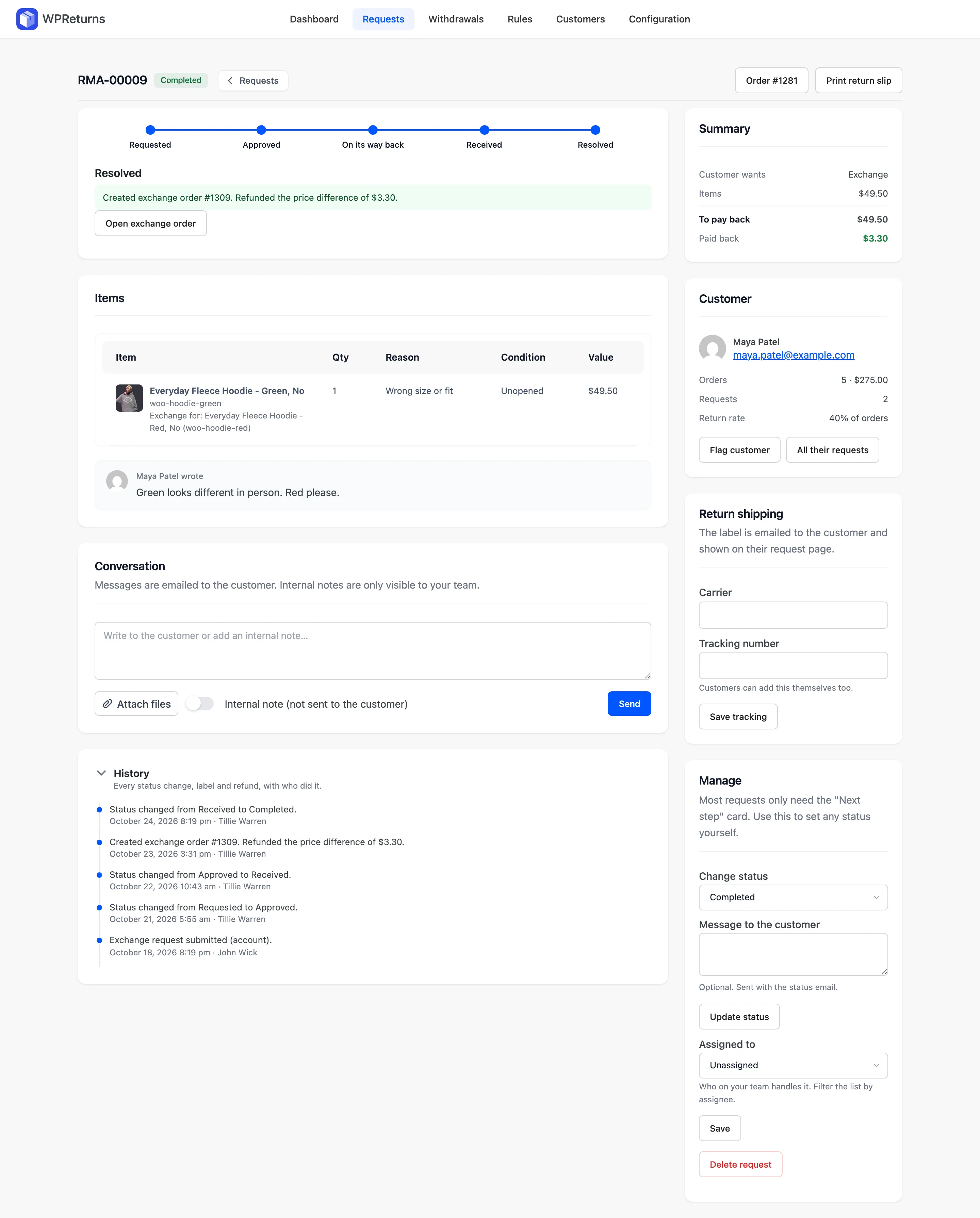
The demo request above shows the real result line: “Created exchange order #1309. Refunded the price difference of $3.30.”
The Summary card reads $49.50 to pay back and $3.30 paid back. Open exchange order jumps to the new order.
Which Price Sets the Difference?
WPReturns Pro compares two different prices. The credit uses what the customer paid for the returned item, after coupons and with tax. The new item uses its store price on the day you resolve, and a sale that ends in between changes the difference.
That split is fair to both sides in most cases. Say a customer bought a $50 jacket with a 20% coupon and paid $40. The credit is $40 in that example, never $50.
The timing matters more. The request form checks the replacement’s stock and shows the options, but the exchange order is built at resolution. If you raise a price between request and resolve, the customer pays the new price.
A request with several items nets them into one credit and one exchange order. For example, two returned shirts worth $80 against two replacements at $90 leave $10 to pay on one order.
Tip: Resolve exchanges soon after the parcel arrives, and avoid price changes on items with open exchange requests. Both keep the difference the customer saw close to the one they pay.
How Return Fees Change the Difference
Two fees can come off the exchange credit in WPReturns Pro: a restocking fee from a rule and the Return shipping fee: exchanges setting. Neither fee applies when the return reason is the store’s fault. A Free return shipping rule also waives the shipping fee.
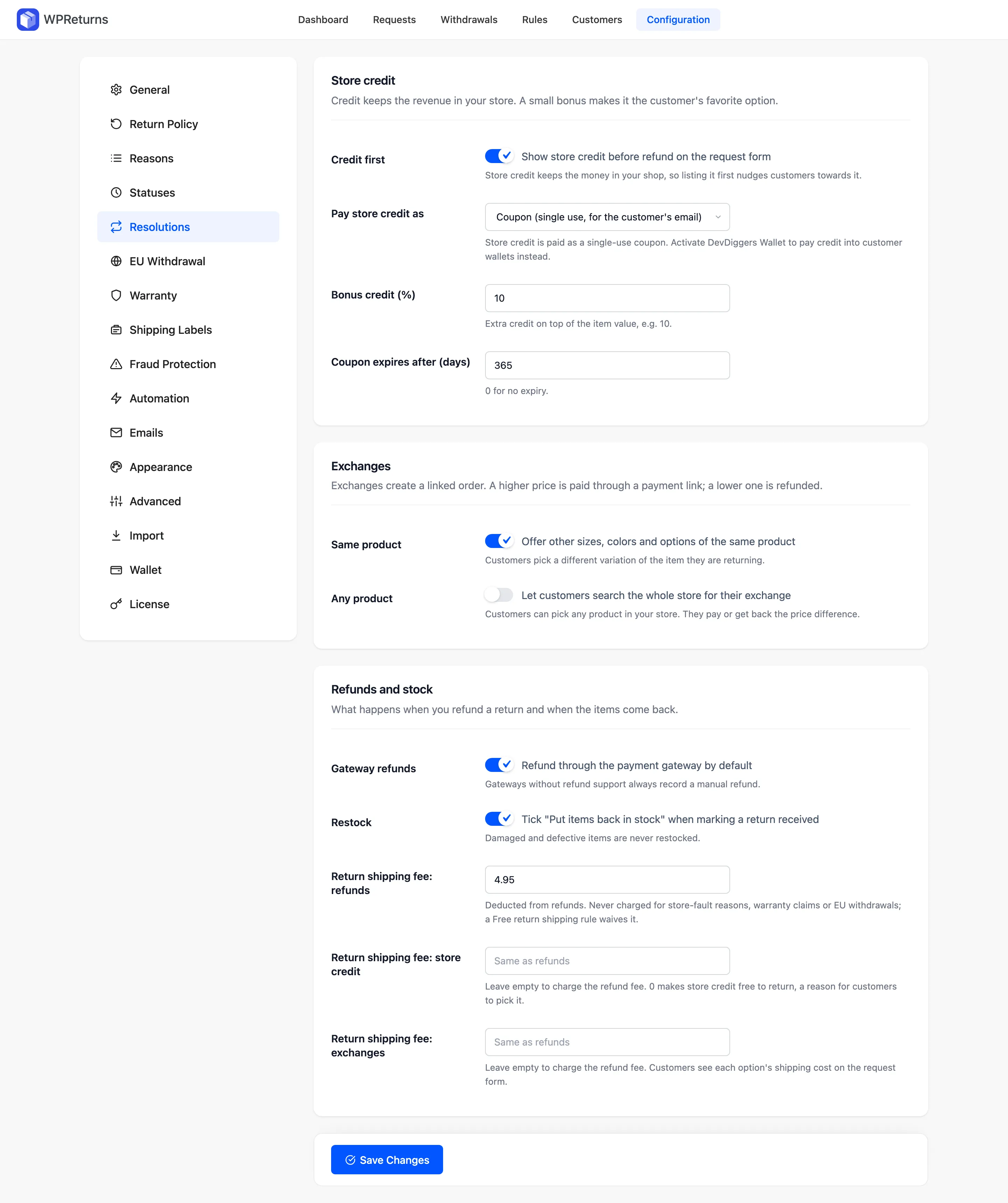
The setting sits in the Refunds and stock section of the Resolutions tab, shown in Step 1 below. Leave it empty to charge the same fee as refunds, or enter 0 to make exchanges free to send back.
Here is how a fee plays out, as an example. A customer swaps a $40 T-shirt for the same shirt in another size, and the exchange fee is $4.95.
- The credit is $40.00 minus $4.95 for a total of $35.05.
- The exchange order holds the new shirt at $40.00 and a credit line of minus $35.05.
- The customer pays $4.95 through the Pay the difference button.
Customers see each option’s shipping cost on the request form. The $4.95 is no surprise to them. A store that wants even swaps to stay free sets the exchange fee to 0.
How the Exchange Credit Is Taxed
WooCommerce taxes negative fees like products and caps them at the pre-tax subtotal. A credit entered at face value therefore comes out wrong on any taxed order. WPReturns Pro enters the exchange credit net of tax, and WooCommerce adds the tax back to reach the exact tax-inclusive value.
The plugin’s own tests caught an earlier build that lost the tax on the credit. The fix shipped before version 1.0.0.
Take an example store with a 20% tax rate and prices entered with tax. The customer returns an item that cost $40.00 with tax and picks a $60.00 hoodie.
- The hoodie line holds $50.00 net plus $10.00 tax for $60.00 in total.
- WPReturns divides the $40.00 credit by 1.2 and enters minus $33.33 as the credit line.
- WooCommerce adds minus $6.67 tax to that line, and the credit comes to exactly minus $40.00.
- The customer pays the $20.00 left on the exchange order.
The divisor comes from the exchange order’s own tax ratio. Rounding can still leave a stray cent on a fully covered exchange, and WPReturns sets that total to $0.00.
How Stock Is Held for the Replacement
The exchange order takes stock for the replacement items as soon as it is created. WooCommerce is told the stock was already reduced, and paying the difference does not reduce it a second time. If the customer never pays, canceling the pending order puts the stock back through WooCommerce.
The order statuses guide confirms that a canceled order’s stock “is returned to the store’s inventory if inventory management is enabled.”
Before the order exists, WPReturns Pro checks stock on the request form. A product that is out of stock in the chosen quantity cannot be picked unless it allows backorders.
That check does not hold the item, though. Stock is only taken when you resolve. A popular size can sell out while the parcel is in transit.
The returned item is a separate stock movement. It goes back into stock when you mark the return received with “Put items back in stock” ticked. Damaged or defective items are never restocked.
Worth checking: Give pending exchange orders a deadline in your return policy. Seven days to pay the difference is one example, and a deadline stops reserved stock from sitting forever.
Why a Linked Exchange Order Keeps Your Books Straight
A linked exchange order keeps the full price of the new item and the credit for the returned one as two separate lines. Your books then show what was sold, what was credited and which return the credit came from. That record answers the questions accountants and support staff ask months later.
WPReturns Pro builds each exchange order with these parts:
- The replacement products sit on the order at their current store price.
- A negative fee reads “Exchange credit from order #1042” with the original order number.
- An order note names the request and the original order.
- The order stores the original order ID and the request ID behind it.
- The request saves the exchange order ID, and Open exchange order opens it.
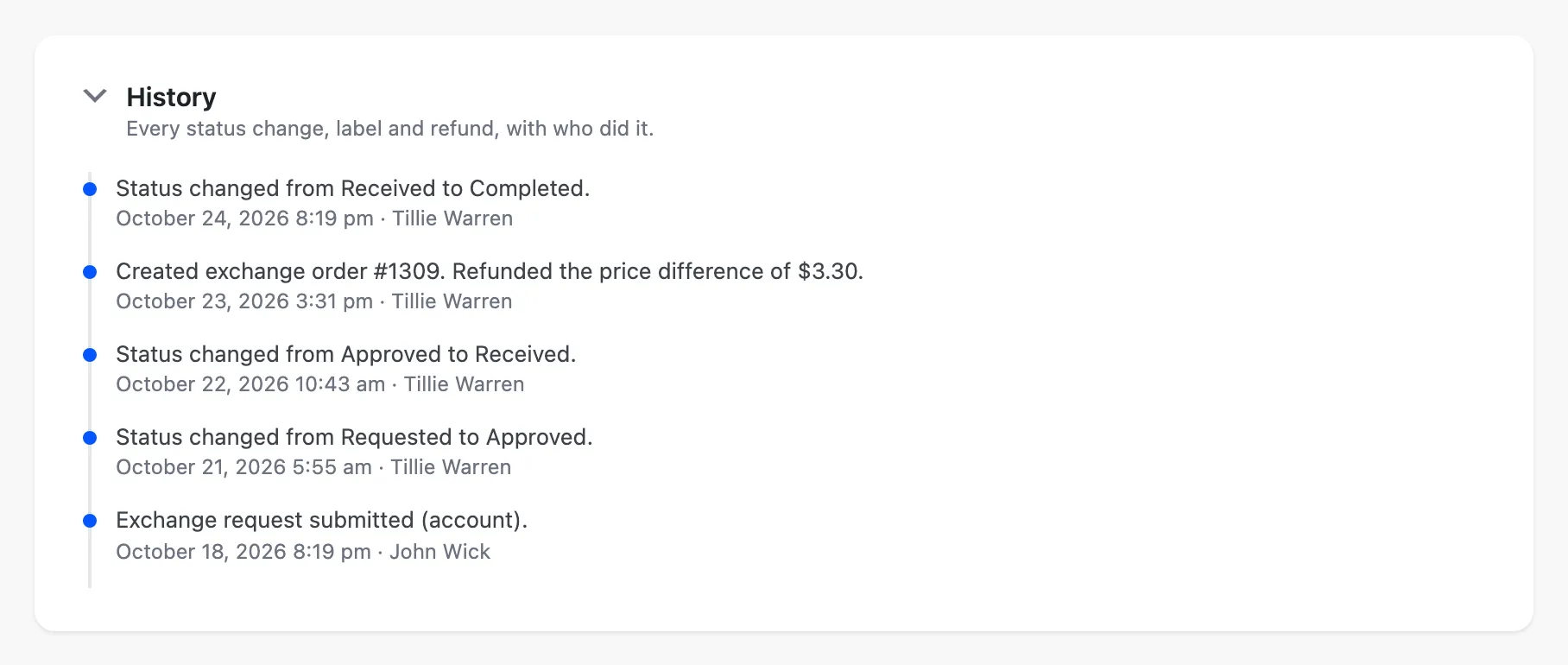
The request history records the same story from the returns side, with who did what and when.
WPReturns > Requests > RMA-00009 > History
Automation never rewrites old exchanges either. Automatic resolution on the Automation tab affects only requests submitted after you turn it on. Our AfterShip Returns vs WPReturns page covers how a hosted app handles the same jobs.
Handling an Exchange Without a Plugin
Without a returns plugin, a WooCommerce exchange is a refund plus a new order that you build and price by hand. You decide the difference, set the new order to Pending payment and email the customer a payment link. It works for a few exchanges a month and gets messy once volume grows.
These are the steps in WooCommerce core, using screens that every store already has:
- Check the returned item when the parcel arrives and decide the credit you will give for it.
- Go to WooCommerce > Orders > Add order, pick the customer and add the new product.
- Add a negative fee for the credit and name it after the original order number.
- Save the order as Pending payment when money is due, or Processing when the total is $0.
- Open the Order actions menu and pick “Send order details to customer”.
- When the new item costs less, refund the difference on the original order from its Refund button.
WooCommerce’s single order page guide confirms the payment link step. It says the customer gets “a link to the order payment page” when you send the order details.
Step 3 is where manual exchanges go wrong. Editing the line price instead hides the credit, and the new order then says the hoodie cost $15. On a taxed store, a credit fee entered at face value also gets taxed again.
Stock is the other trap. WooCommerce has no link between the two orders. Write every stock change you make by hand in an order note.
How to Run Exchanges in WPReturns Pro
We build WPReturns, and it does the steps above for you. Turn on exchanges, let customers pick a replacement and resolve the request when the return arrives. The plugin then builds the linked exchange order, the pay link or the refund on the original order.
Exchange From Request to Linked Order
- 1RequestCustomer picks Exchange and a replacementReturn request received
- 2ApproveStaff approve and add a return labelReturn request approved
- 3ReceiveParcel arrives and stock goes backReturn status updated
- 4ResolveExchange order built with a credit lineReturn resolved
- 5SettlePay link or refund on the original orderLinked order
Step 1: Turn On Exchanges
Exchanges need two switches. Offer exchanges sits on the General tab, and the Exchanges section of the Resolutions tab sets what customers may pick. Same product is on by default, and Any product is off by default.
With Same product on, customers pick another size, color or option of the item they return. With Any product on, they can search the whole store, and a variable product needs a specific variation.
1DevDiggers Plugins > WPReturns > Configuration > Resolutions
Step 2: Let the Customer Start an Exchange
Customers start from My Account > Returns > Start a return, or from the guest returns portal. Each order lists an Exchange button next to Return or refund when exchanges are allowed for it.
2My Account > Returns > Start a return
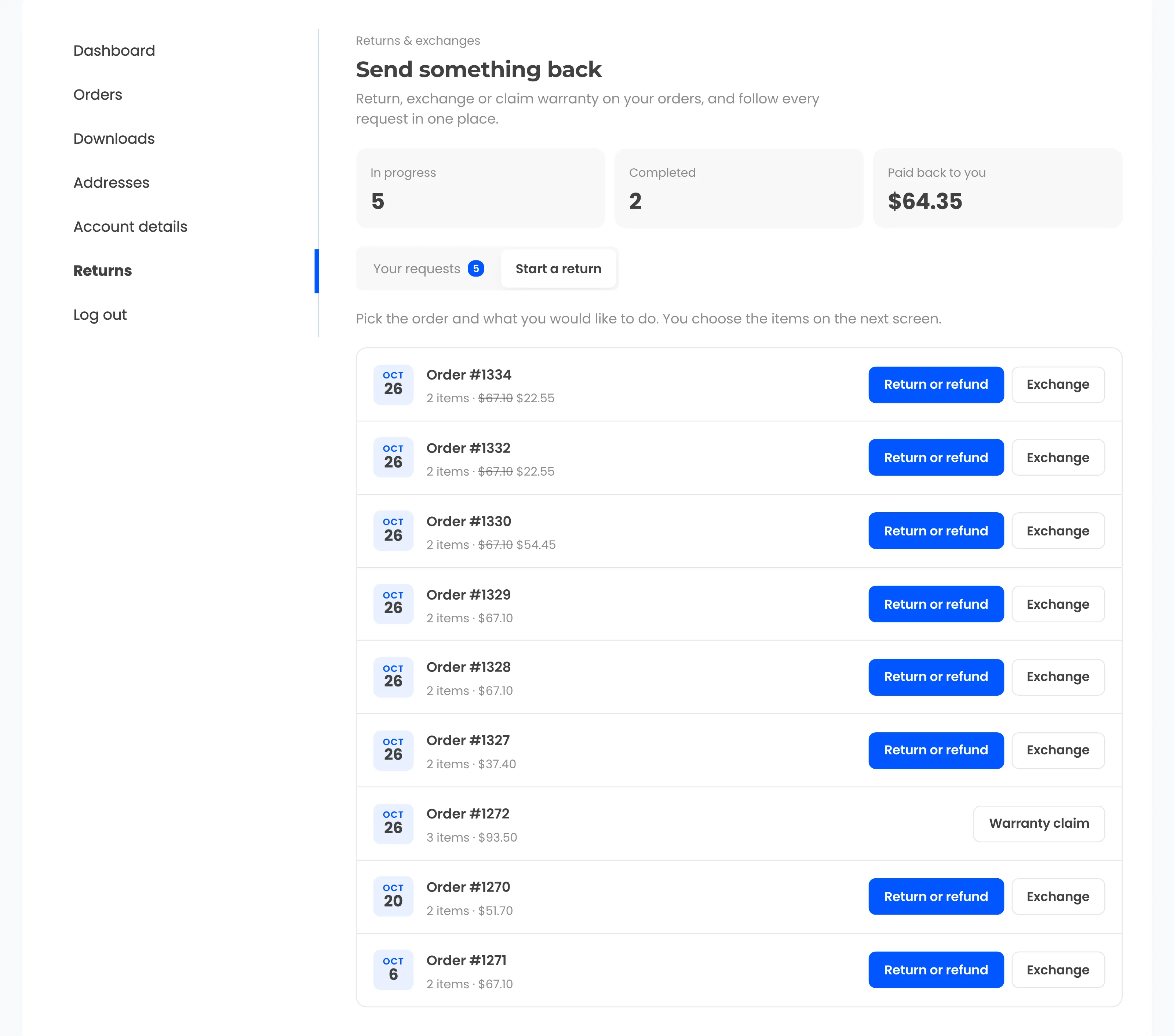
On the form, each item gets What would you like instead? with the other in-stock options of that product. With Any product on, the customer also sees Or search any product, and a note explains how the price difference is paid or refunded.
Step 3: Receive the Returned Item
After you approve the request, the customer sees “Exchange for:” under each item with the replacement they picked. The request page also carries the return label, the packing slip and tracking.
3My Account > Returns > RMA-00002
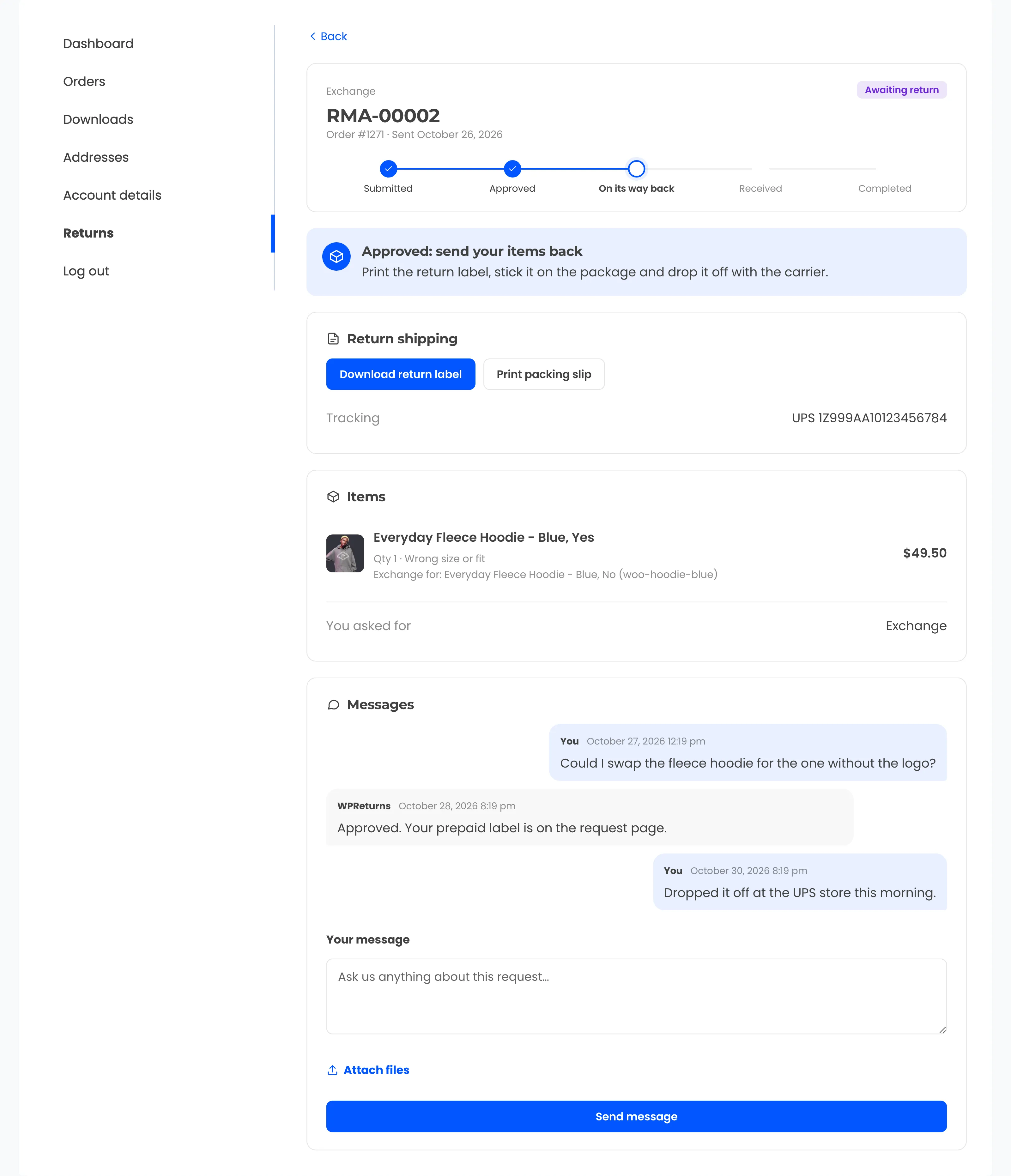
When the parcel arrives, mark the request received. Tick “Put items back in stock” to restock the returned item.
Step 4: Resolve the Request
Open the request and check the Amount on the resolve card. It starts at the item value minus fees, and you can change it before you press Resolve request.
4WPReturns > Requests > Resolve request
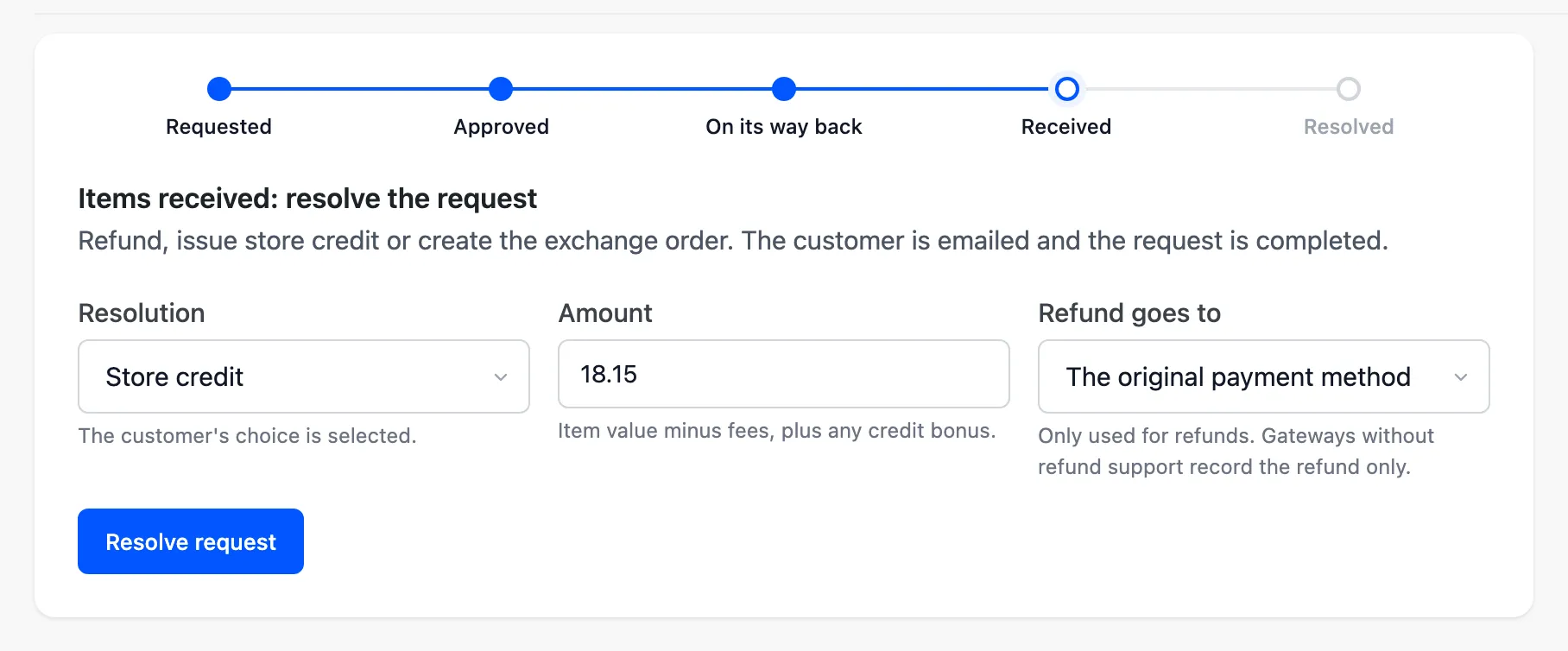
Pick Exchange as the Resolution if it is not already selected. The plugin then builds the exchange order and settles the difference, as screenshot 1 shows. The full screen is in the request resolutions docs, and every setting is in the Resolutions configuration docs.
There are limits to plan around. Exchanges are a Pro feature, and a store on the free plugin can only refund. You can download the free plugin to start with refunds and add Pro later.
The replacement also comes in the same quantity as the returned item, and the exchange order adds no shipping charge for sending it out.
The free and Pro comparison lists the full split, and WPReturns Pro pricing starts at $99 a year for one site. The full flow is on the WooCommerce exchanges feature page, next to store credit for WooCommerce returns.
Should You Offer an Exchange or a Refund?
Offer an exchange when the customer still wants the product and only the size, color or model was wrong. Offer a refund when the item did not suit them, and always for an EU withdrawal. An exchange keeps the sale in your store, but the law decides what an EU customer is owed.
Under Directive 2011/83/EU, a withdrawal is refunded with the original payment method. Article 13 says the trader must use “the same means of payment” unless the consumer expressly agrees otherwise. The full text is on EUR-Lex.
An exchange is therefore an option you offer next to the refund, and our store credit vs refund guide covers the third option. It never replaces a statutory withdrawal refund, and the EU withdrawal button feature handles that flow apart from returns and exchanges.
Conclusion
The WooCommerce exchange price difference comes down to one comparison: the new price against the credit from the returned item. Same price closes at $0 and a higher price creates a pending order with a pay link. A lower price refunds the rest on the original order.
Fees, tax and timing move that number. A return fee turns an even swap into a small payment, and the new item’s price is the one on the day you resolve.
A linked order with full-price lines and a named credit line records what happened. Try the manual steps on your next exchange, and once volume grows, WPReturns Pro builds that order for you.