
You can add the EU withdrawal button to WooCommerce in under an hour with the free WPReturns plugin and no code. It creates the withdrawal page, adds the “Withdraw from contract here” link to the footer and order emails, and sends the dated acknowledgement for you.
Article 11a of Directive 2011/83/EU, inserted by Directive (EU) 2023/2673, has applied since June 19, 2026. This guide follows WPReturns 1.0.0 on our demo store in November 2026, and each legal line was checked against EUR-Lex that month.
You get the legal checklist first and a word on the withdrawal form in WooCommerce 11.1. Five setup steps and the settings that decide who sees the button follow. The post ends with the customer flow, your side of a withdrawal and a launch-day test.
What the EU Withdrawal Button Has to Do
The EU withdrawal button is a two-step online function that lets a consumer withdraw from a distance contract during the withdrawal period. Step one is a link labeled “withdraw from contract here” that opens a short statement. Step two is a “confirm withdrawal” button, followed by an acknowledgement on a durable medium.
Every paragraph of Article 11a maps to something your store must show or send. The EU withdrawal button guide explains the law in full. This table only pairs each line with the setup:
| Article 11a requires | What WPReturns does |
|---|---|
| A function labeled “withdraw from contract here” (11a(1)) | Adds a “Withdraw from contract here” link to the footer, My Account and order emails |
| Available for the whole withdrawal period (11a(1)) | Shows the link on each order while the period runs |
| A statement with name, contract details and email (11a(2)) | Asks for the name, the order number and the email for the confirmation |
| A confirm step labeled “confirm withdrawal” (11a(3)) | Submits only through a “Confirm withdrawal” button |
| An acknowledgement with content plus date and time (11a(4)) | Emails the full statement with the date and time it was received |
| Withdrawal counts if sent before the deadline (11a(5)) | Records the submission time in UTC on every statement |
EUR-Lex > Directive (EU) 2023/2673 > Article 11a
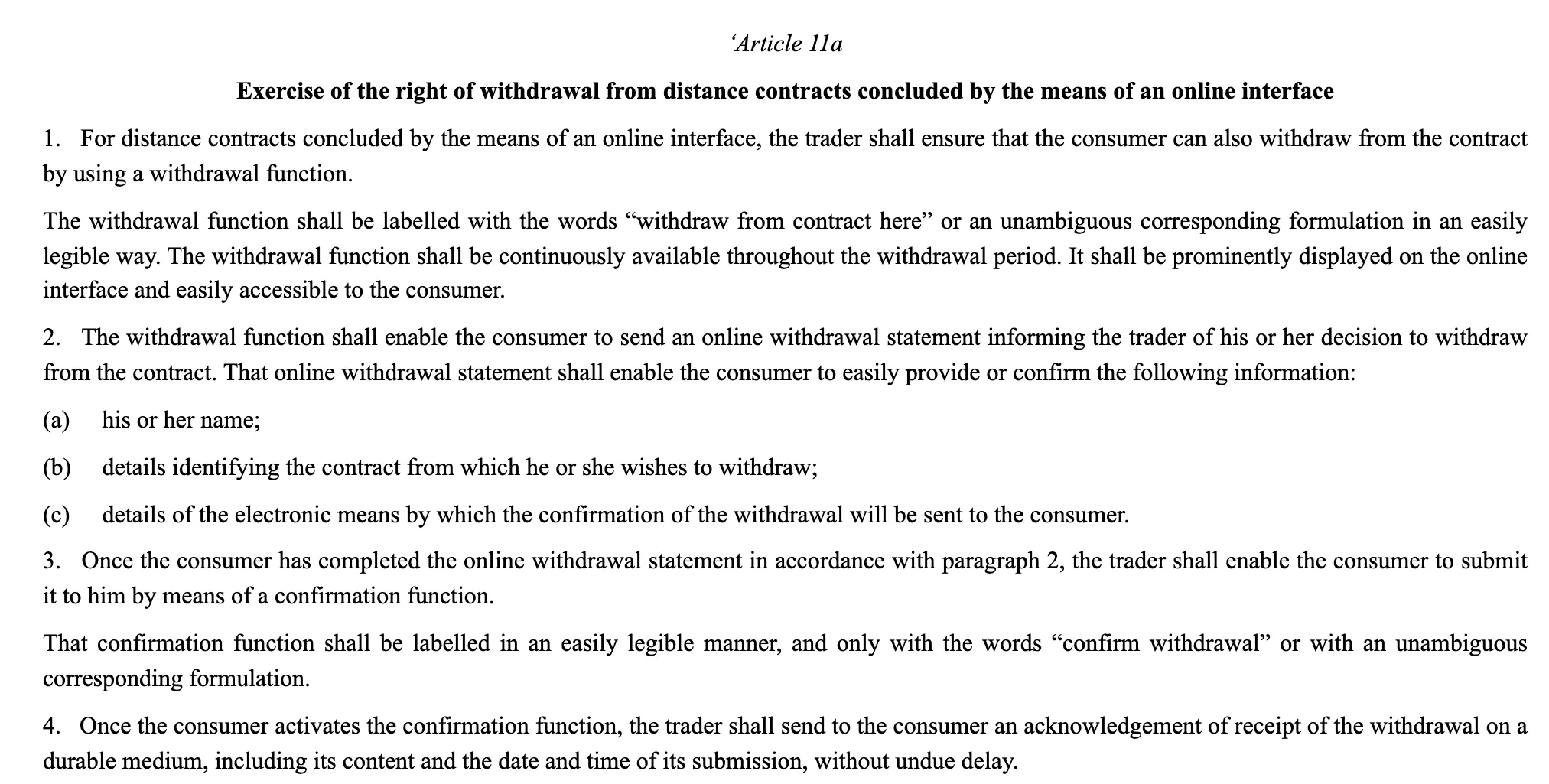
The directive allows no other wording for the two labels beyond “an unambiguous corresponding formulation”. Keep the plugin’s default labels in English and let your translation plugin handle other languages.
Article 13 then sets the money side. You reimburse all payments, including standard delivery, no later than 14 days from the day you are told of the withdrawal. The whole legal flow looks like this:
The Two-Step Withdrawal Flow in Law
- 1LinkCustomer opens Withdraw from contract hereArticle 11a(1)
- 2StatementName, order and email for the confirmationArticle 11a(2)
- 3ConfirmCustomer presses Confirm withdrawalArticle 11a(3)
- 4ReceiptContent plus date and time on a durable mediumArticle 11a(4)
- 5RefundAll payments back within 14 days of the noticeArticle 13(1)
Note: A withdrawal is a different thing from a return. A return follows your own policy, while the 14-day right of withdrawal comes from the law and needs no reason.
Is the EU Withdrawal Button WooCommerce Added in 11.1 Enough
WooCommerce 11.1 added an optional Order Withdrawal form that takes a statement, matches it to an order and sends an acknowledgement email. It adds no link to your store. The parcel, the order status and the refund all stay manual.
WooCommerce’s own Order Withdrawal announcement (August 27, 2026) says you enable it under WooCommerce > Settings > Advanced > Features. The form lives at /my-account/withdraw-order/ and works for guests. The same post states the page “is not linked anywhere by default”.
It also says a request “does not change the order status, cancel the order, or issue a refund”. So you still place the link yourself. The parcel and the refund are tracked by hand in order notes.
WPReturns adds the parts the core form leaves to you:
- The “Withdraw from contract here” link in the footer, on orders in My Account and in customer order emails.
- A country scope, a withdrawal period and Article 16 exemptions per category or product.
- A request with an RMA number that moves from Requested to a refund.
- A withdrawals log with an Unmatched statements tab and a CSV export.
Run one withdrawal form on the store, never two. If you switched on Order Withdrawal in WooCommerce and move to WPReturns, switch the core feature off again. Customers then find one link and you keep one record.
What You Need Before You Start
You need WordPress 6.5 or newer, WooCommerce 9.0 or newer and PHP 7.4 or newer. WPReturns works with HPOS, the block checkout and the classic checkout. Fill in your store address and email under WooCommerce > Settings > General first, because the model withdrawal form is addressed from them.
Decide one thing about your order flow before you install. The 14-day period for goods starts when the consumer takes physical possession of them, under Article 9 of Directive 2011/83/EU. If you mark orders Completed on delivery, the plugin’s default timing matches the law.
If you mark orders Completed when they ship, the clock starts a few days early. Set a longer period to cover the transit time. Customers can also withdraw at any time before an order is completed.
How to Add the EU Withdrawal Button to WooCommerce
To add the EU withdrawal button to WooCommerce, install the free WPReturns plugin and answer the withdrawal step of its setup wizard. Then check the EU Withdrawal tab and the links on your storefront. The whole flow sits in the free plugin and needs no license key.
We build WPReturns, and it is the plugin this guide uses. One honest limit: it reads delivery from the order status. The period is only as accurate as the day you mark orders Completed.
Step 1: Install the Free Plugin
Start with WooCommerce active. Open Plugins > Add New, search for WPReturns and click Install Now and Activate. You can also download the free WPReturns plugin and upload it.
Activation creates a page titled “Withdraw from contract” at the slug withdrawal. It holds the [ddwcwr_withdrawal_form] shortcode. The withdrawal page exists before you touch a setting.
1Plugins > Installed Plugins

Step 2: Answer the Withdrawal Step of the Setup Wizard
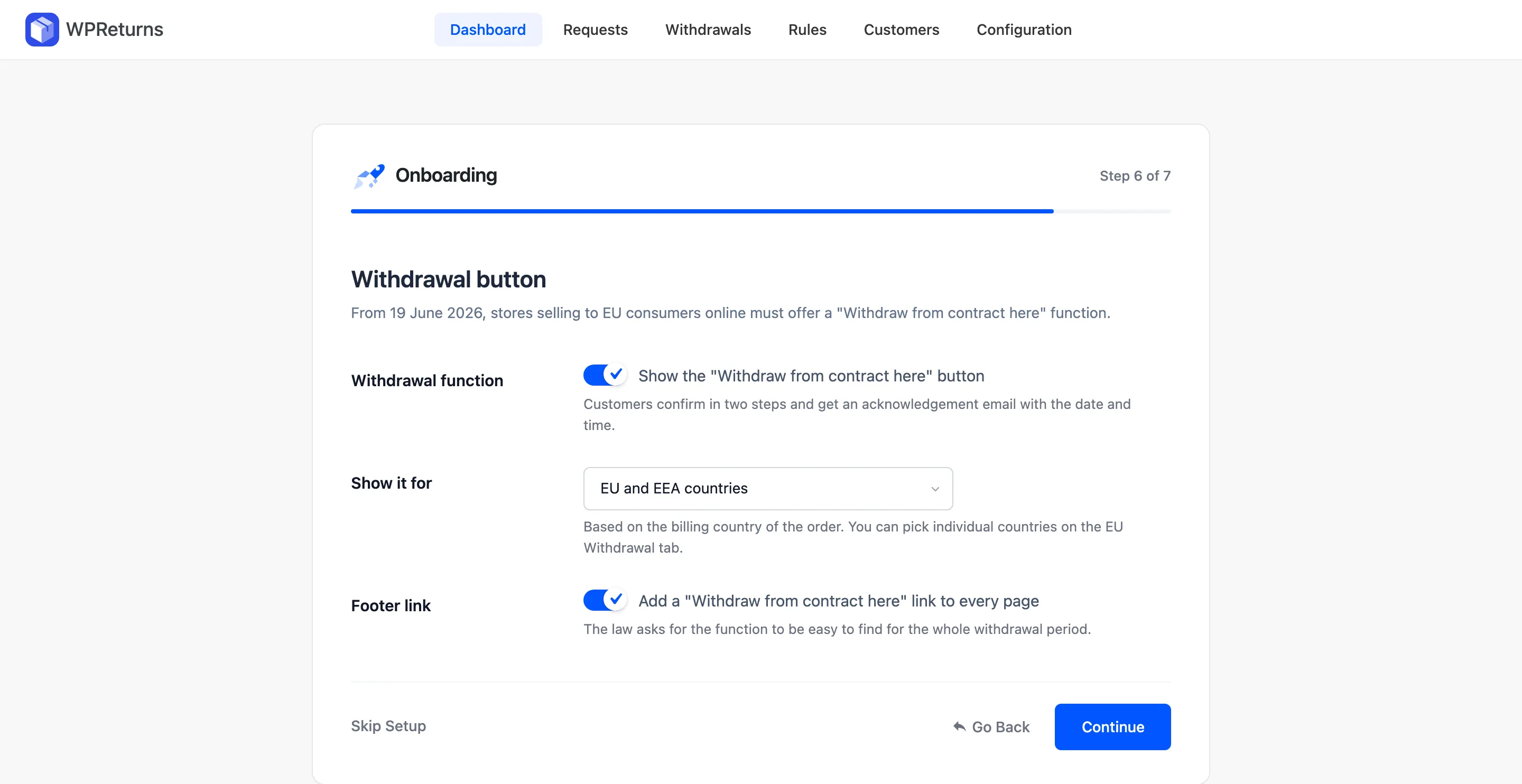
The setup wizard opens the first time you activate the plugin on a store that never saved WPReturns settings. Its withdrawal step has three fields. Leave “Withdrawal function” on, keep “Show it for” on EU and EEA countries and keep “Footer link” on.
The step is called “Withdrawal button” in Pro and “EU withdrawal” in the free plugin. You can reopen the wizard any time from the Setup Wizard link on the Plugins screen.
2WPReturns > Setup wizard > Withdrawal button
Step 3: Check the EU Withdrawal Tab
Open DevDiggers Plugins > WPReturns > Configuration > EU Withdrawal. The tab heading names Directive (EU) 2023/2673 and the four parts the law asks for.
Check that “Offer the online withdrawal function” is on and that “Withdrawal page” points to Withdraw from contract. Keep “Footer link”, “Order emails” and “Model form” on and click Save Changes.
3WPReturns > Configuration > EU Withdrawal
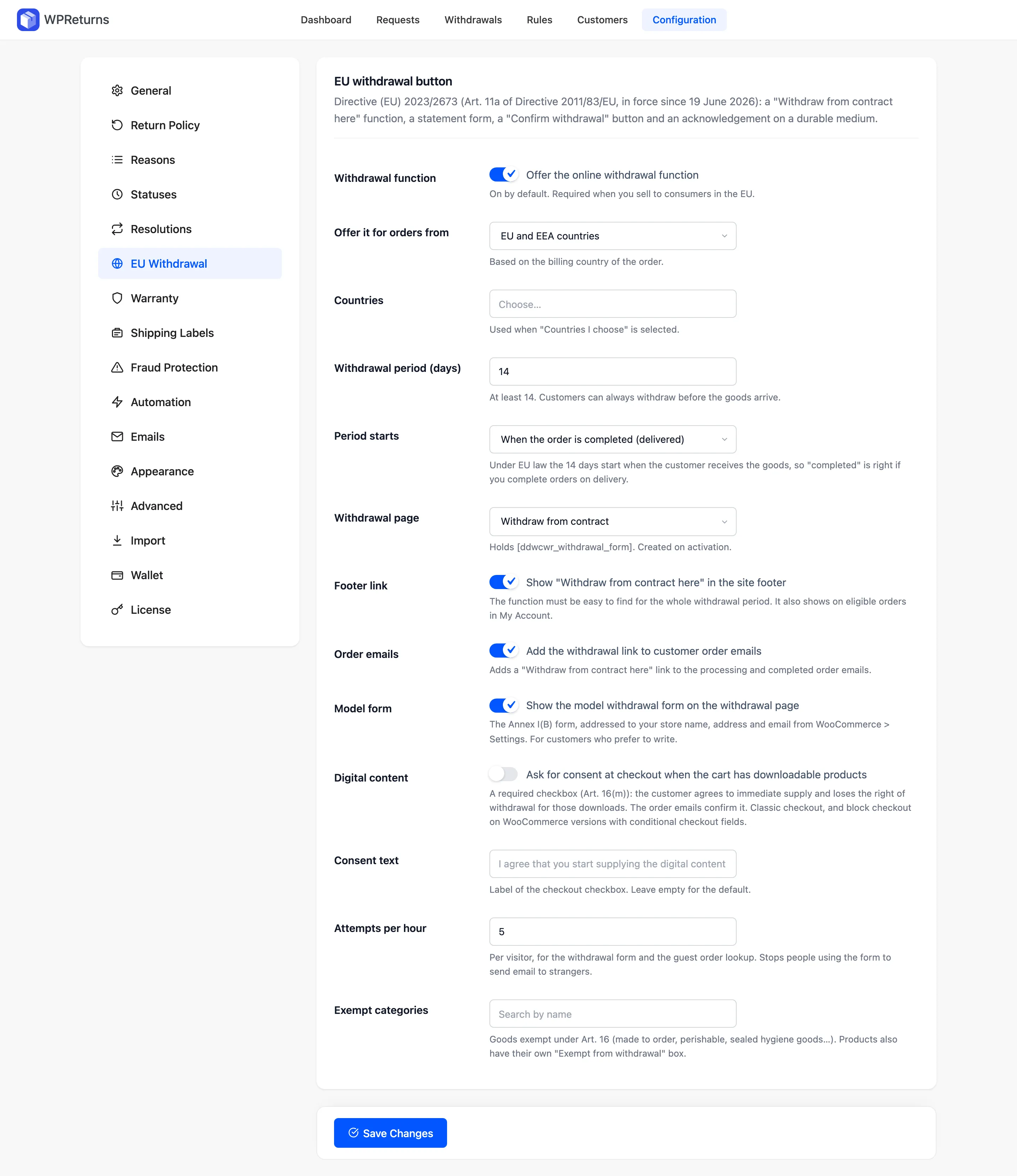
The full field list sits in the EU withdrawal settings docs. The next section covers the four fields that need your judgment.
Step 4: Check the Link in the Footer and Emails
Open your shop in a private window and scroll to the footer. You should see “Withdraw from contract here” on every page.
A WooCommerce store is a WordPress site. The EU withdrawal button WordPress prints here comes from your theme’s footer hook.
Article 11a(1) asks for a function that is “prominently displayed” and “easily accessible”. A page builder footer that skips the theme hook can hide the link. Add the Withdraw from contract page to your footer menu as a second spot.
Then place a test order and open the processing order email. Below the order table you should see the 14-day line and the same link. Canceled, refunded and failed orders never get it.
4Storefront > Footer

Step 5: Add the Withdrawal Line to Checkout
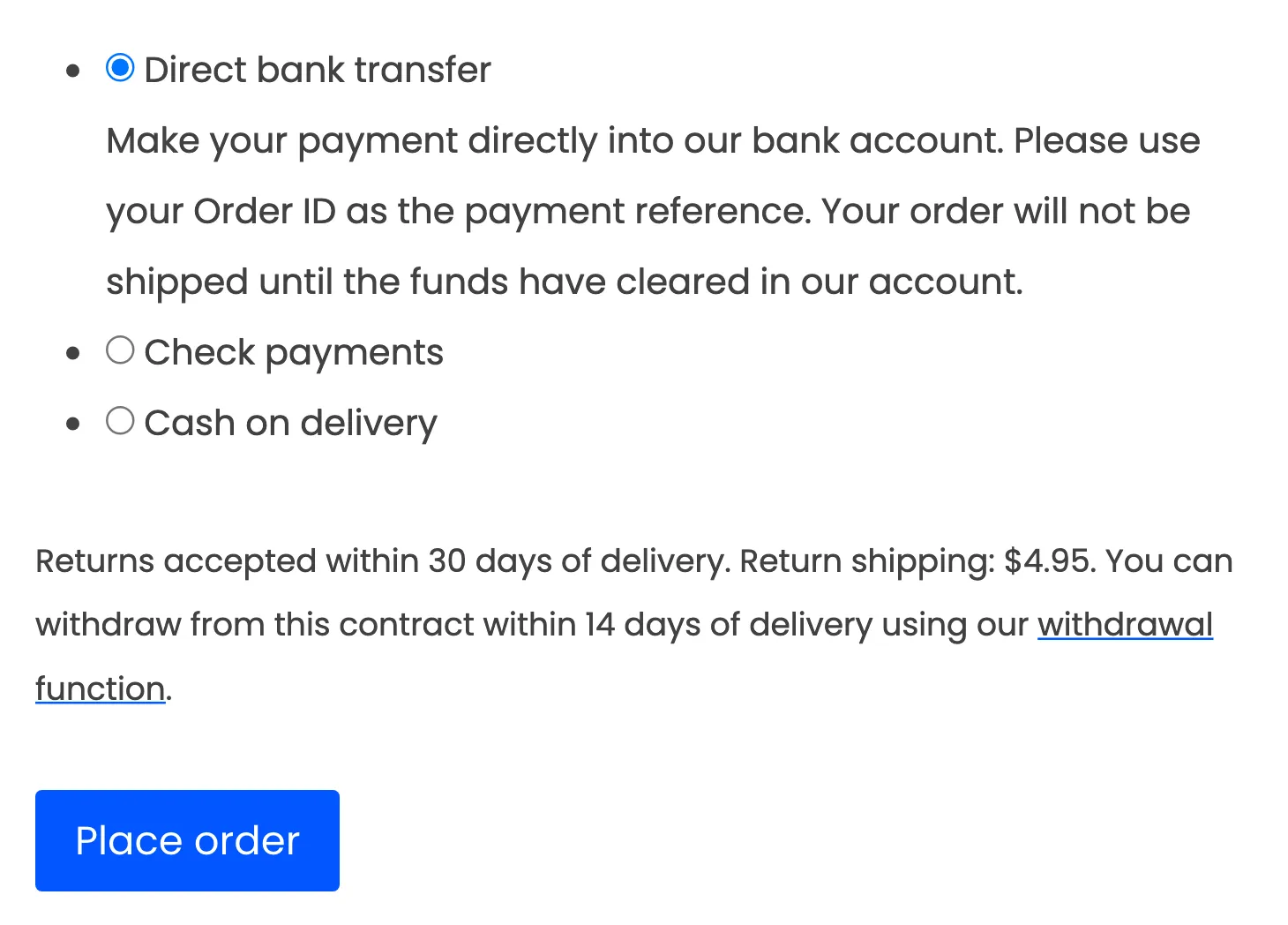
Amended Article 6(1)(h) asks you to tell consumers about “the existence and placement of the withdrawal function”. WPReturns shows that line above the Place order button when the Checkout option on the Return Policy tab is on.
The words “withdrawal function” link to the withdrawal page. Add one matching sentence to your withdrawal policy page that says where the footer link lives.
5Checkout > Above Place order
Building this by hand means a form, order matching, emails, spam limits and a log. The EU withdrawal button feature ships all five in the free plugin.
Which Settings Decide Who Sees the Button
Four settings on the EU Withdrawal tab decide which orders get the button and for how long. They are the country scope, the withdrawal period, the start of the period and the exemptions. Each default follows the directive, and most stores only change the scope or the exemptions.
These are the fields to check before launch:
- Set “Offer it for orders from” to EU and EEA countries, All countries or Countries I choose. The plugin reads the billing country of the order.
- Keep “Withdrawal period (days)” at 14 or more. The field refuses anything shorter.
- Pick “When the order is completed (delivered)” or “When the order is placed” in “Period starts”. The first one matches Article 9 when you complete orders on delivery.
- Use “Exempt categories” for goods exempt under Article 16 such as made-to-order or sealed hygiene goods. Each product also has its own “Exempt from withdrawal” box.
- Turn on “Digital content” if you sell downloads. Checkout then shows a required consent checkbox when the cart holds downloadable products.
Article 16 lists the exceptions, and the plugin hides only what you flag. Point (c) covers goods made to the consumer’s specifications or personalized for them. Point (e) covers sealed goods that are unfit for return for health or hygiene reasons once unsealed after delivery.
Flag only products that fit those exact words. Flagging too much takes a legal right away from customers who still have it.
Worth checking: A “Final sale” product is still open to withdrawal unless you also tick “Exempt from withdrawal”. Your return policy can refuse it, but the legal right comes from the directive and outlives your policy.
The digital content option rests on Article 16(m). The right ends once supply has begun “with the consumer’s prior express consent” and their acknowledgment that they lose the right. WPReturns saves the time of consent on the order and confirms it in the order emails.
What Customers See When They Withdraw
Customers see a short Right of withdrawal page, a statement form and a Withdrawal received screen. Guests type the order number and the order email, while logged-in customers pick the order from a list. No reason is asked at any point, because the directive needs none.
The statement form asks for “Your name”, “Order number” and “Email for the confirmation”. When the customer arrives from one of their own orders, it also lists the goods with a checkbox per item. That lets a customer withdraw from part of an order.
Withdraw from contract > Withdrawal statement
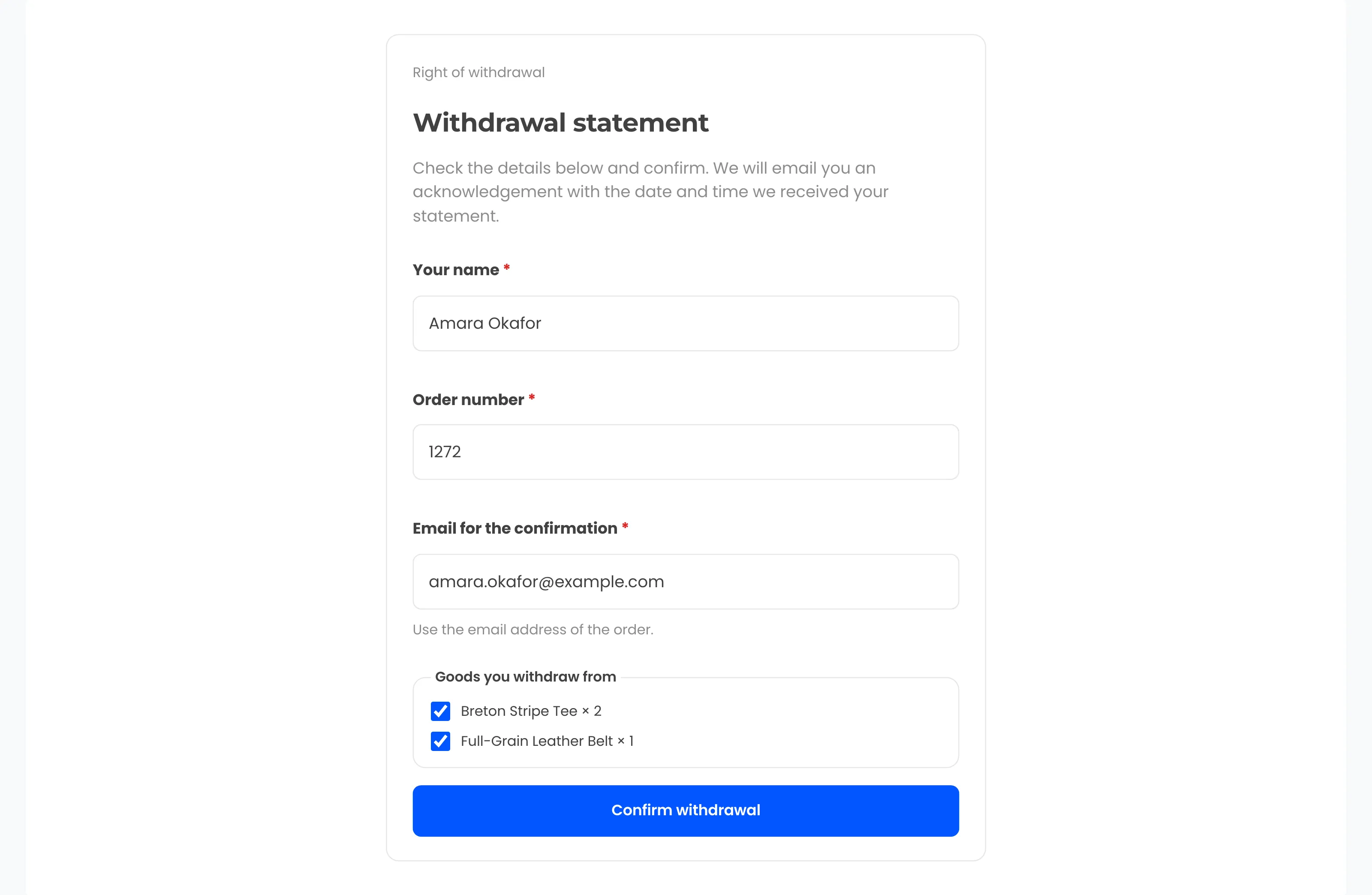
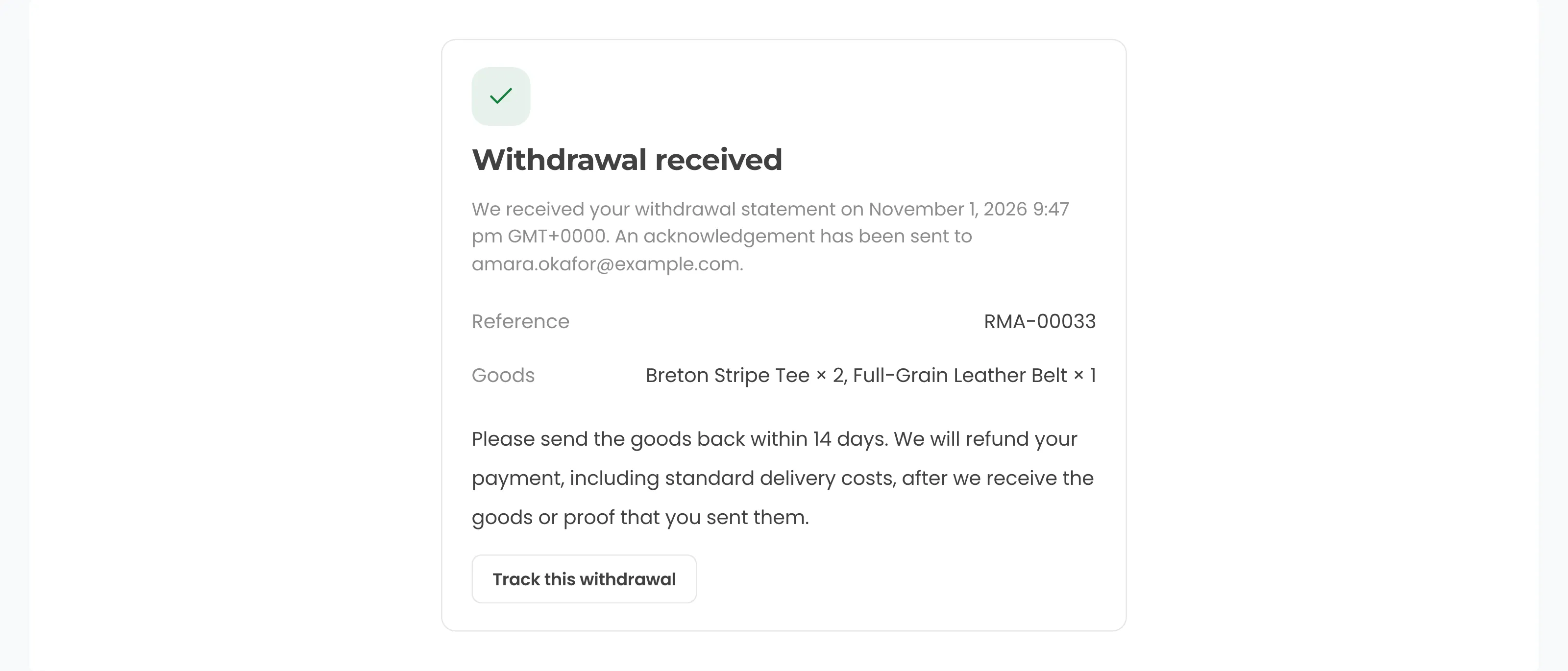
Pressing “Confirm withdrawal” records the statement with the time it arrived. The next screen shows that time, the email the acknowledgement went to, a reference such as RMA-00033 and the goods.
Withdraw from contract > Withdrawal received
Tip: The “Attempts per hour” field limits each visitor on the withdrawal form and the guest order lookup. The default of 5 stops people using your form to email strangers.
The withdrawal form docs show the logged-in and guest views side by side.
What Happens After a Customer Confirms
When the customer clicks “Confirm withdrawal”, WPReturns saves the statement and sends the acknowledgement email at once. The statement becomes an EU withdrawal request on the Withdrawals screen. Your team approves it, marks the goods received and refunds it through WooCommerce.
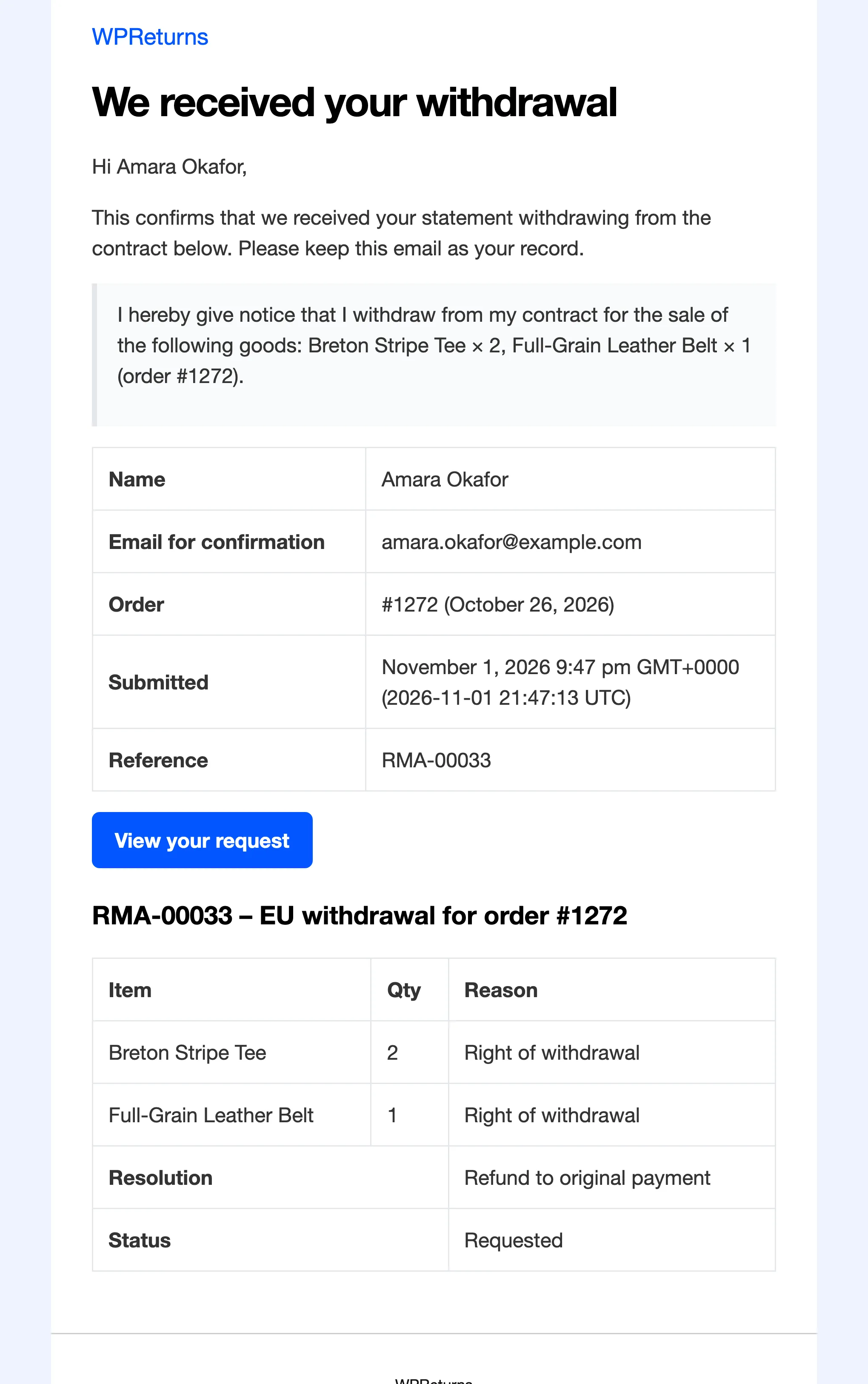
The acknowledgement email quotes the statement word for word. It lists the name, the confirmation email, the order, the submitted time in store time and UTC, and the reference. The model text in Directive (EU) 2023/2673 gives email as an example of a durable medium.
Email > We received your withdrawal
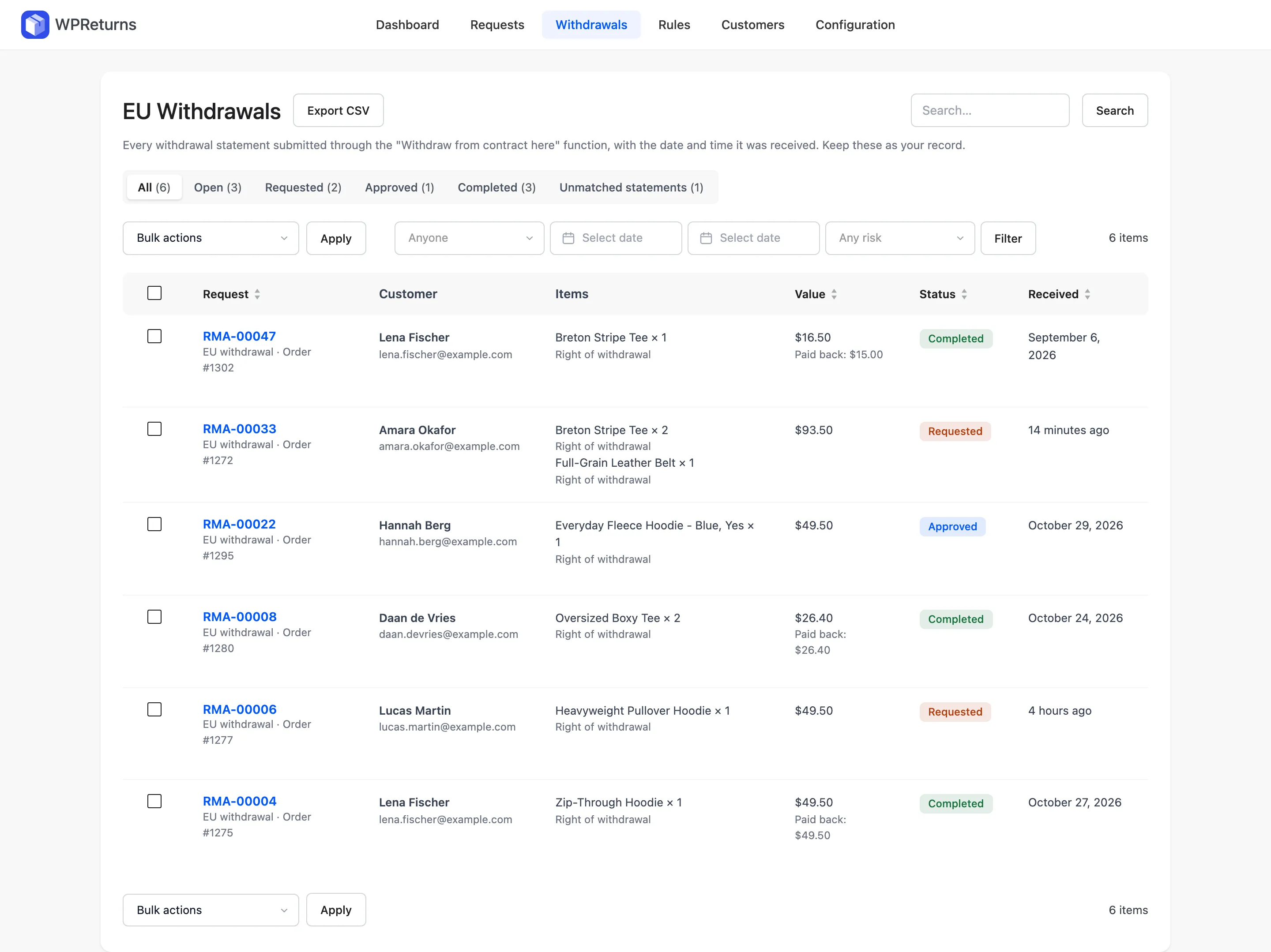
Every statement lands on the EU Withdrawals screen at DevDiggers Plugins > WPReturns > Withdrawals. Withdrawals cannot be deleted, and auto-reject rules and automatic closing skip them. The Export CSV button gives you the record a customer or an authority might ask for.
WPReturns > Withdrawals
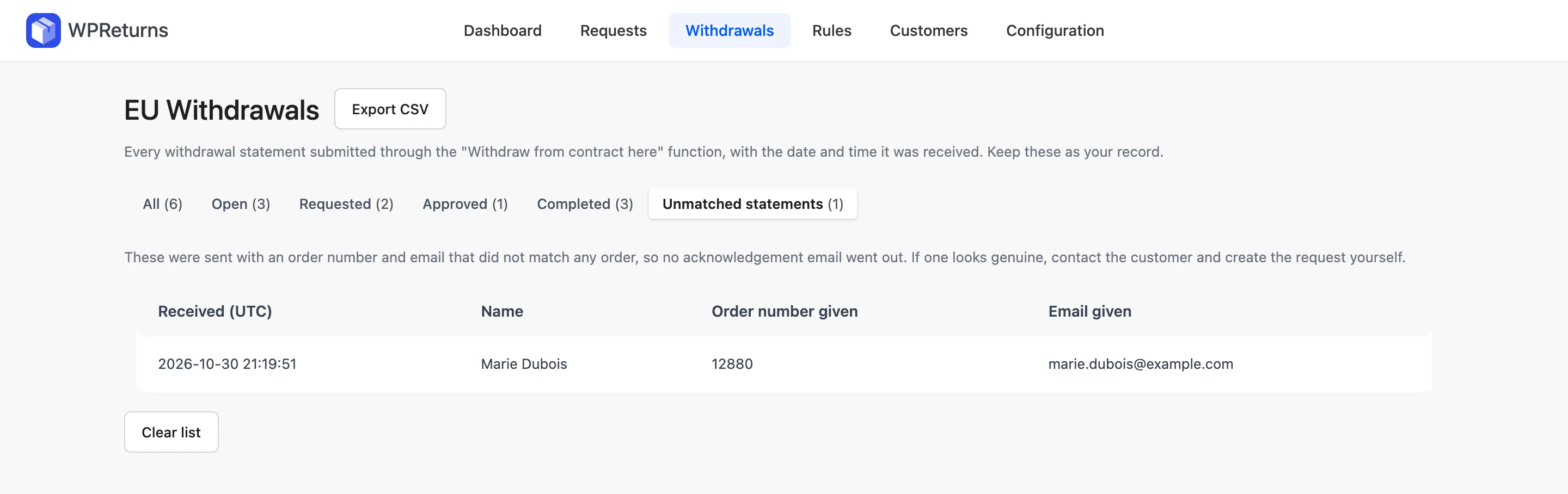
A statement whose order number and email do not match goes to the Unmatched statements tab. No email goes out for it.
The tab keeps the latest 200 statements and a real withdrawal with a typo stays there. Contact those customers yourself.
WPReturns > Withdrawals > Unmatched statements
The refund follows Article 13. You may withhold it until the goods come back or the customer shows proof of sending, whichever comes first. Refunds go through your gateway when it supports them, as the WooCommerce refunds docs describe.
WPReturns offers only a refund on a withdrawal, because Article 13 requires the same means of payment unless the customer agrees otherwise. Return shipping fees and restocking fees never apply to withdrawals. The withdrawals log docs explain each column.
Switching from another withdrawal plugin? The import tab brings old withdrawals from Germanized, Easy Return and BuddyPilot into the same log.
How to Test the Withdrawal Flow Before a Customer Does
Test the EU withdrawal button with one fake order before you announce anything. Place an order with a German billing address, mark it Completed and walk through the link as a guest. A clean run ends with an acknowledgement email in the inbox and a matching row on the Withdrawals screen.
Run these checks in order:
- Open the footer link in a private window to test the guest path. Enter the order number and billing email and confirm the withdrawal.
- Open the acknowledgement email. It should quote the statement and show the date and time it was received.
- Find the statement on the Withdrawals screen and export the CSV. Check that the time matches the email.
- Try the form again with an email that does not match the order. Nothing should reach that address, and the statement should appear under Unmatched statements.
- Add a product you flagged as exempt to a test order. It should show grayed out in the statement and not count toward the withdrawal.
Place one more test order with a US billing address. With the default EU and EEA scope, that order should show no withdrawal link in its emails or in My Account.
What the Free Plugin Covers and What Pro Adds
The free WPReturns plugin covers the whole EU withdrawal flow with no limits. That includes the link, the statement, the confirm step, the acknowledgement email, the model form, the exemptions, the digital consent box and the CSV log. Pro adds features for normal returns, and none of them is needed for compliance.
Most withdrawal plugins on WordPress.org stop at compliance. The most installed one listed 6,000+ active installs, and none we checked handled returns, exchanges or warranty. Compared on October 30, 2026.
WPReturns pairs the withdrawal function with a WooCommerce returns portal in the same free plugin. Pro adds store credit, exchanges, return rules and prepaid labels for your own policy. The free vs Pro comparison lists the exact split.
Our guide on store credit vs refunds explains why credit never replaces the refund on a withdrawal.
Conclusion
To add the EU withdrawal button to WooCommerce you need one plugin and one settings tab. Keep the default labels, the footer link and the order email link. If you enabled Order Withdrawal in WooCommerce 11.1, turn it off so customers see a single form.
The settings that need your judgment are the country scope, the period start and the Article 16 exemptions. Run the five test checks with a fake German order before you rely on it.
You can download the free plugin and have the whole flow live today.