Emails
The Emails tab lists every email WPReturns sends. Each one is a standard WooCommerce email that uses your WooCommerce email template. You switch emails on or off here and edit the subject, heading, text and recipients under WooCommerce > Settings > Emails.
Available in: Free and Pro (the ship-by reminder is Pro)
Where to find it
Section titled “Where to find it”DevDiggers Plugins > WPReturns > Configuration > Emails
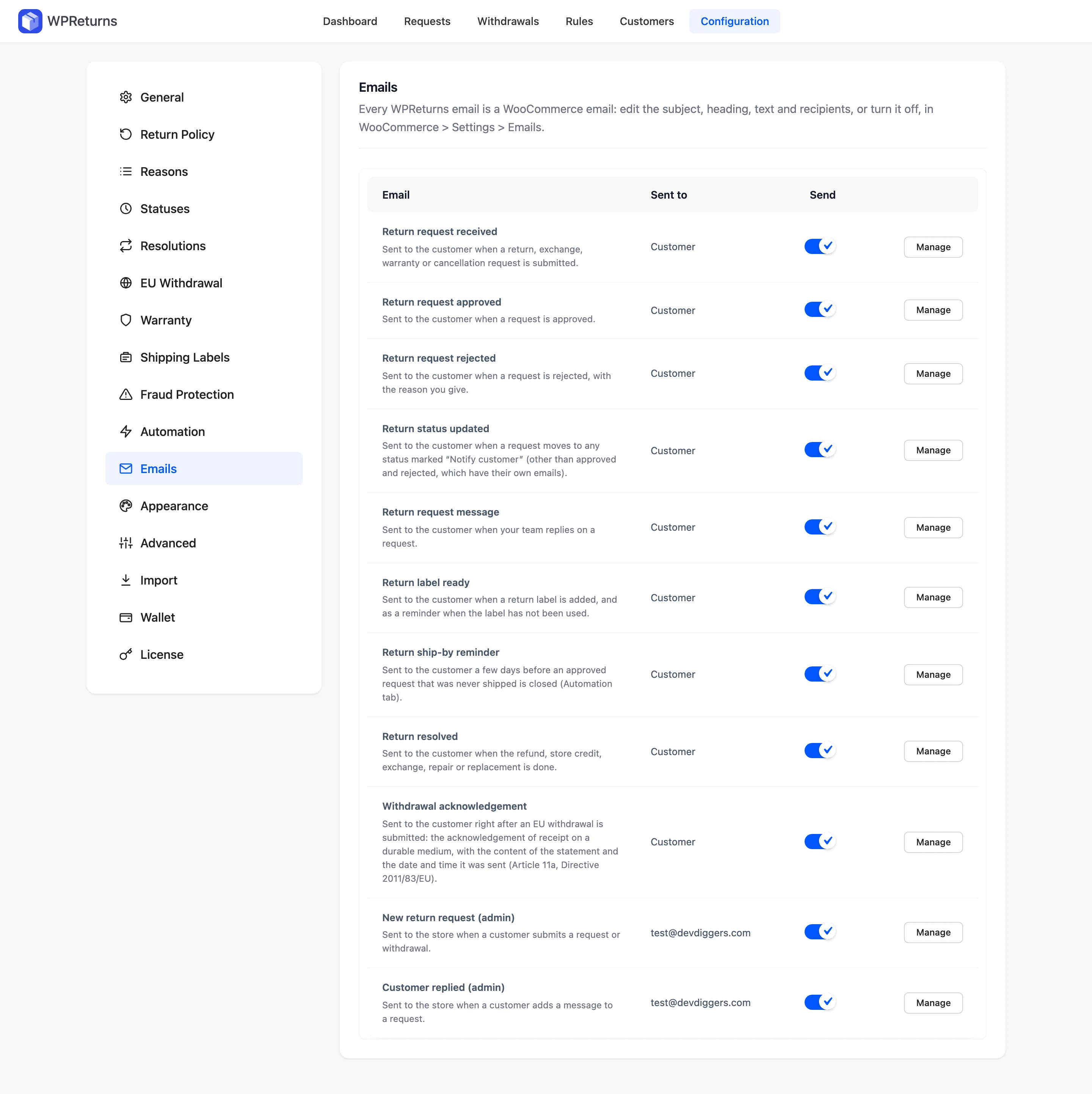
The tab has no Save button. Each Send toggle saves as soon as you click it.
Columns
Section titled “Columns”| Column | What it shows |
|---|---|
| The email title and when it is sent. | |
| Sent to | Customer, or the admin recipient address. |
| Send | Turns the email on or off. |
| Manage | Opens the email’s settings in WooCommerce. |
Email list
Section titled “Email list”| Sent to | When | |
|---|---|---|
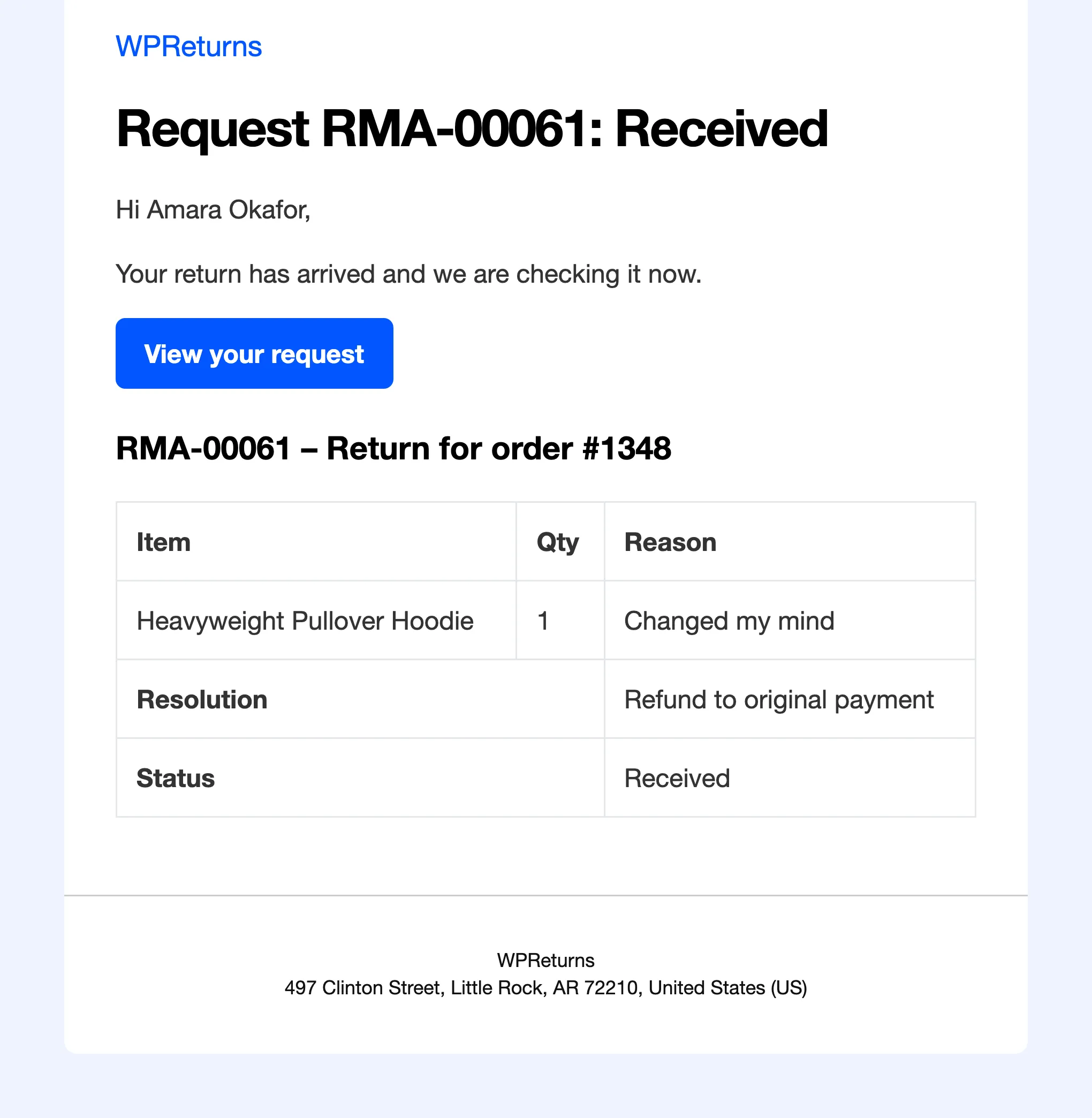
| Return request received | Customer | A return, exchange, warranty or cancellation request is submitted. |
| Return request approved | Customer | A request is approved. |
| Return request rejected | Customer | A request is rejected with the reason you give. |
| Return status updated | Customer | A request moves to any status with “Notify customer” on, other than approved and rejected. |
| Return request message | Customer | Your team replies on a request. |
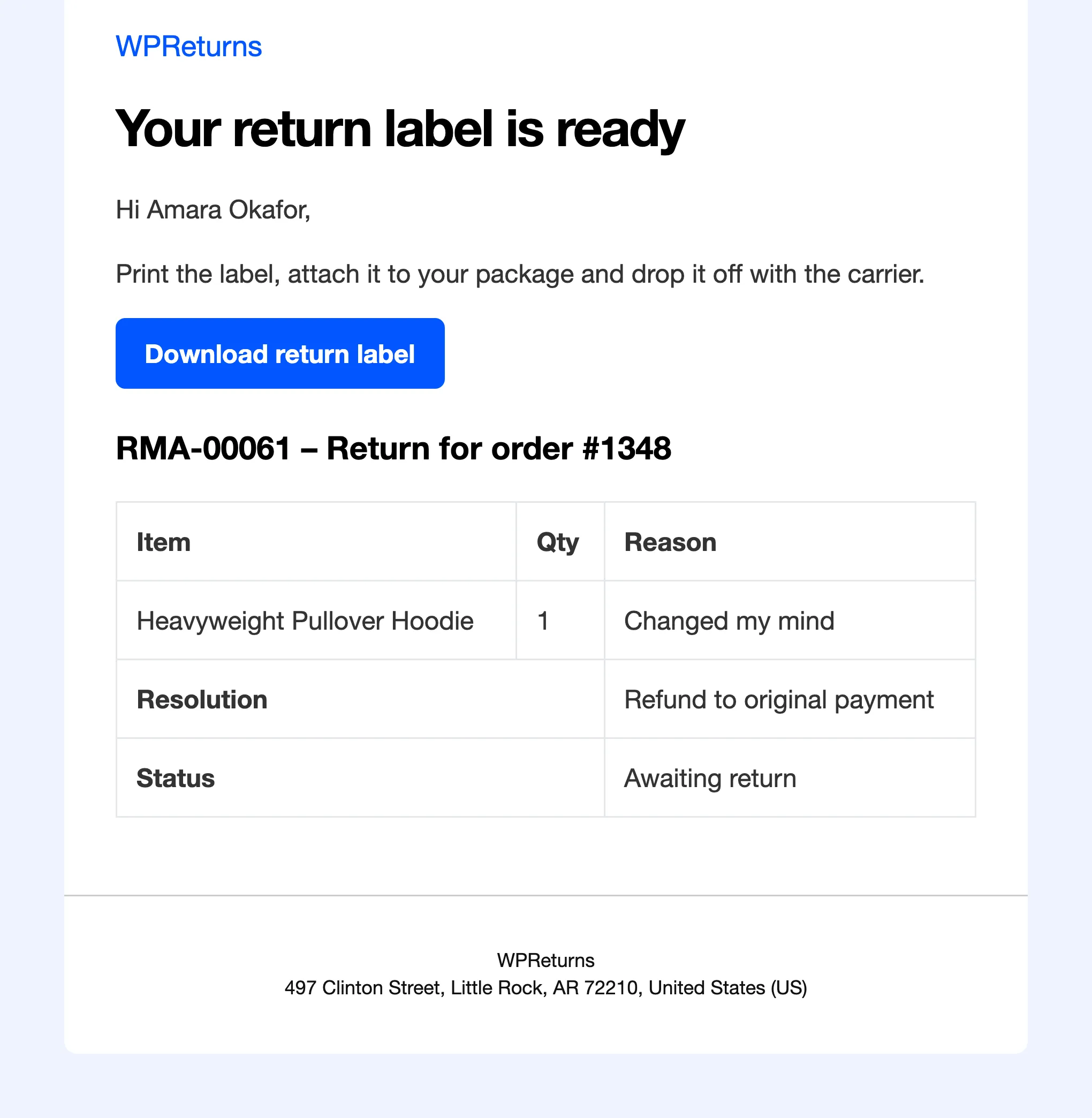
| Return label ready | Customer | A return label is added. Also sent as the unused-label reminder, which does not delay automatic closing. |
| Return ship-by reminder (Pro) | Customer | A few days before an approved request that was never shipped is closed. |
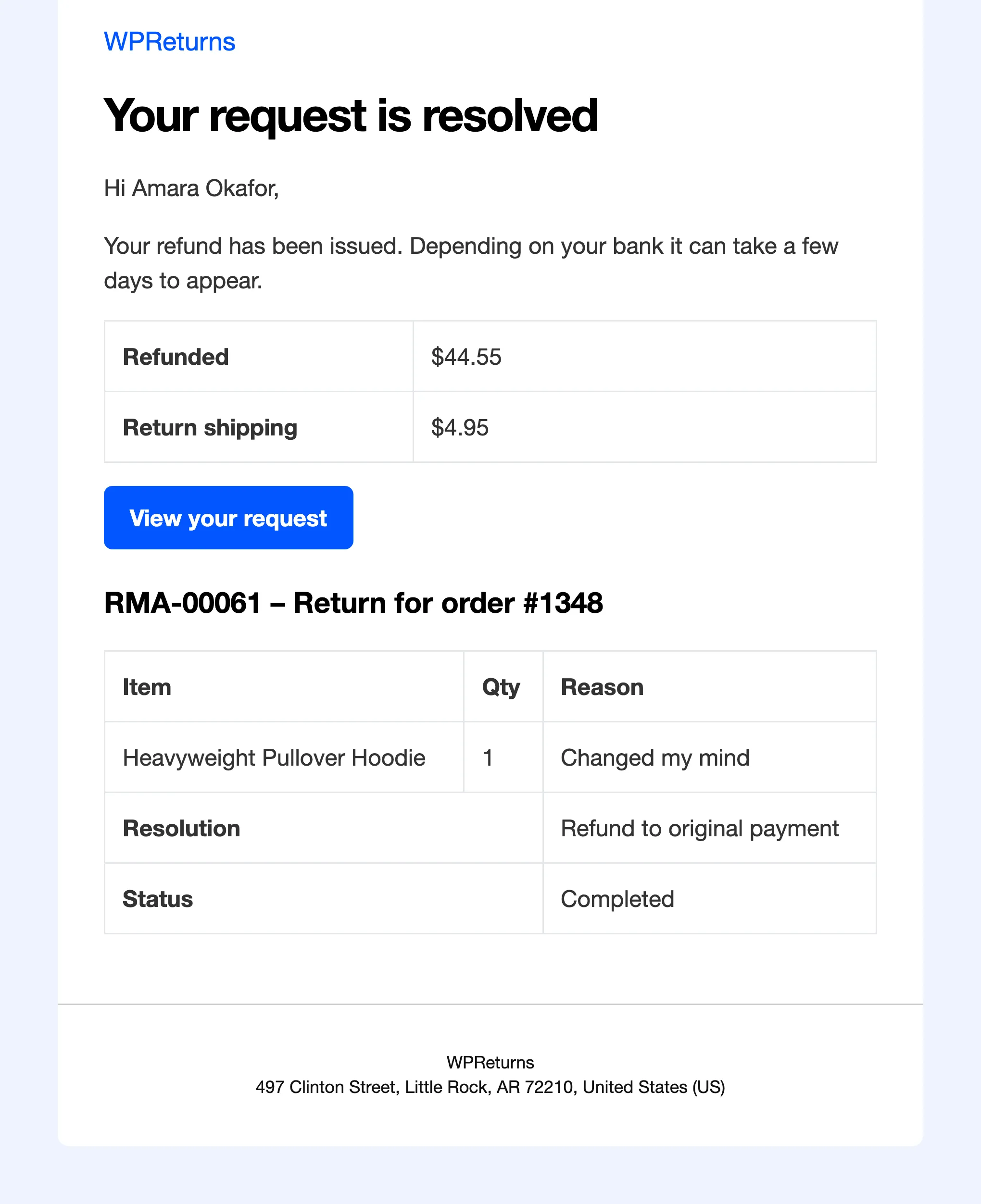
| Return resolved | Customer | The refund, store credit, exchange, repair or replacement is done. Its status line reads Completed. |
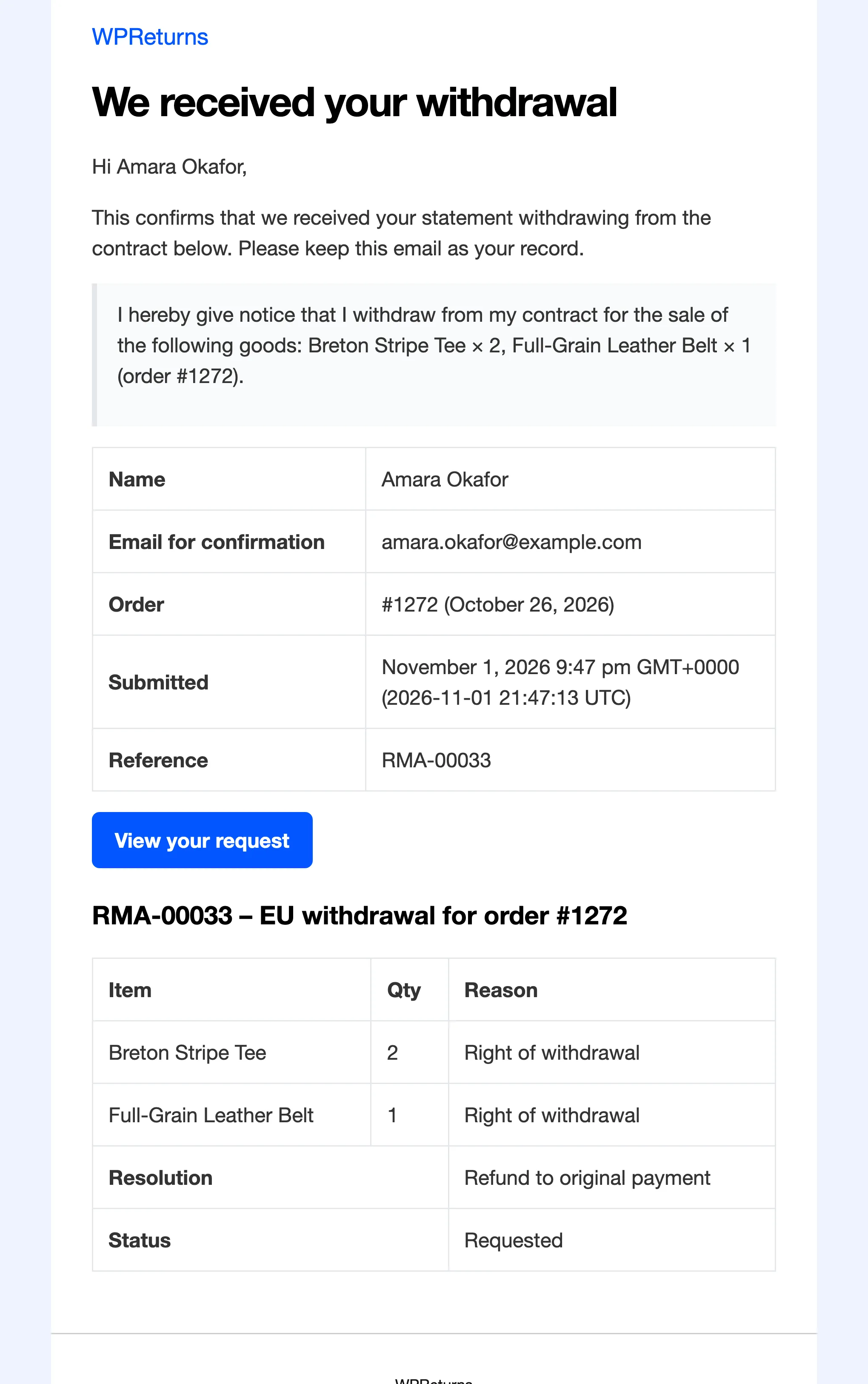
| Withdrawal acknowledgement | Customer | Right after an EU withdrawal is submitted. Goes to the email typed in the statement. Holds the statement and the date and time it was sent. |
| New return request (admin) | Store (admin email by default) | A customer submits a request or a withdrawal. |
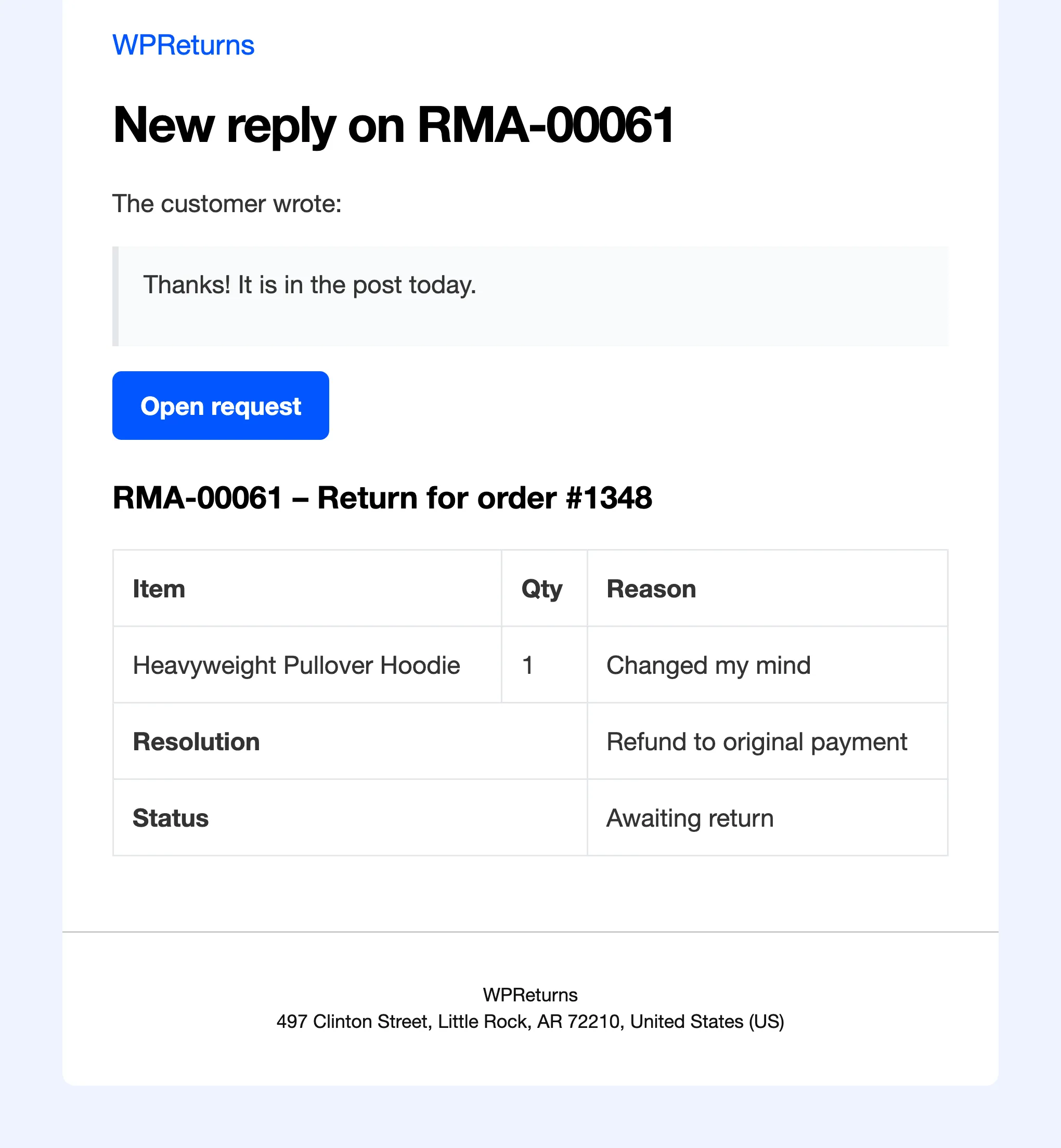
| Customer replied (admin) | Store (admin email by default) | A customer adds a message to a request. |
What the emails look like
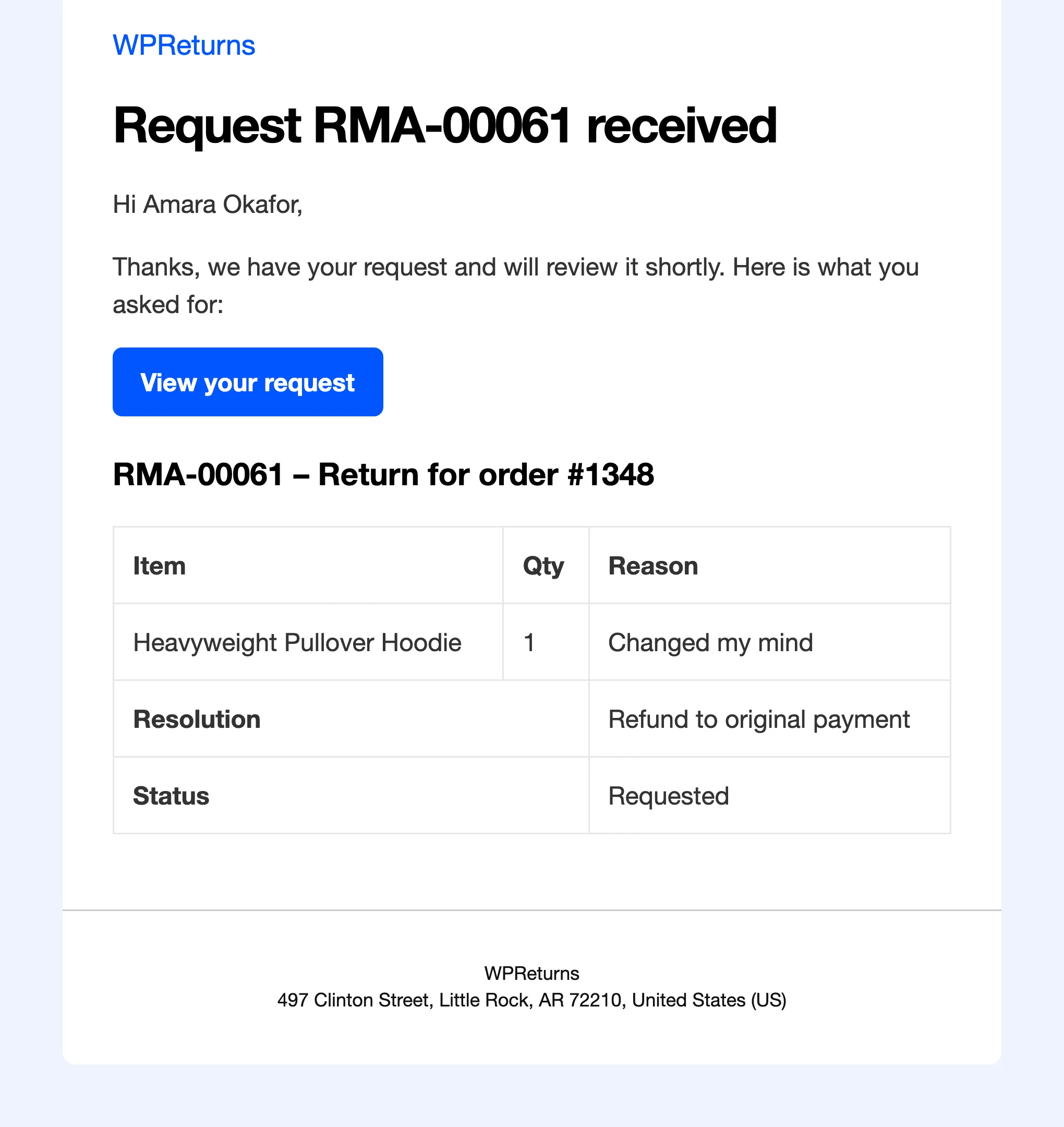
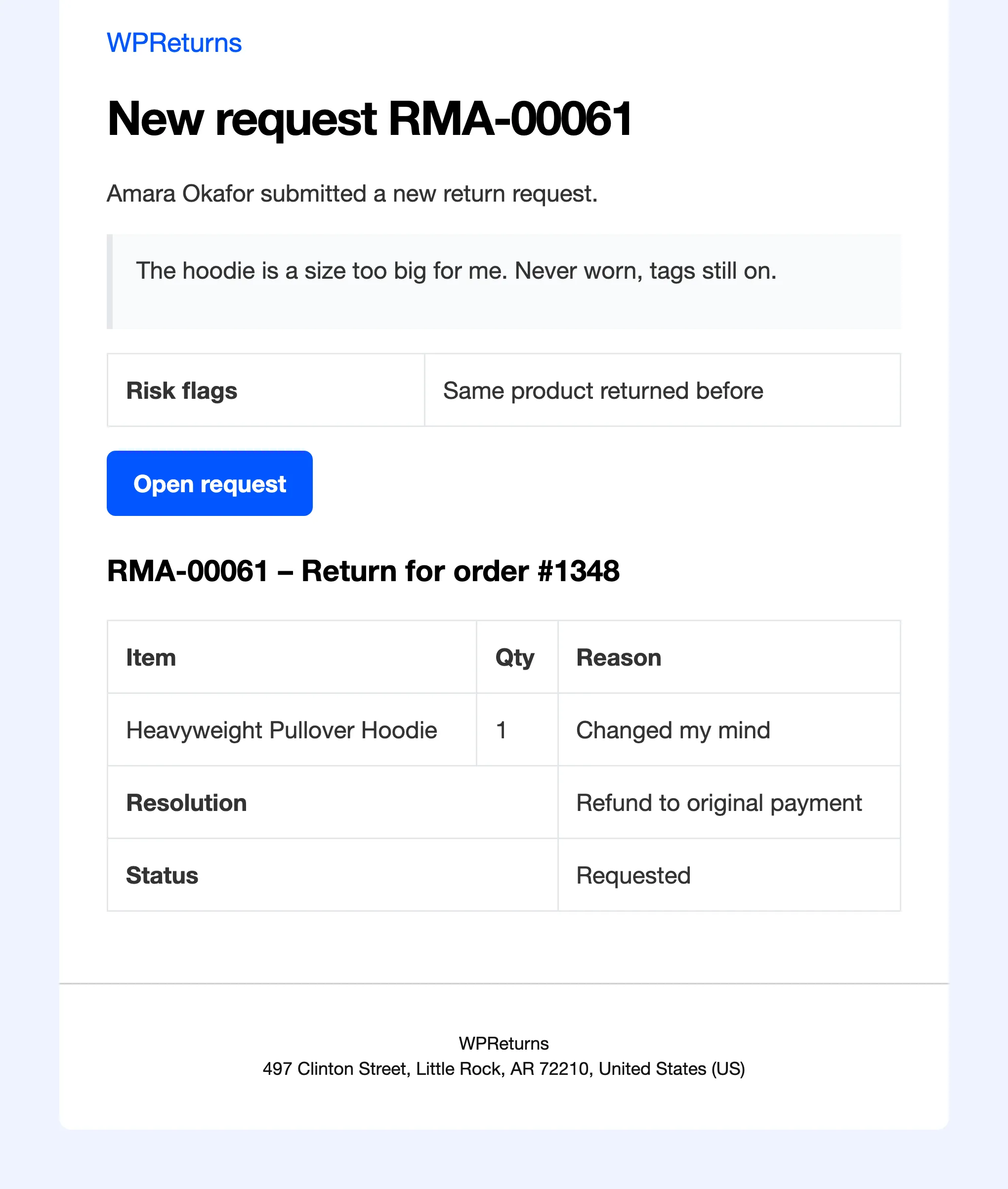
Section titled “What the emails look like”Each email shows the request number, the items, the resolution and the current status. Customer emails have a View your request button and admin emails an Open request button.
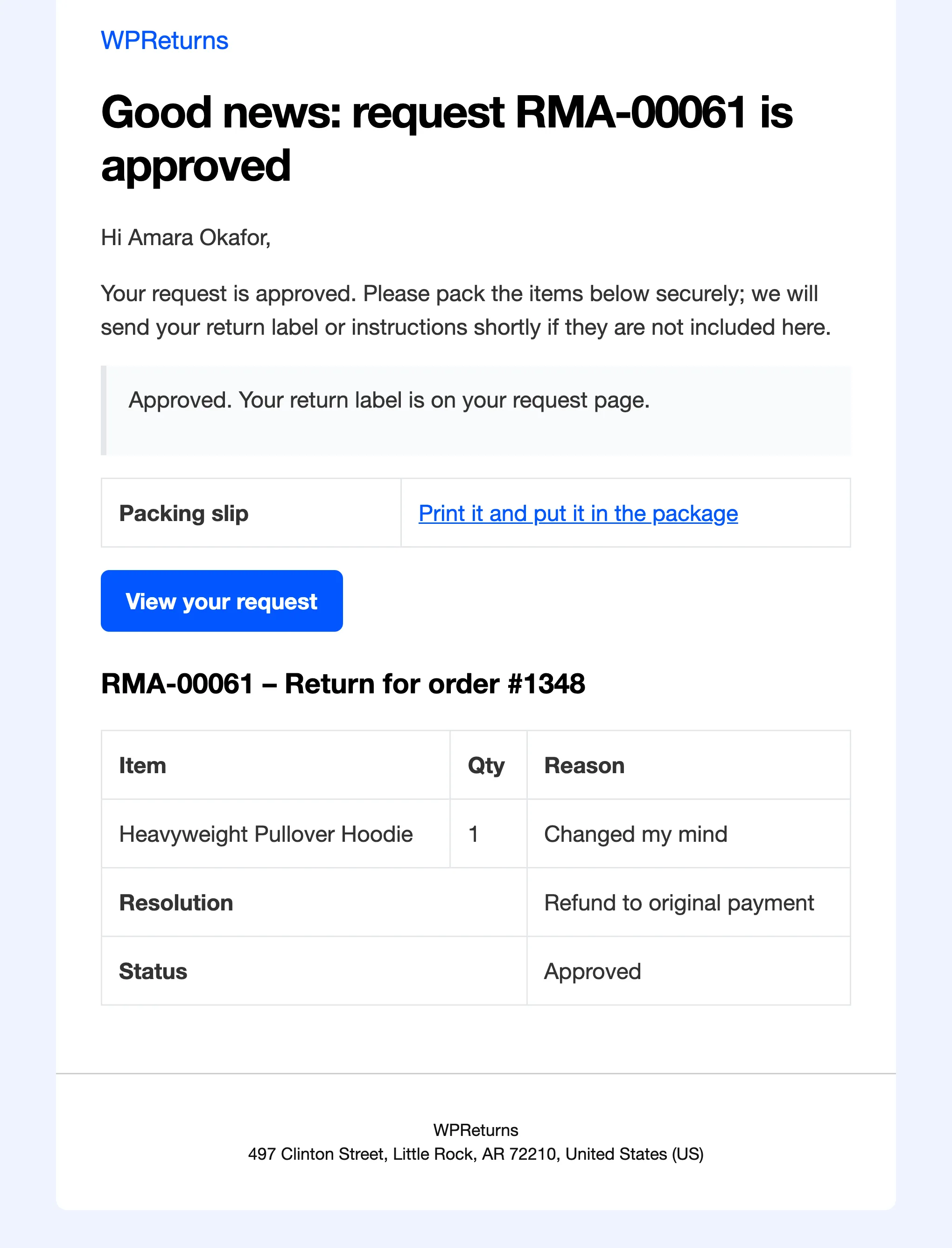
The approval email carries your message and a packing slip link.
The resolved email lists the amount paid back and any return shipping fee.
Practical notes
Section titled “Practical notes”- Keep Withdrawal acknowledgement on. Article 11a of Directive 2011/83/EU requires the acknowledgement on a durable medium.
- To send the admin emails to a returns inbox, open Manage and change the recipient. For example,
returns@example.com. - Order emails can also carry a “Withdraw from contract here” link. That setting is on the EU Withdrawal tab.
- To change the email layout, copy the template into your theme. See Template overrides.