Requests list
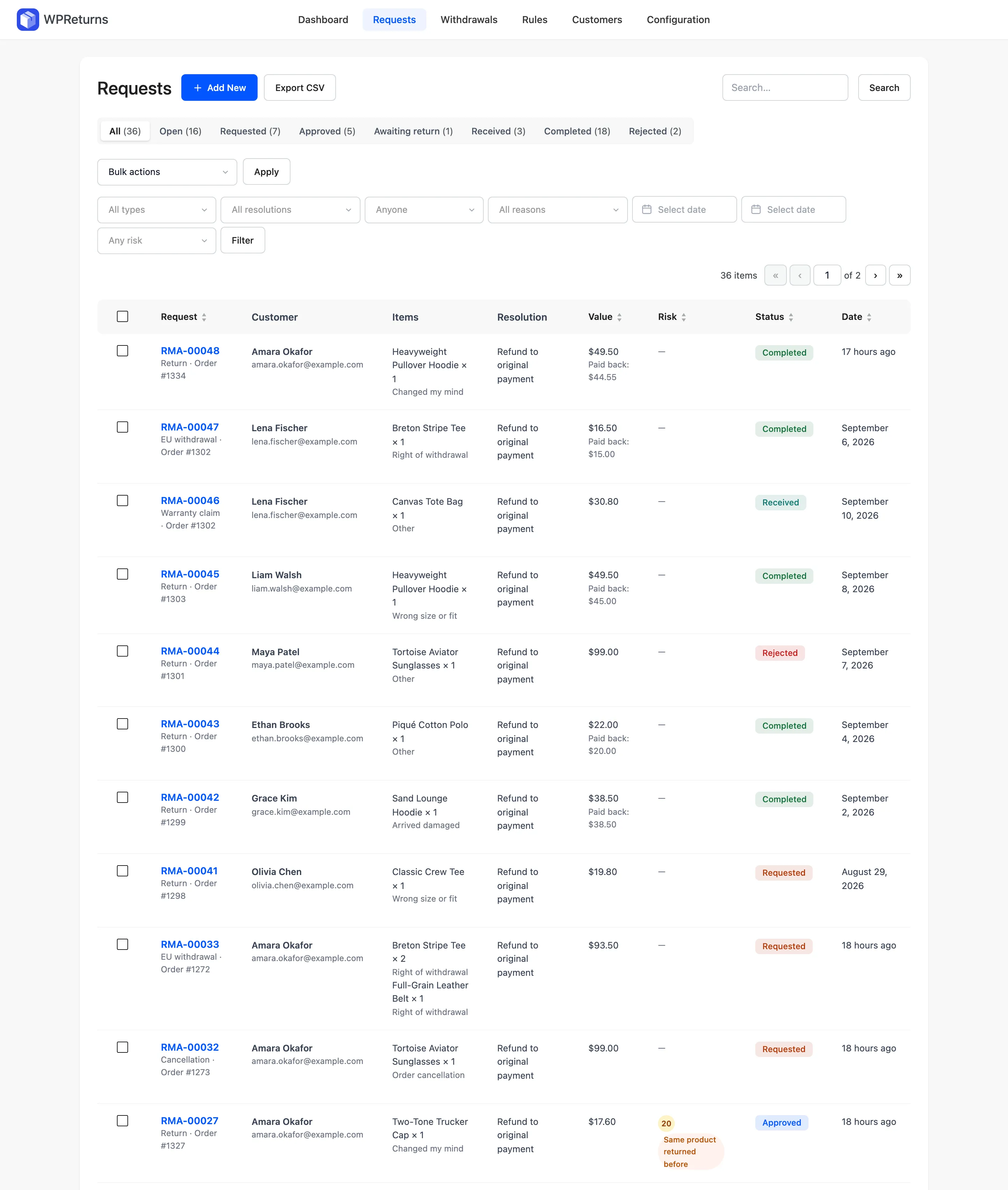
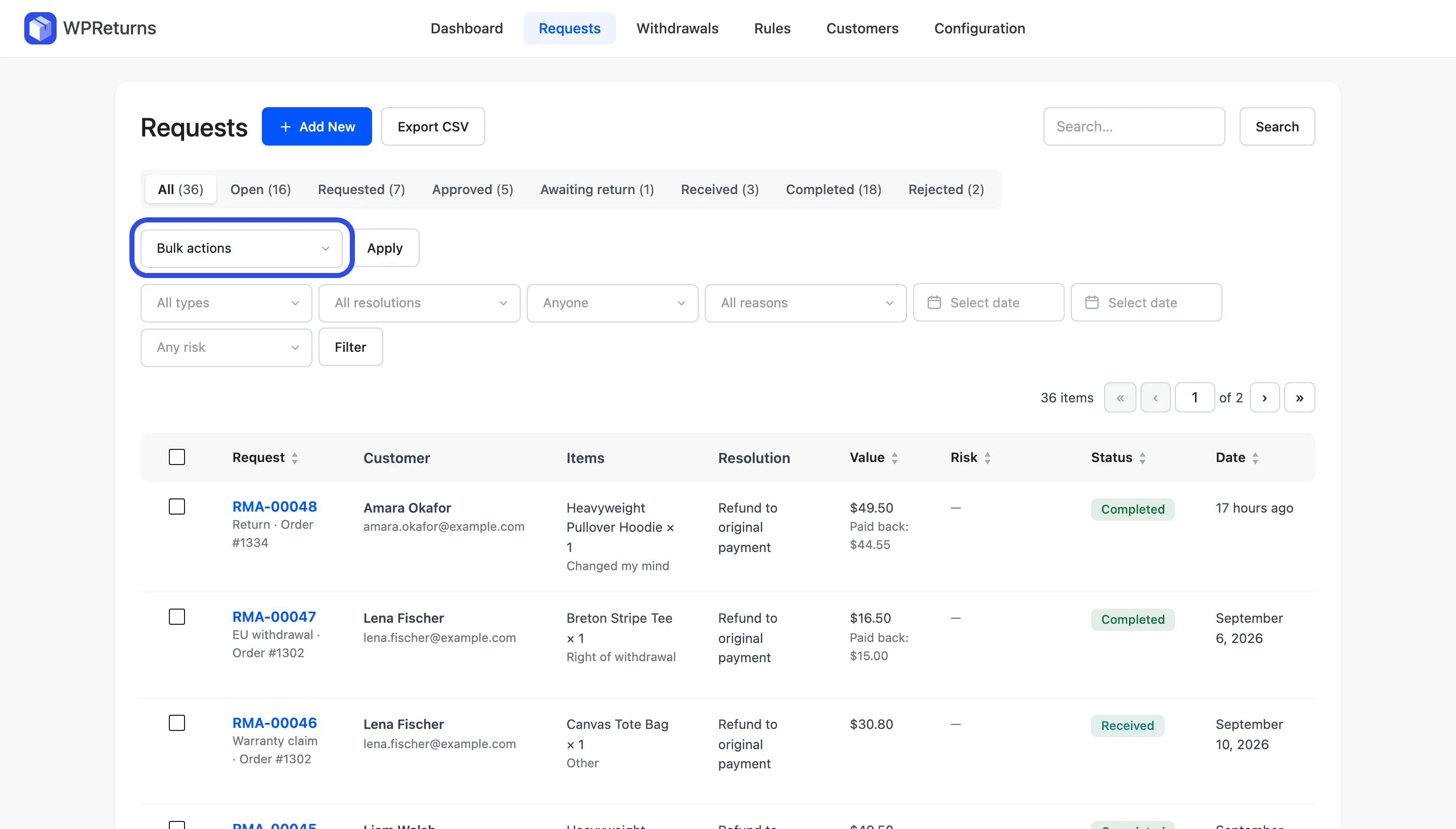
The Requests list at DevDiggers Plugins > WPReturns > Requests is where your team works through return requests. Status tabs show how many requests sit in each step, and filters narrow the list by type, reason or date. Search finds any request by RMA number, order number, customer name, email or tracking number.
Available in: Free and Pro. Bulk actions, CSV export of requests and the resolution, assignee and risk filters need Pro.
EU withdrawals have their own list under Withdrawals. See Withdrawals log.
Status tabs
Section titled “Status tabs”The tabs above the list are All, Open and one tab per status that has requests. Each shows a count.
Open holds every request that is not Completed, Rejected or Canceled. Custom statuses get their own tabs. See Statuses.
Columns
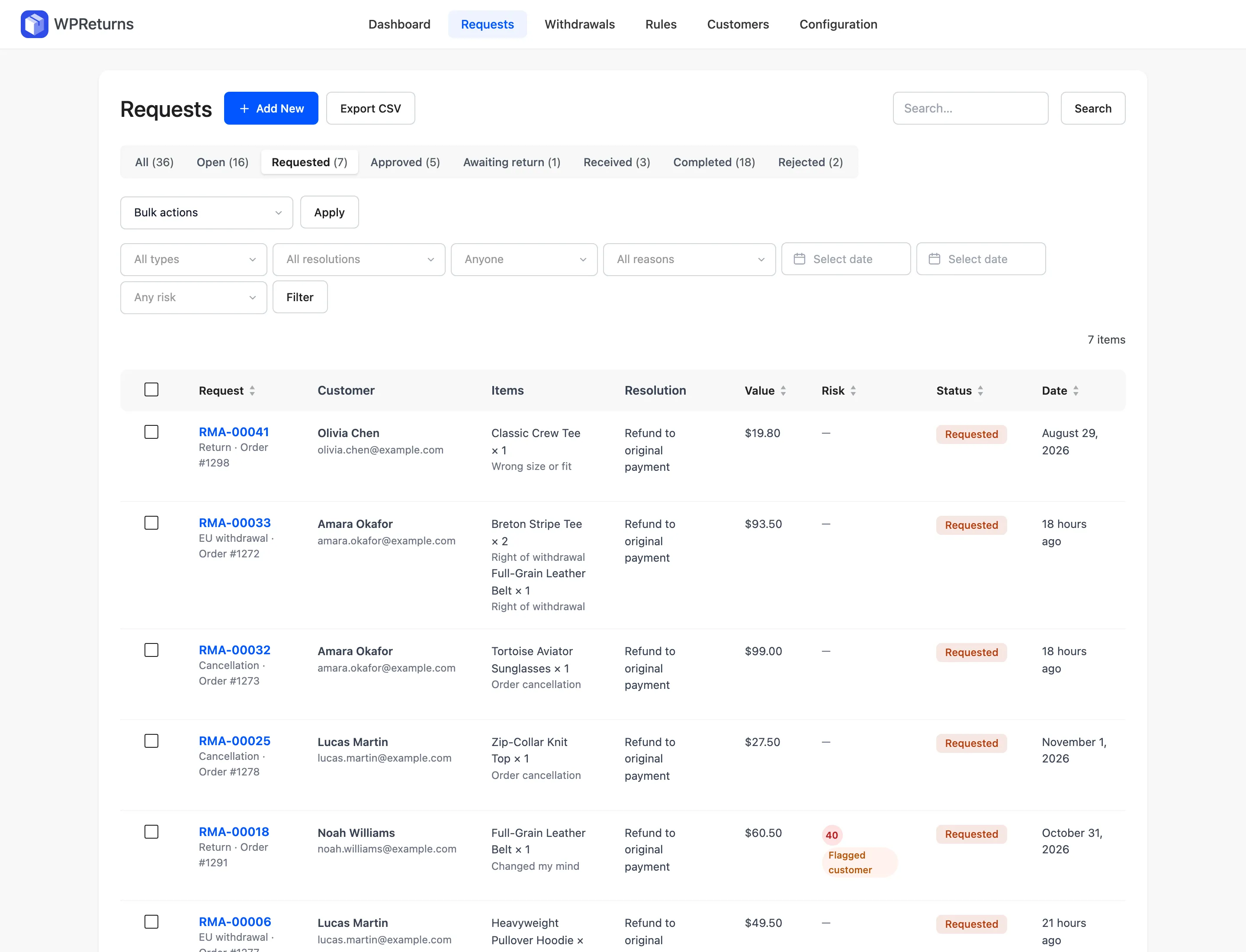
Section titled “Columns”| Column | What it shows |
|---|---|
| Request | RMA number, type and order number. Assigned requests show “Assigned: Jane Cooper”. |
| Customer | Name and email, or “Guest” for orders without an account |
| Items | Items and quantities in the request |
| Resolution | What the customer asked for, such as Refund to original payment or Store credit |
| Value | Item value. Resolved requests also show “Paid back:” with the amount. |
| Risk | Risk score and flag pills (Pro) |
| Status | Status badge in the status color |
| Date | How long ago the request came in, such as “16 hours ago”, or the date for older requests |
Select a column title to sort by Request, Value, Risk, Status or Date. Screen Options at the top sets Results per page.
Filters and search
Section titled “Filters and search”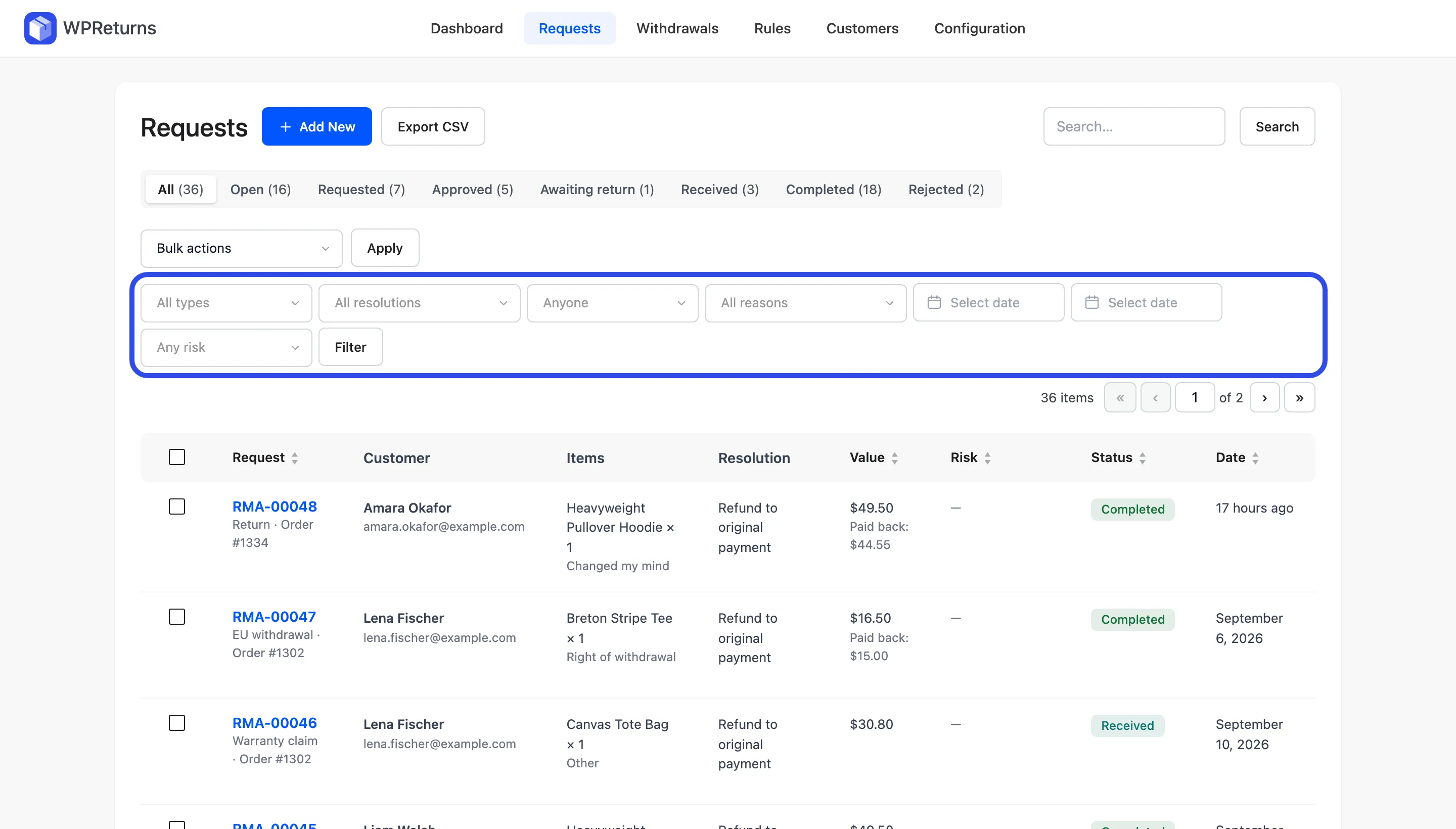
The filters sit in this order: type, resolution, assignee, reason, the two date boxes and risk.
| Filter | Options | Available in |
|---|---|---|
| Type | All types, Return, Exchange, Warranty claim, EU withdrawal, Cancellation | Free and Pro |
| Reason | All reasons and each return reason | Free and Pro |
| From date and To date | Date range of the request. Both boxes read Select date until you pick one. | Free and Pro |
| Resolution | All resolutions and each resolution | Pro |
| Assignee | Anyone, Assigned to me, Unassigned, each team member | Pro |
| Risk | Any risk, Flagged only | Pro |
Select Filter to apply them. Reset filters shows up when any filter is active and clears filters and search together.
The assignee filter only appears when more than one person can manage requests.
Search works in two ways:
- An RMA number or order number such as
RMA-01042,1042or#1042finds that request or every request for that order. - Any other text searches customer email, customer name and tracking number.
Bulk actions
Section titled “Bulk actions”Tick requests, choose a bulk action and select Apply. Bulk actions need Pro.
| Bulk action | Effect |
|---|---|
| Change status to … | Moves every selected request to that status. Customers get an email when that status has Notify on. |
| Assign to me | Assigns the requests to you |
| Delete permanently | Deletes the requests with their messages and files. Only users who can manage settings see it. EU withdrawals in the selection are skipped. |
Statuses listed under Restricted statuses need the Process refunds capability. See Customers and fraud for team capabilities.
Assign to me and the Assigned to box on the request screen only take users who can manage return requests.
Create a request for a customer
Section titled “Create a request for a customer”Customers who call, email or visit the shop can still get a tracked request.
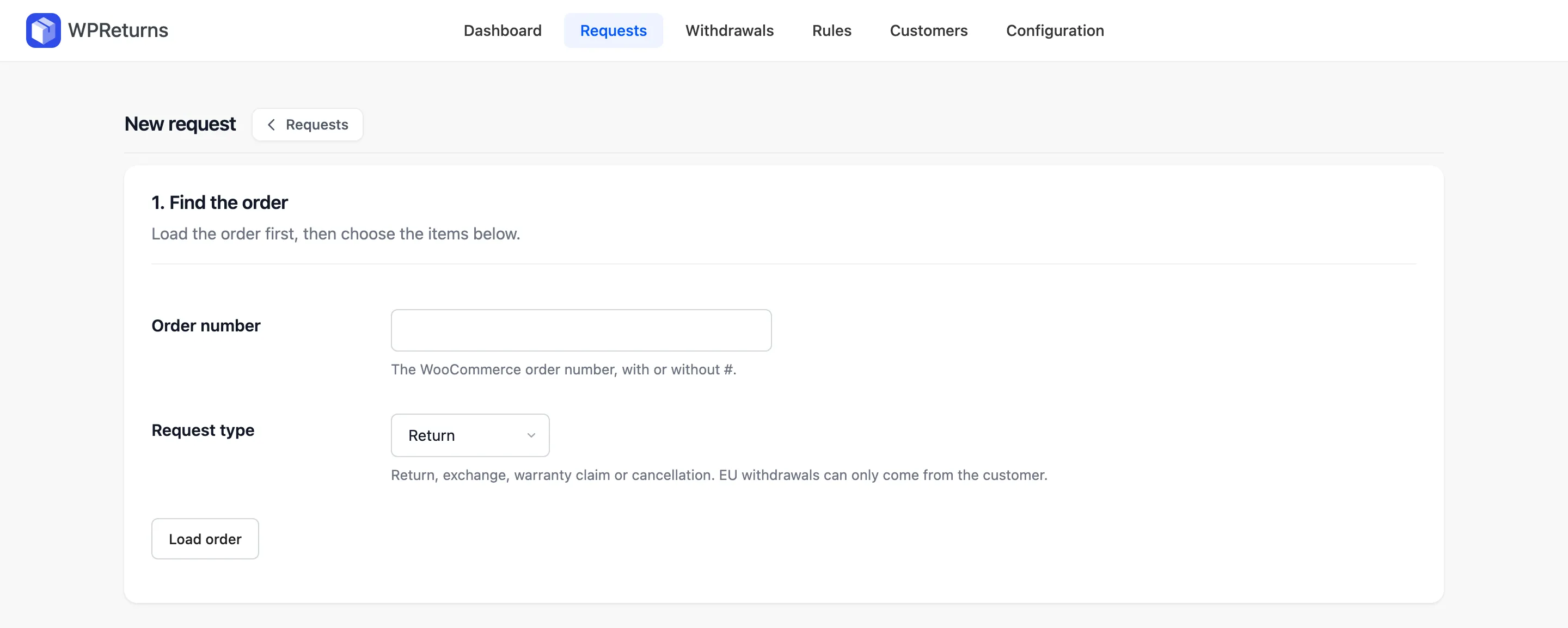
- On the Requests list, select Add New. The New request screen opens.
- Under 1. Find the order, enter the Order number with or without #.
- Pick the Request type: return, exchange, warranty claim or cancellation.
- Select Load order.
- Set a Quantity under 2. Items for each item coming back. Leave 0 for items that stay with the customer.
- Pick a Reason and Condition per item, the Resolution and an optional Note.
- Select Create request.
Return windows and rules do not block requests you create. Staff cannot create an EU withdrawal for a customer. The statement must come from the customer.
Export to CSV
Section titled “Export to CSV”Export CSV at the top of the list downloads what the list shows, with one row per item. It follows the status tab, search, type, resolution, assignee, reason, dates and risk filter.
To export every request, open the All tab with no filters or search. Export needs Pro on the Requests list and the ddwcwr_view_reports capability. The Withdrawals list has its own free export.
The file holds these columns:
Request, Order, Type, Status, Resolution, Customer, Email, Created, Closed, Item, SKU, Qty, Reason,Condition, Item value, Restocking fee, Shipping fee, Credit bonus, Resolution value, Paid back,Coupon, Exchange order, Tracking, Risk score, Risk flags, SourceReturns on the WooCommerce order screens
Section titled “Returns on the WooCommerce order screens”WPReturns also adds two things to WooCommerce > Orders. Both work with HPOS and with legacy order storage.
- a Returns column in the orders list
- a Returns & warranty box in the sidebar of the edit order screen with a link to each request
Every new request also adds an order note such as “WPReturns: RMA-01042 (Return) was created for this order.”
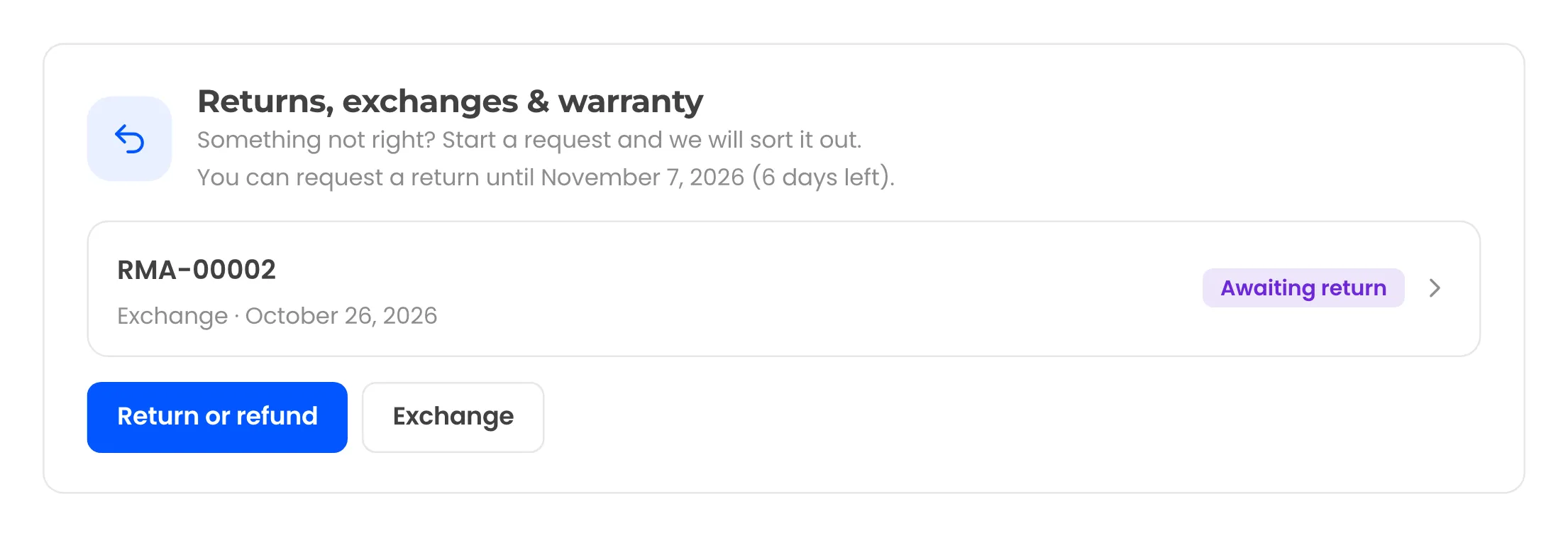
Customers see the same requests on their own order page in My Account. A Returns, exchanges & warranty panel lists them with the return deadline and buttons to start a new one. See My Account.