Return rules
Return rules change how WPReturns treats some products, customers or orders. Each rule has one type, such as a longer return window or an auto-approve decision, plus conditions that say where it applies.
Rules run by priority and the first match of each type wins. A rule only affects requests submitted after you save it.
Available in: Pro.
The free plugin has one global return window and final-sale products and categories. Those settings stay on the Return Policy tab. See Return policy.
The eight rule types
Section titled “The eight rule types”| Type | What it does | Settings |
|---|---|---|
| Return window | Gives matching items a longer or shorter window than the default | Days, Counted from (Order completed (delivered) or Order placed) |
| Non-returnable items | Matching items cannot be returned or exchanged. Warranty claims and EU withdrawals are not blocked. | Message to the customer |
| Auto-approve | Matching requests are approved as soon as they arrive | Message to the customer |
| Auto-reject | Matching requests are rejected with your message. EU withdrawals are never auto-rejected. | Message to the customer |
| Restocking fee | Deducts a fee from the refund of matching items. Not applied to EU withdrawals or store’s-fault reasons. | Fee type (Percent of the item value or Fixed amount per item line), Fee |
| Free return shipping | Waives the return shipping fee for matching orders | None. Use conditions such as an order total. |
| Require photos | Customers must upload photos for matching items | Photos needed |
| Keep it (returnless refund) | Matching items stay with the customer. They still get the resolution. | None |
Create a rule
Section titled “Create a rule”- Go to DevDiggers Plugins > WPReturns > Rules and select Add New. The Add rule screen opens.
- Enter a Name for your own reference such as “Sale items are final”.
- Pick the type under What it does. The fields for that type appear below it.
- Fill in the settings for the type.
- Under Applies to, fill in the conditions. Leave a condition empty to match everything.
- In the Publish box, set Status to Active and a Priority. A new rule starts at Active with priority 10.
- Select Save rule.
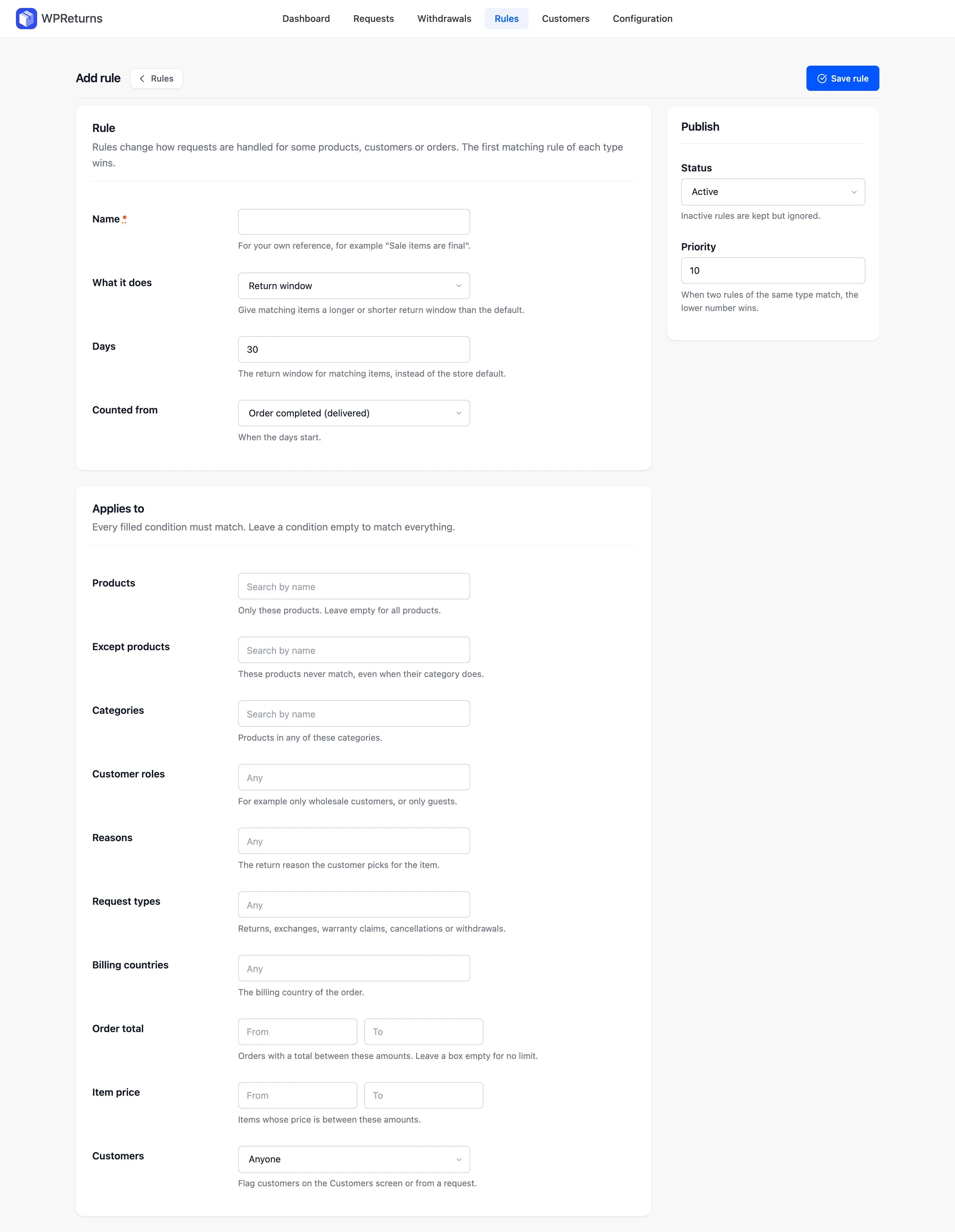
To change a rule, select its name on the list. The Edit rule screen has the same fields.
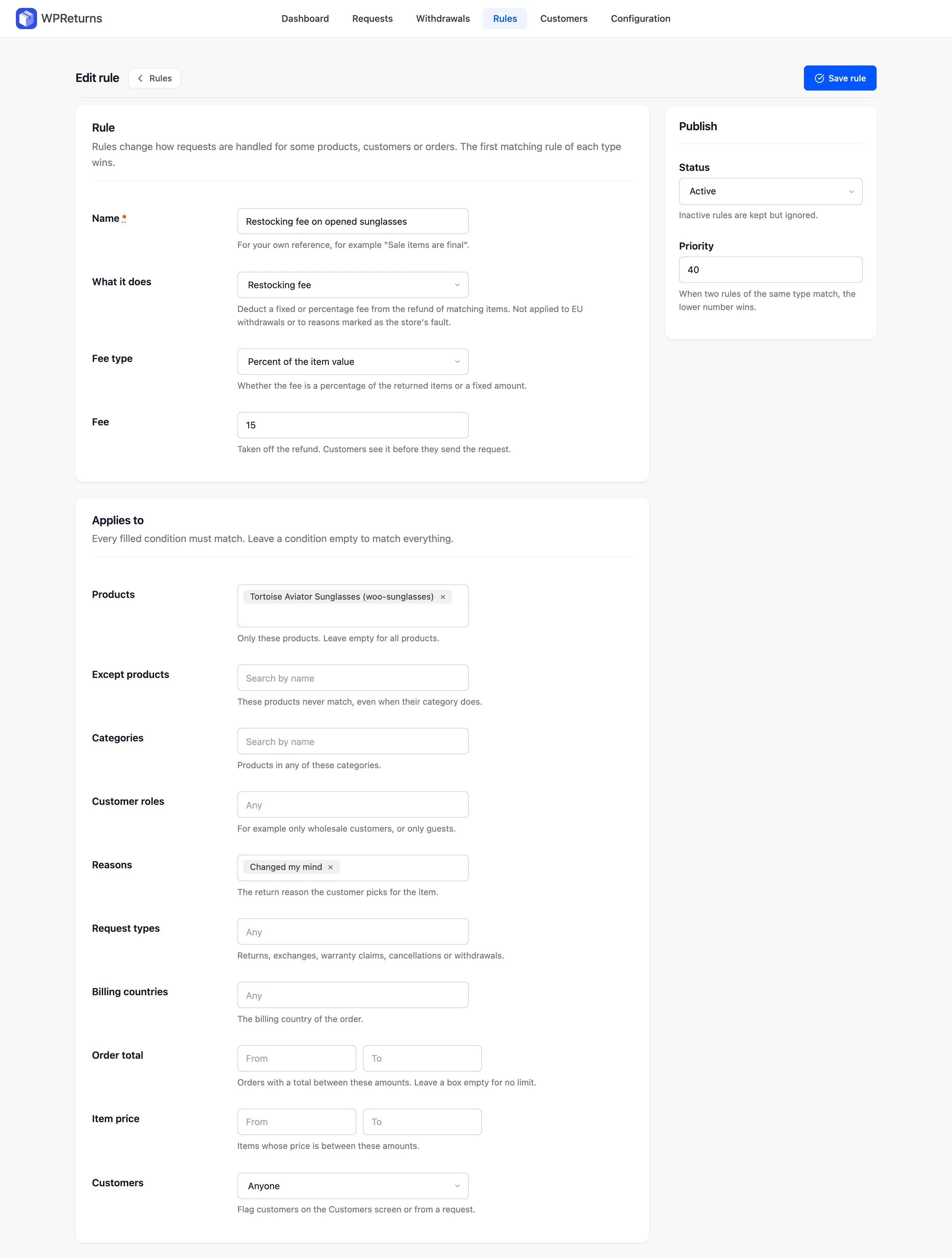
Conditions
Section titled “Conditions”Every filled condition must match for the rule to apply.
| Condition | Matches |
|---|---|
| Products | Only these products |
| Except products | Never these products even when their category matches |
| Categories | Products in any of these categories |
| Customer roles | Users with these roles. “Guest” covers orders without an account. |
| Reasons | The return reason picked for the item |
| Request types | Returns, exchanges, warranty claims, cancellations or withdrawals |
| Billing countries | The billing country of the order |
| Order total | Orders with a total between From and To |
| Item price | Items priced between From and To |
| Customers | Anyone, Only customers who are not flagged or Only flagged customers. Flag customers on the Customers screen or from a request. |
Leave a From or To box empty for no limit on that side.
Priority and order
Section titled “Priority and order”Rules run from the lowest priority number up. For windows, fees and approve or reject decisions, the first matching rule of each type wins.
A Return window rule beats the global window from the Return Policy tab. Products that match no rule keep the global window.
Status set to Inactive keeps a rule without using it.
Example rules
Section titled “Example rules”| Goal | Type | Conditions |
|---|---|---|
| 60-day returns for wholesale buyers | Return window of 60 days | Customer roles: Wholesale customer |
| Underwear is final sale | Non-returnable items | Categories: Underwear |
| Approve small returns at once | Auto-approve | Item price: To 25 |
| Free returns on big orders | Free return shipping | Order total: From 150 |
| Photos for high-value items | Require 2 photos | Item price: From 300 |
| Let customers keep cheap items | Keep it (returnless refund) | Item price: To 10 |
How rules show up for customers
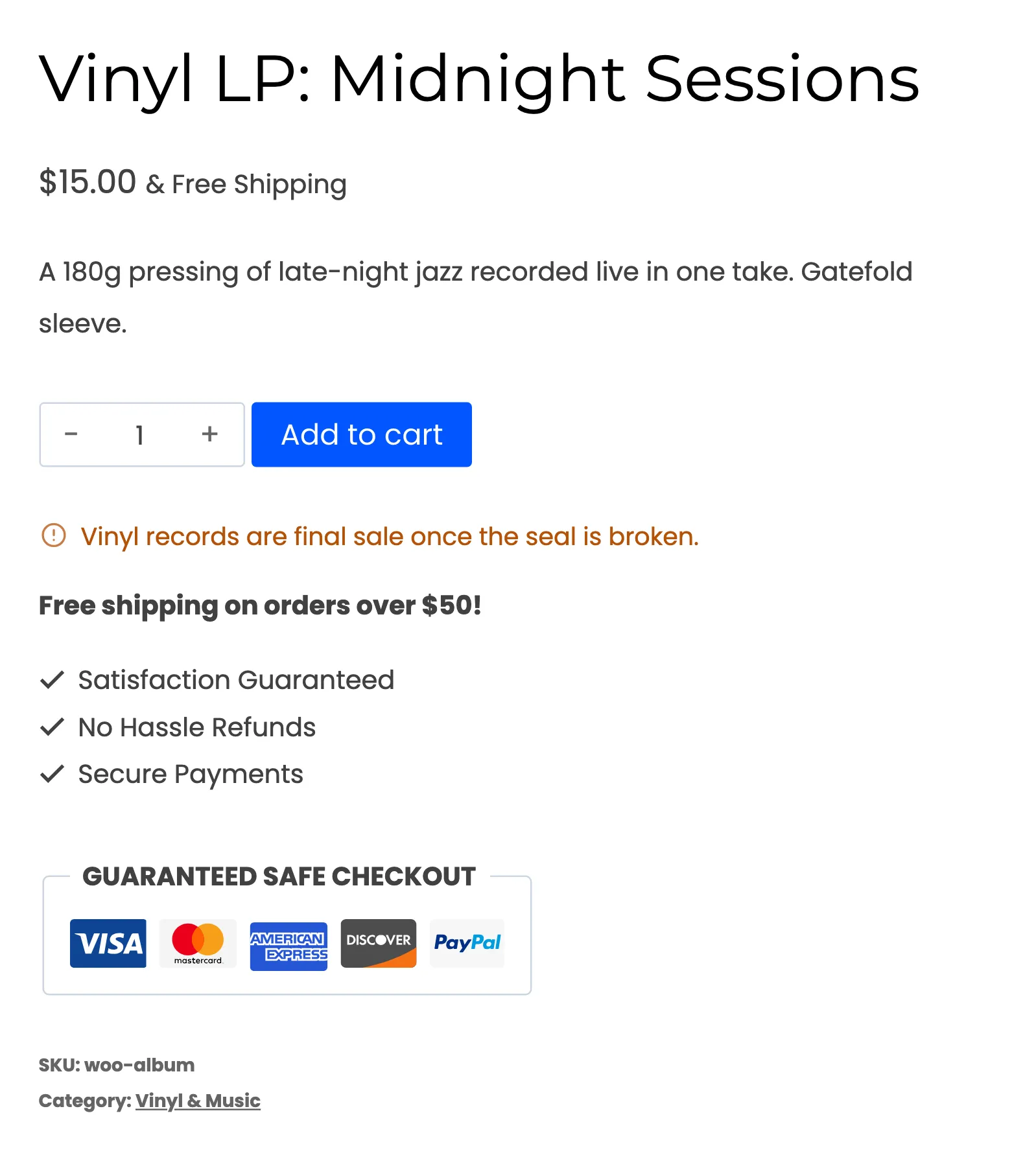
Section titled “How rules show up for customers”- Non-returnable items appear grayed out on the request form with your message.
- Product pages show the rule’s window or the non-returnable message. See Product page and checkout.
- Restocking fees and return shipping show on the request form and on the request page before anything is resolved.
- Keep-it items show “No need to send this one back.”
- Rejected requests carry your message in the rejection email.
The request history logs auto decisions such as “Auto-approved by rule #4.”
Flagged customers’ requests always wait for a person, even when an Auto-approve rule matches. See Customers and fraud.
The rules list
Section titled “The rules list”The Rules list shows Name, Type, Applies to, Priority and Status. Type adds the main setting under it, such as “60 days”, “15%” or “2 photos”. Status reads Active or Inactive.
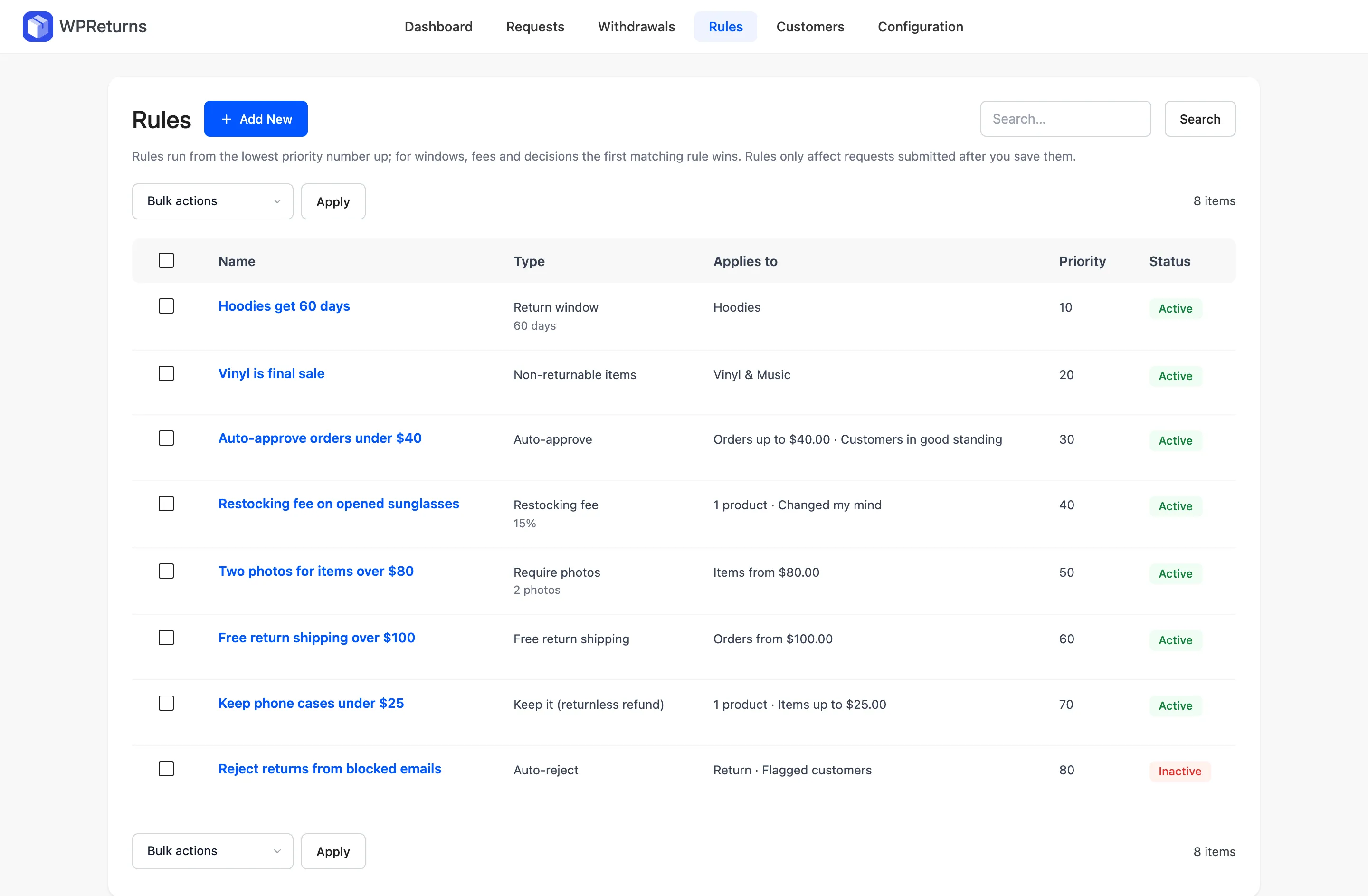
Applies to lists every condition the rule has, joined by dots:
- the number of products, such as “1 product”, and excluded products, such as “Except 2 products”
- category names, customer roles, reasons, billing countries and request types, such as “Hoodies” or “Return”
- order amounts such as “Orders up to $40.00”, “Orders from $100.00” or “Orders from $50.00 to $200.00”
- item value ranges such as “Items from $80.00” or “Items up to $25.00”
- “Customers in good standing” or “Flagged customers” when the rule limits customers
A rule with no conditions reads “Everything”.
Row actions are Edit, Activate or Deactivate, and Delete. Bulk actions can activate, deactivate or delete several rules at once. Search finds rules by name.
Developers can add their own conditions with the ddwcwr_rule_matches filter. See Hooks.