DevDiggers Wallet
WPReturns works with DevDiggers Wallet to keep return money in your store. Store credit and refunds can go straight to the customer’s wallet balance with no coupon code to copy. Orders paid fully or partly from the wallet return that share to the wallet on their own.
Available in: Pro. DevDiggers Wallet itself is a separate plugin, WooCommerce Wallet by DevDiggers, with a free and a Pro version.
What the integration does
Section titled “What the integration does”| Feature | What happens | Needs |
|---|---|---|
| Store credit to the wallet | Store credit is added to the wallet balance | Wallet (free or Pro) and a customer account |
| Refunds to the wallet | Refund goes to offers The customer’s DevDiggers Wallet | Wallet (free or Pro) and a customer account |
| Wallet payments go back | An order paid with the wallet payment method is refunded to the wallet by Wallet itself | Wallet (free or Pro) |
| Split payments handled | For orders paid partly from the wallet, that share goes back to the wallet and the rest to the card | Wallet Pro |
WPReturns detects Wallet at runtime. There is nothing to connect or configure beyond activating it.
Set it up
Section titled “Set it up”- Install and activate DevDiggers Wallet.
- Go to DevDiggers Plugins > WPReturns > Configuration > Wallet and check that it reads “Connected to Wallet” or “Connected to Wallet Pro”.
- On the Resolutions tab, set Pay store credit as to DevDiggers Wallet balance (account holders).
- Select Save Changes.
You can still choose per request on the request screen. See Wallet settings and Resolution settings.
The Wallet tab
Section titled “The Wallet tab”Without Wallet, the tab reads Turn refunds into repeat sales and explains what Wallet adds. A badge shows Not installed or Installed, not active. A button shows the next step: Get DevDiggers Wallet, Install the free version or Activate DevDiggers Wallet.
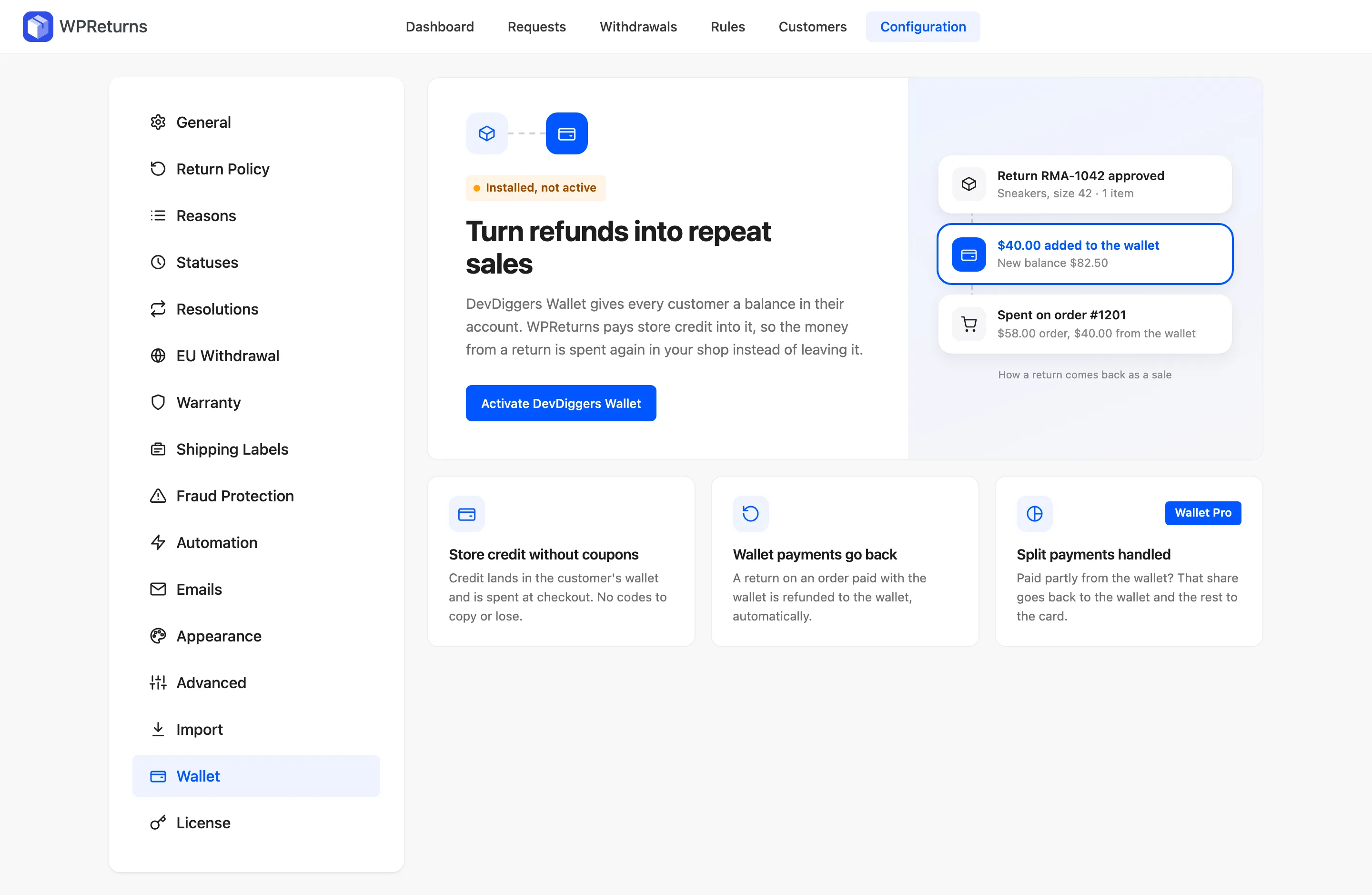
Both states show “How a return comes back as a sale”. It walks from an approved return to the wallet credit and the next order paid with it. Three feature cards follow: Store credit without coupons, Wallet payments go back and Split payments handled, tagged Wallet Pro.
With Wallet active, the tab also shows:
- the badge “Connected to Wallet” or “Connected to Wallet Pro”
- totals from Wallet’s own log: Kept in your store, Wallet payouts and Customers credited
- On, Off or Needs Pro pills on the three feature cards
- a Store credit settings button that opens the Resolutions tab
Store credit to the wallet
Section titled “Store credit to the wallet”When you resolve a request with store credit and Store credit goes to is set to the wallet:
- WPReturns adds the credit and any bonus to the wallet balance.
- Wallet’s history shows the entry “Store credit for return RMA-01042”.
- The request log reads “Added $55.00 to the customer’s wallet.”
- The order gets a WooCommerce refund record that moves no money. The bonus is left out of it.
The record keeps order totals, cashback and points in line with the return.
Refunds to the wallet
Section titled “Refunds to the wallet”On the request screen, set Refund goes to to The customer’s DevDiggers Wallet. WPReturns records the WooCommerce refund without calling the payment gateway and adds the amount to the wallet. The wallet history shows “Refund for return RMA-01042”.
Orders paid from the wallet
Section titled “Orders paid from the wallet”| How the order was paid | Where a refund goes |
|---|---|
| Fully with the Wallet payment method | Back to the wallet through the Wallet gateway. The request screen notes that refunds on this order go back to the wallet. |
| Partly from the wallet (Wallet Pro) | The wallet’s share goes back to the wallet. The rest goes where you choose. The log reads “Returned $20.00 to the customer’s wallet (the part paid from it).” |
The wallet share is paid only once. WPReturns lowers the order’s recorded wallet amount after each return. Wallet’s own full-refund handler then pays back only what is left.
Guests and limits
Section titled “Guests and limits”Every wallet transaction made by WPReturns is saved on the request. You can trace each one from the request history.