Setup wizard
The WPReturns setup wizard opens the first time you activate the plugin and takes about three minutes. It asks for the return window, what customers can ask for, how items come back and how the EU withdrawal button works. You can change every answer later under Configuration.
Available in: Free and Pro (Pro adds the License, Resolutions and Shipping steps)
When the wizard opens
Section titled “When the wizard opens”The wizard opens after the first activation on a store that has never saved WPReturns settings. Stores that already saved settings skip it.
Each step has Continue to move on and Go Back to return to the step before. Skip Setup closes the wizard and opens the Dashboard. The last step has Finish.
To open it again, go to Plugins and click Setup Wizard under WPReturns. The direct URL is:
/wp-admin/admin.php?page=ddwcwr-dashboard&setup-wizard=trueSteps in the free plugin
Section titled “Steps in the free plugin”| Step | What it asks |
|---|---|
| Welcome | A short introduction. |
| Returns | Customer requests on or off, days to request a return and whether days count from delivery or purchase. |
| Refunds | Returns for a refund, gateway refunds, restock on receipt and cancellation requests. |
| EU withdrawal | The withdrawal function, the countries that see it and a footer link. |
| Ready | Confirms the store can take returns. Reasons, statuses and emails are under Configuration. |
Steps in Pro
Section titled “Steps in Pro”| Step | What it asks |
|---|---|
| Welcome | A short introduction. |
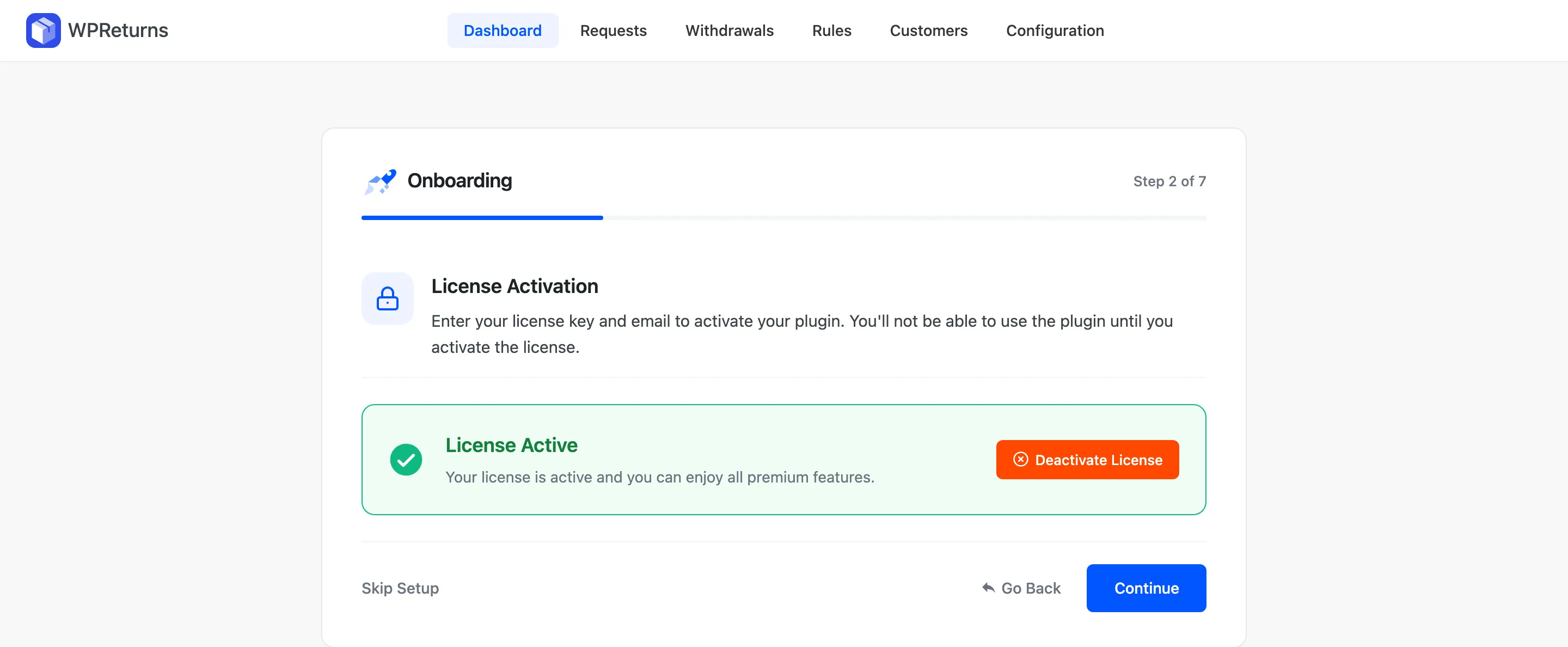
| License | Activate your license key. The wizard waits until the license is active. |
| Returns | Your return policy. |
| Resolutions | Refunds, store credit and exchanges. |
| Shipping | Return labels, the return address name and the return shipping fee. |
| EU withdrawal | The withdrawal button. |
| Ready | Confirms the store can take returns. Reasons, statuses, emails and rules are under Configuration and Rules. |
The License step shows License Active once your key works. Deactivate License frees the key for another site.
Fields in each step
Section titled “Fields in each step”Returns
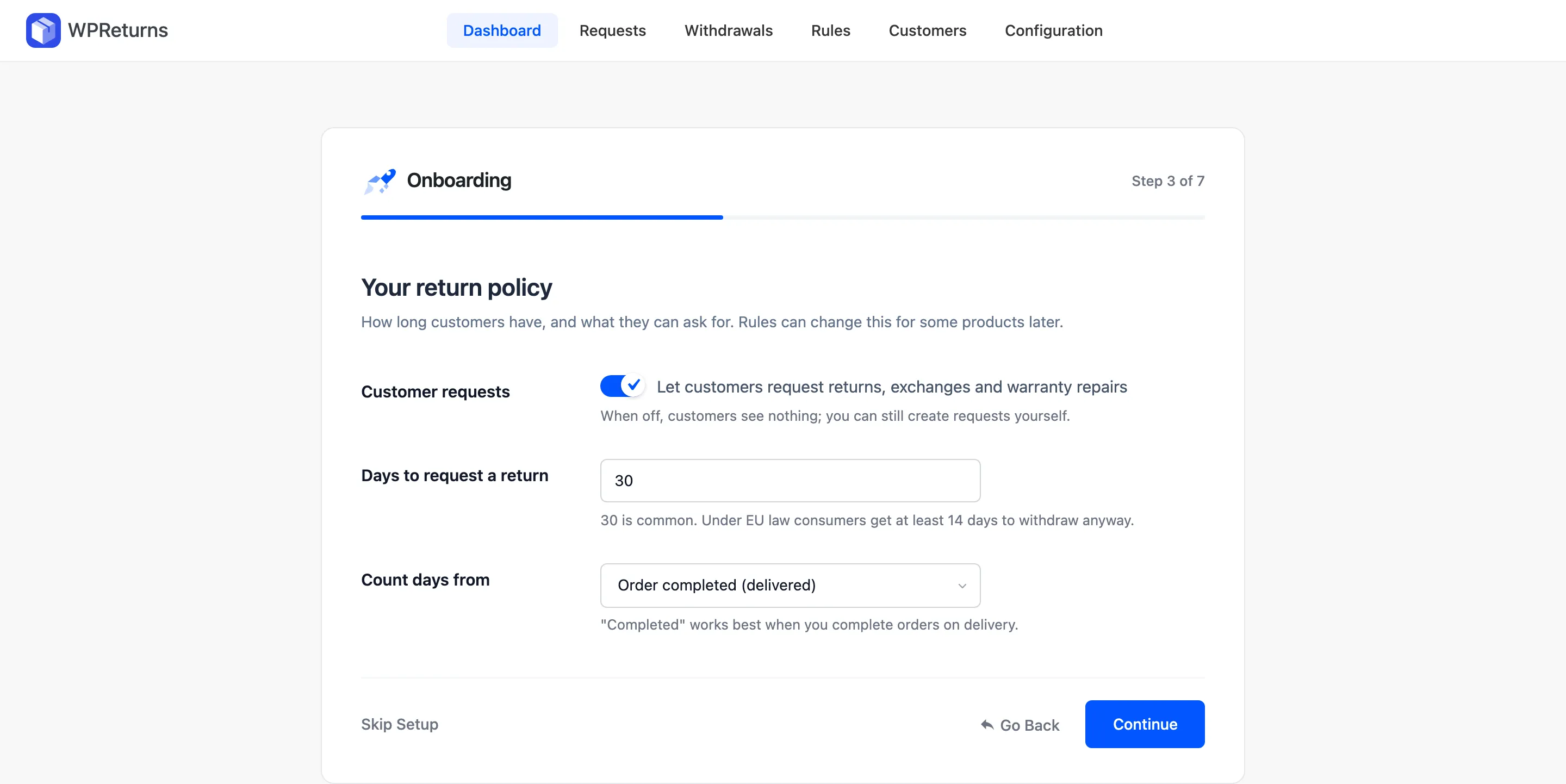
Section titled “Returns”In Pro this step is titled “Your return policy”.
| Field | What it does | Default |
|---|---|---|
| Customer requests | Lets customers send requests. When off, customers see nothing. You can still create requests yourself. | On |
| Days to request a return | The default return window. 30 is common. | 30 |
| Count days from | “Order completed (delivered)” or “Order placed”. Completed works best when you complete orders on delivery. | Order completed (delivered) |
Refunds (Free) and Resolutions (Pro)
Section titled “Refunds (Free) and Resolutions (Pro)”In Pro this step is titled “What customers can ask for”.
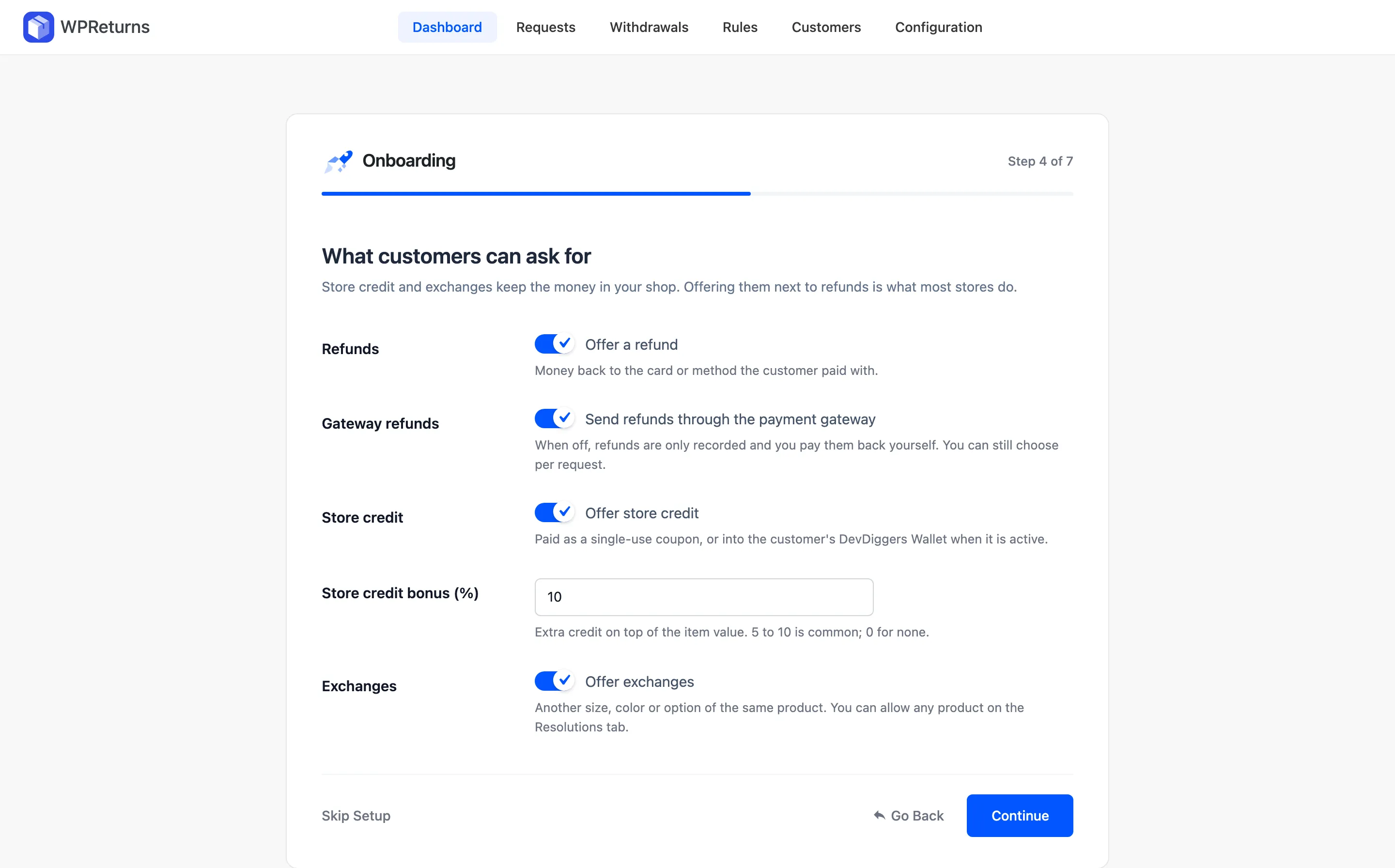
| Field | What it does | Default |
|---|---|---|
| Refunds / Returns | Offers money back to the card or method the customer paid with. | On |
| Gateway refunds | Sends refunds through the payment gateway. When off, refunds are only recorded. | On |
| Restock (Free) | Puts returned items back in stock when they arrive. Damaged and defective items are never restocked. | On |
| Cancellations (Free) | Lets customers ask to cancel an order before it ships. | On |
| Store credit (Pro) | Offers store credit as a coupon or a DevDiggers Wallet top-up. | On |
| Pay store credit as (Pro) | “A coupon” or “A DevDiggers Wallet top-up”. Shown only when DevDiggers Wallet is active. Guests always get a coupon. | A coupon |
| Store credit bonus (%) (Pro) | Extra credit on top of the item value. 5 to 10 is common. | 0 |
| Exchanges (Pro) | Offers another size, color or option of the same product. | On |
Shipping (Pro)
Section titled “Shipping (Pro)”The step is titled “Getting items back”.
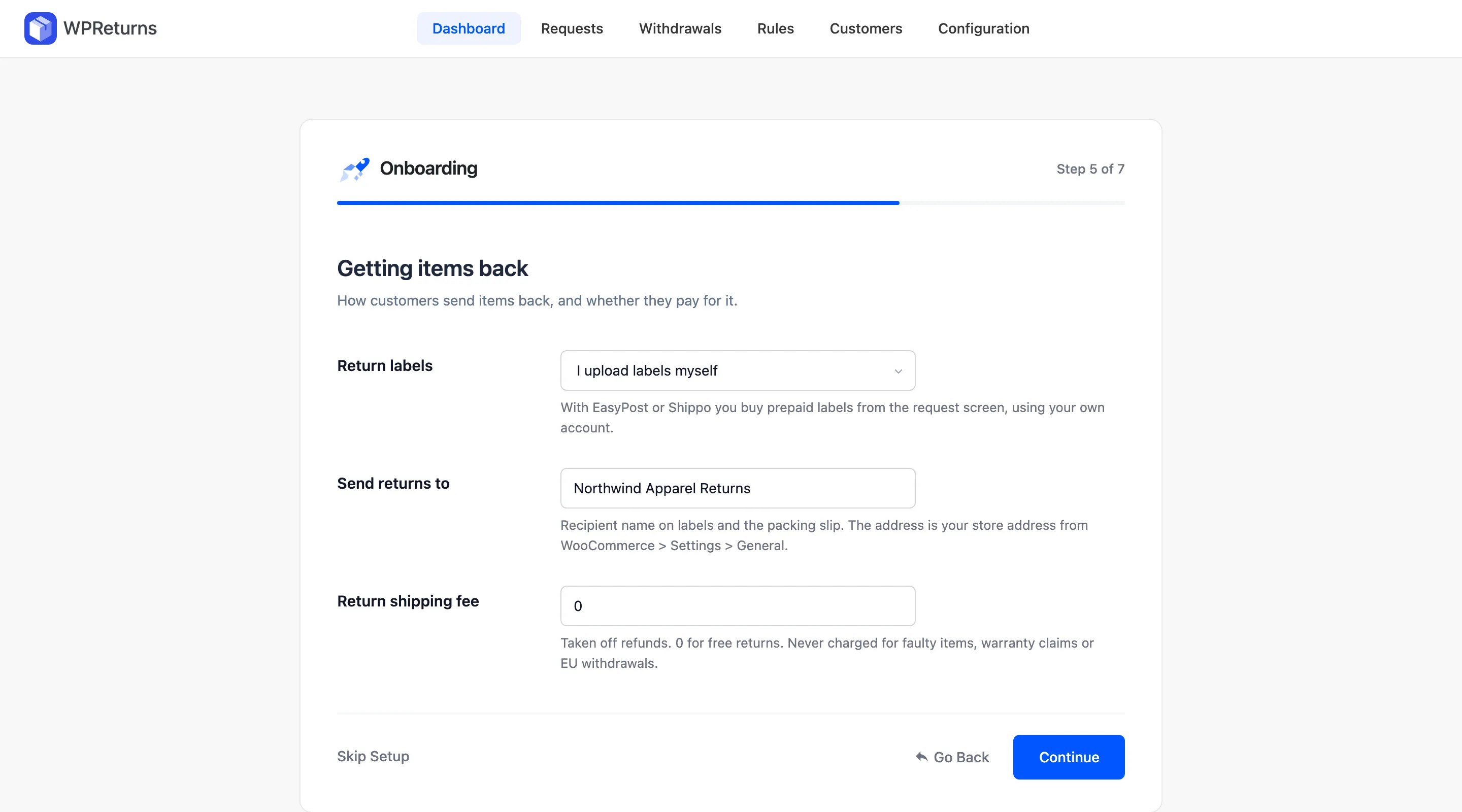
| Field | What it does | Default |
|---|---|---|
| Return labels | “I upload labels myself”, EasyPost or Shippo. | I upload labels myself |
| EasyPost API key | Shown when EasyPost is picked. | Empty |
| Shippo API token | Shown when Shippo is picked. | Empty |
| Send returns to | Recipient name on labels and the packing slip. The address comes from WooCommerce > Settings > General. | Your site name |
| Return shipping fee | Taken off refunds. 0 for free returns. Never charged for faulty items, warranty claims or EU withdrawals. | 0 |
EU withdrawal
Section titled “EU withdrawal”In Pro this step is titled “Withdrawal button”.
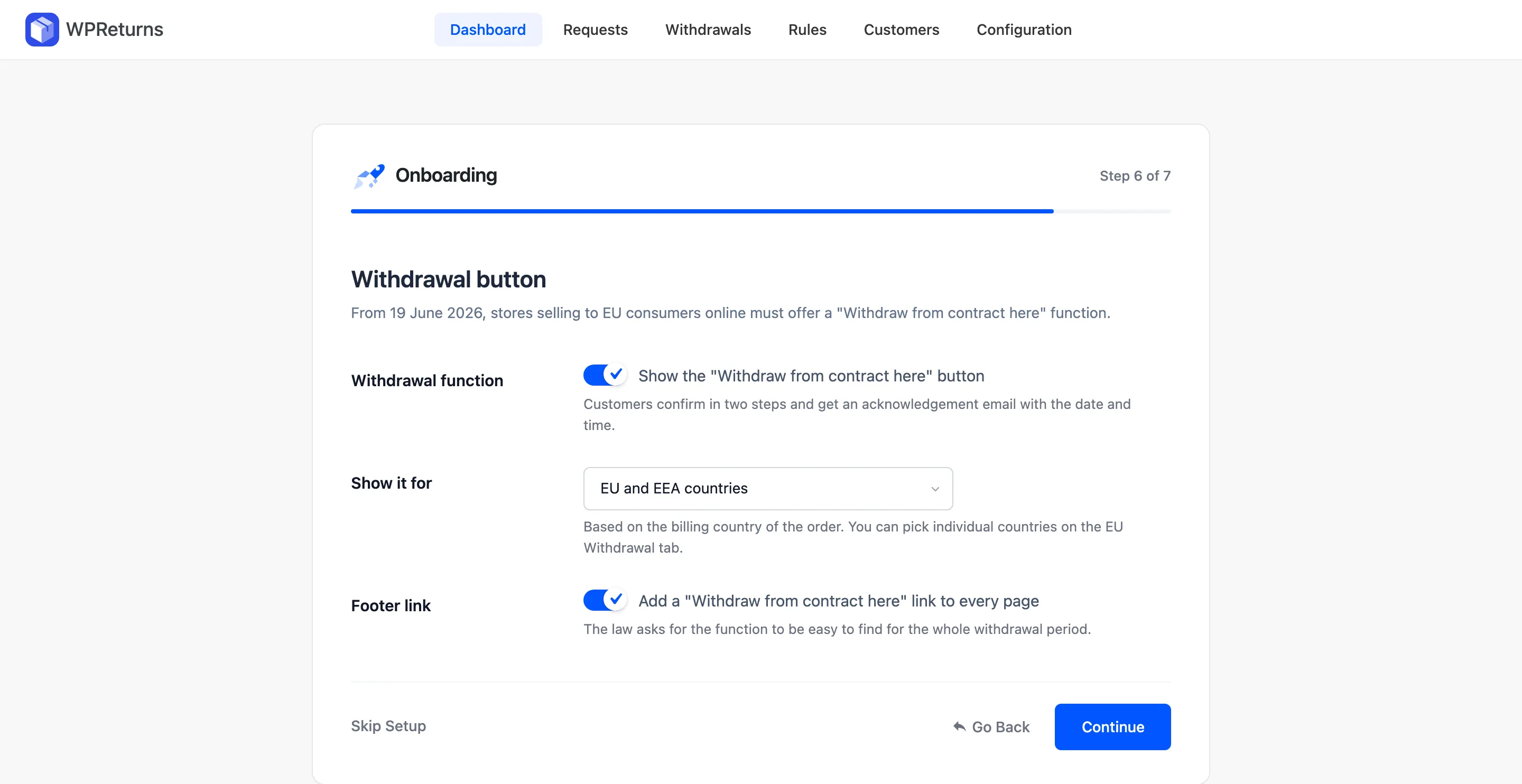
| Field | What it does | Default |
|---|---|---|
| Withdrawal function | Shows the “Withdraw from contract here” button. Customers confirm in two steps and get an acknowledgement email. | On |
| Show it for | “EU and EEA countries” or “All countries” by billing country. Pick single countries later on the EU Withdrawal tab. | EU and EEA countries |
| Footer link | Adds a “Withdraw from contract here” link to every page. | On |
The last step says “You are ready to take returns.” Select Finish to open the Dashboard.