EU withdrawal form
The EU withdrawal form is the two-step withdrawal function that Article 11a of Directive 2011/83/EU requires since June 19, 2026. Customers select Withdraw from contract here, fill in a short statement and select Confirm withdrawal. WPReturns emails an acknowledgement with the statement and the date and time it arrived.
Available in: Free and Pro.
Where the withdrawal button appears
Section titled “Where the withdrawal button appears”The function has to stay easy to find for the whole withdrawal period. WPReturns places the Withdraw from contract here link in these spots.
| Place | Setting that controls it |
|---|---|
| Site footer | Footer link on the EU Withdrawal tab |
| My Account > Orders and the order panel | Shown on every order that can still be withdrawn from |
| Processing and completed order emails, while the period is open | Order emails on the EU Withdrawal tab |
| Above the Place order button | Checkout on the Return Policy tab |

The withdrawal page is created on activation with the title “Withdraw from contract” at the slug withdrawal. It holds the [ddwcwr_withdrawal_form] shortcode. Settings live under EU withdrawal settings.
The customer flow
Section titled “The customer flow”- The customer opens the withdrawal page and sees Right of withdrawal. A line explains the period, for example “You can withdraw from your contract within 14 days of receiving your goods, without giving any reason.”
- Three short steps explain what happens. The customer selects Withdraw from contract here.
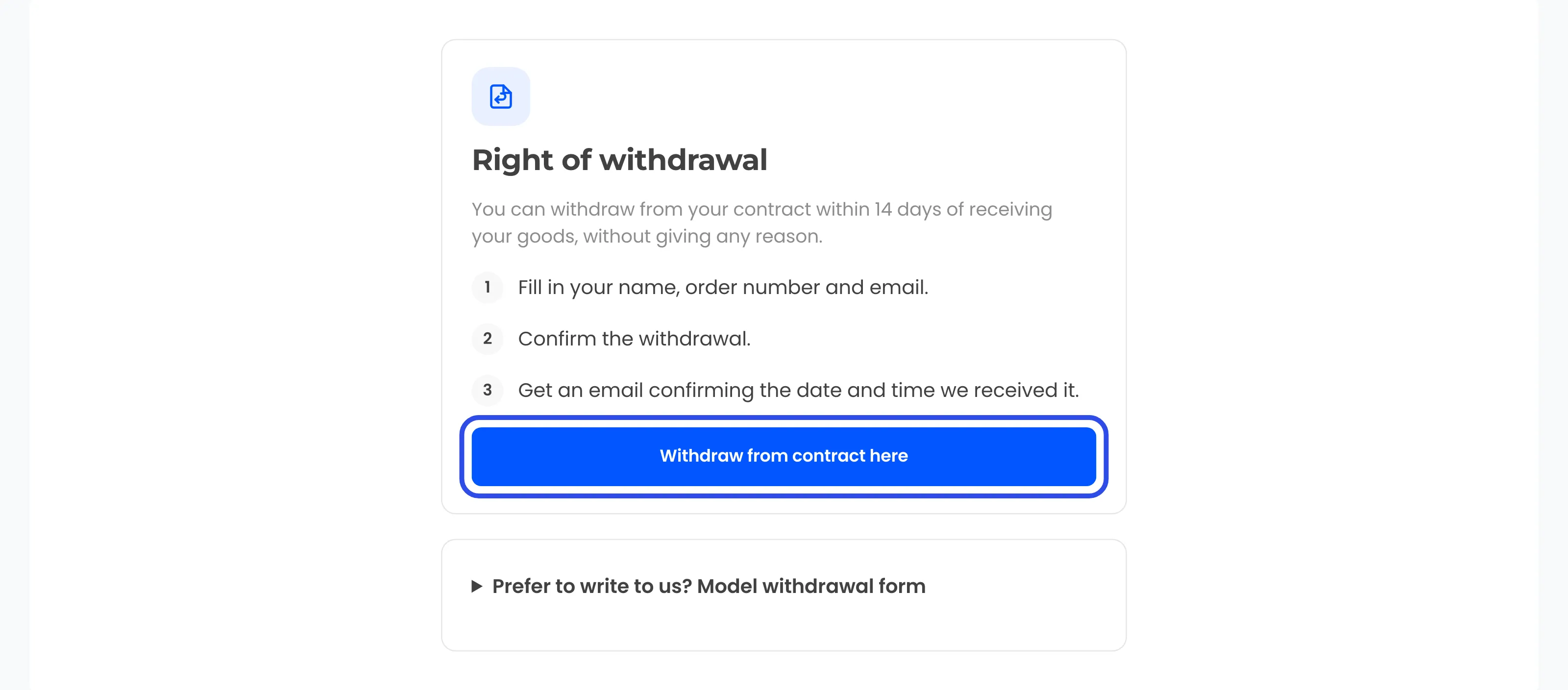
- The Withdrawal statement form opens with Your name, Order number and Email for the confirmation. All three are required. The email hint reads “Use the email address of the order.”
- The customer checks the details and selects Confirm withdrawal.
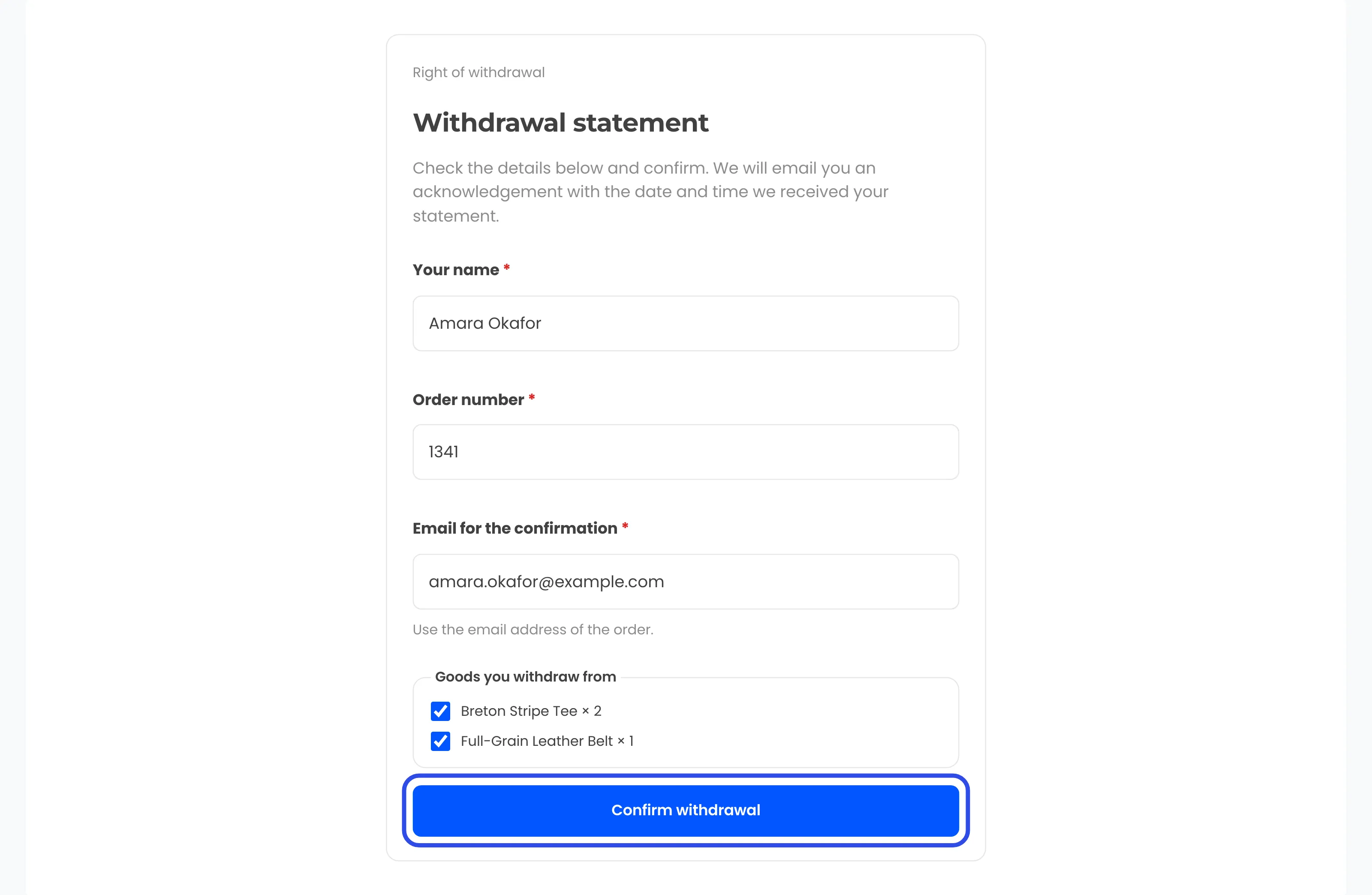
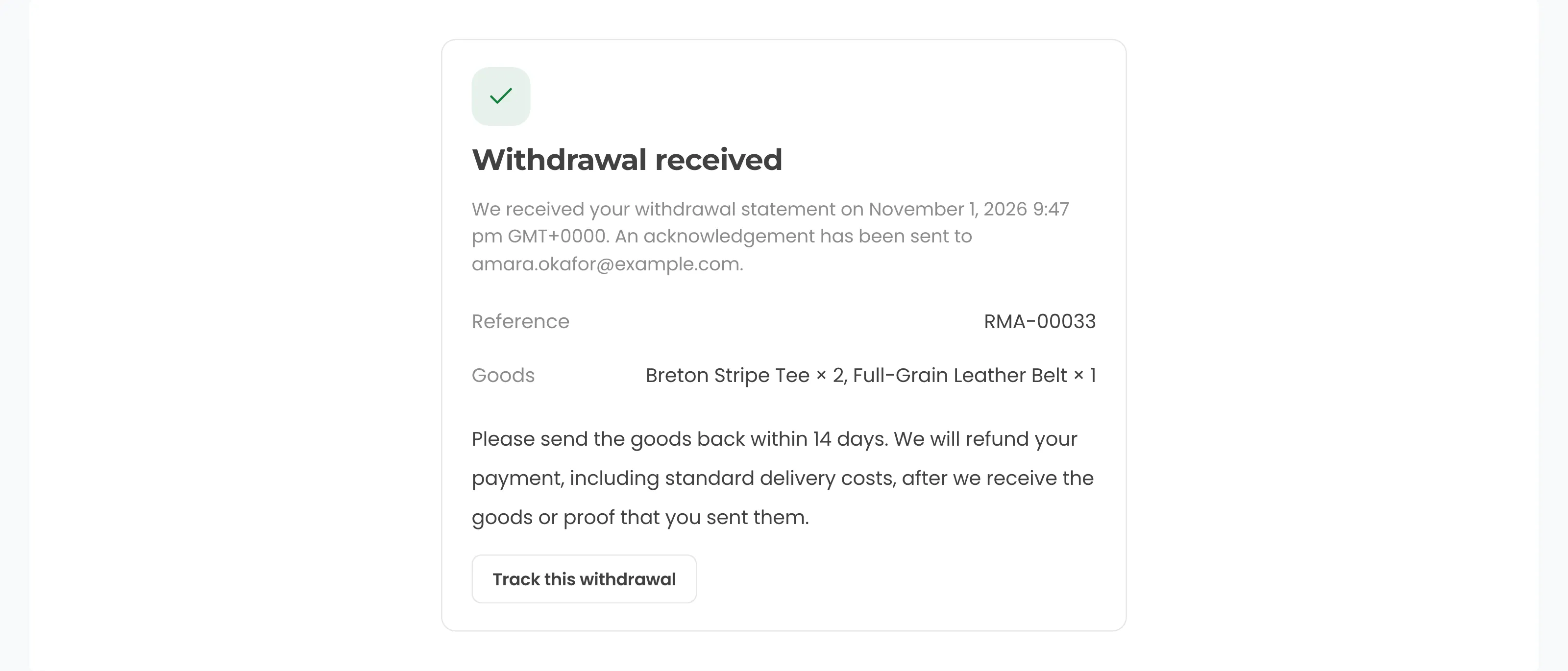
- A Withdrawal received screen shows the date and time, the email the acknowledgement went to, the Reference (such as RMA-00033) and the Goods.
- The acknowledgement email goes out at the same moment.
Logged-in customers get their name and email filled in. They pick the order from a Choose an order list. When they arrive from a button on one of their own orders, the form lists Goods you withdraw from with a checkbox per item.
Without that list, the statement covers every item of the order that can still be withdrawn from. The customer gives no reason.
The confirmation screen asks the customer to send the goods back within 14 days. The refund includes standard delivery costs and follows once the goods or proof of sending arrive. Track this withdrawal opens the normal request page.
The acknowledgement email
Section titled “The acknowledgement email”The Withdrawal acknowledgement email is a WooCommerce email. You can edit it under WooCommerce > Settings > Emails.
| Part | Default |
|---|---|
| Subject | [{site_title}] Confirmation of your withdrawal for order {order_number} |
| Heading | We received your withdrawal |
| Statement | “I hereby give notice that I withdraw from my contract for the sale of the following goods: …” with the items and order number |
| Name | The name given in the statement |
| Email for confirmation | The address the customer typed |
| Order | The order number and order date |
| Submitted | Store time and UTC |
| Reference | The RMA number |
| Request | A View your request button, the items with the reason “Right of withdrawal” and the status |
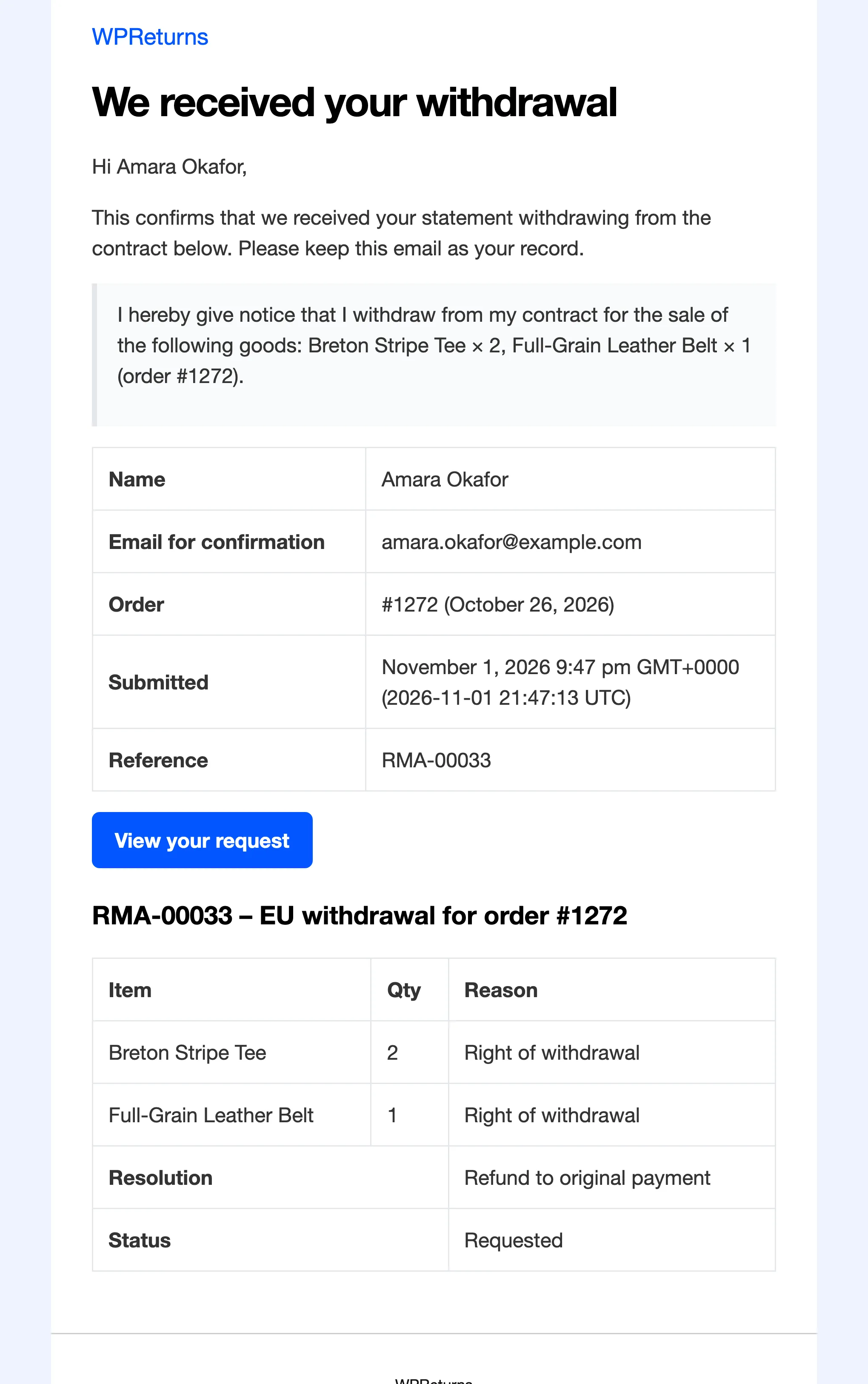
The email goes to the address in the statement, even when it differs from the order’s billing email for a logged-in customer.
When the order does not match
Section titled “When the order does not match”Guests must give an order number and an email that belong to the same order. This stops strangers from using your form to send email to other people.
When the details do not match, the customer sees: “We could not match that order number and email address. We have recorded your statement and our team will contact you; please also check the details and try again.”
WPReturns sends no email in that case. It keeps the statement with the name, order number, email and time. Your team finds it under Withdrawals > Unmatched statements in the Withdrawals log.
A honeypot field and Attempts per hour limit automated posts. Too many tries show “Too many attempts. Please wait an hour and try again, or contact us directly.”
The model withdrawal form
Section titled “The model withdrawal form”With Model form turned on, a collapsible section appears under the start screen: “Prefer to write to us? Model withdrawal form”. It shows the Annex I(B) text addressed to your store name, address and email from WooCommerce > Settings > General.
Items that cannot be withdrawn from
Section titled “Items that cannot be withdrawn from”Some goods are exempt under Article 16, such as made-to-order, perishable or sealed hygiene goods. Mark them with the Exempt from withdrawal box on the product or with exempt categories on the EU Withdrawal tab.
Exempt items show grayed out in the statement form. The product page says “This item is exempt from the statutory right of withdrawal.”
Downloads can leave the withdrawal flow through the Article 16(m) consent checkbox at checkout. See Product page and checkout.
Which orders get the button
Section titled “Which orders get the button”By default the button applies to orders billed to EU and EEA countries (the EU plus Iceland, Liechtenstein and Norway). You can switch the scope to all countries or to a list of countries.
Orders that are canceled, refunded, failed or still a checkout draft never get it. The period is set by Withdrawal period (days), at least 14.
When the function is turned off, the page shows “Online withdrawal is not available on this store. Please contact us.”