Troubleshooting
Most WPReturns problems come from five causes. An order cannot be returned yet, a page is cached, permalinks need refreshing, an email is switched off or the gateway cannot refund. This page lists each symptom with the message customers or staff see, the likely cause and the fix.
The Returns page in My Account shows a 404
Section titled “The Returns page in My Account shows a 404”The endpoint was added or renamed and WordPress has not refreshed its rewrite rules.
- Go to Settings > Permalinks.
- Select Save Changes without changing anything.
- Reload My Account > Returns.
Check that the My Account endpoint on the General tab holds a plain slug such as returns.
Customers do not see a return button on an order
Section titled “Customers do not see a return button on an order”A button only shows when the order and at least one item can still be returned.
| Check | Where |
|---|---|
| The order status is listed in Orders that can be returned | General tab |
| The return window has not closed for the item | Return Policy tab, and Return window rules in Pro |
| The item is not marked Final sale or in a final-sale category | Product edit screen > Return Policy tab |
| The item is not already in another request or fully refunded | The order’s Returns box |
| Customer requests is turned on | General tab |
When an order qualifies, the order page shows the Returns, exchanges & warranty panel with the deadline and the request buttons.
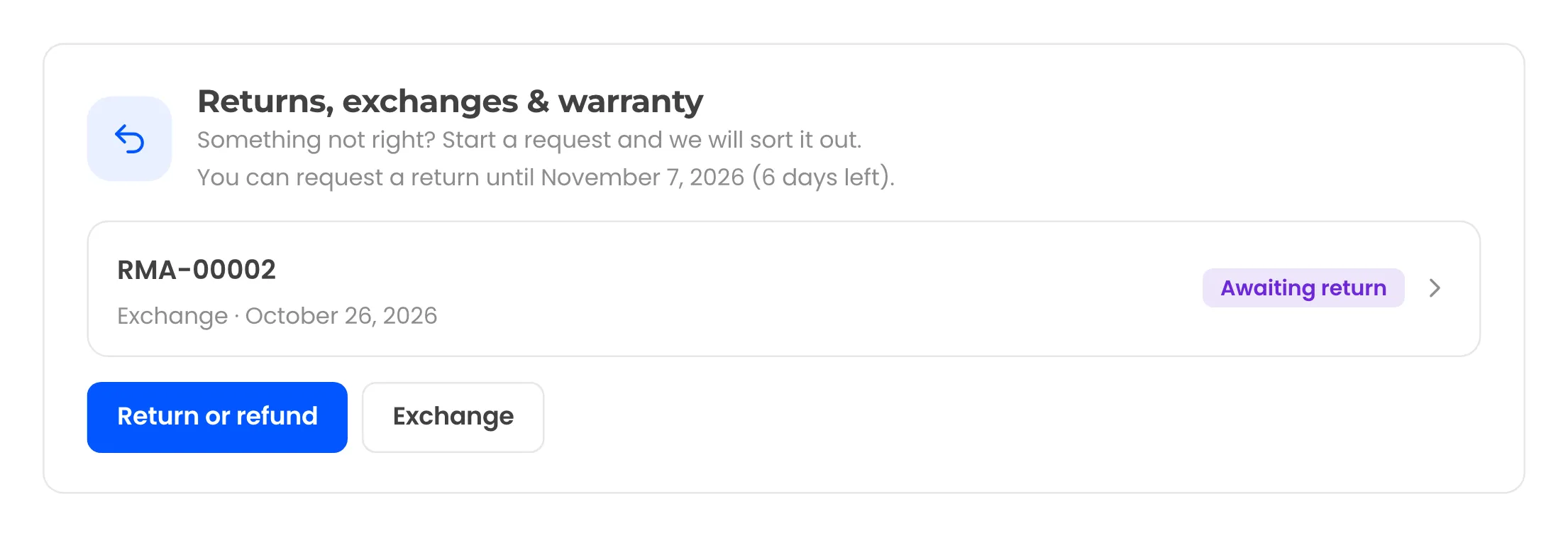
The Exchange button only shows when Same product or Any product exchanges are allowed on the Resolutions tab.
With Count days from set to completed, the window starts when the order is completed. Orders still in processing show no return button.
“Your session expired. Please try again.”
Section titled ““Your session expired. Please try again.””The form’s security token is older than the page cache. This happens when the portal, withdrawal or My Account pages are cached.
Exclude these pages from full-page caching in your cache plugin or host:
- the guest returns portal page
- the withdrawal page
- My Account and its endpoints
“We could not find an order with that number and email address.”
Section titled ““We could not find an order with that number and email address.””The order number and billing email must belong to the same order. Ask the customer to use the email from checkout. Stores with a custom order number plugin may need the ddwcwr_find_order_id_by_number filter.
“Too many attempts. Please wait an hour and try again.”
Section titled ““Too many attempts. Please wait an hour and try again.””The visitor hit Attempts per hour on the EU Withdrawal tab. The limit covers the withdrawal form and the guest lookup, each counted on its own. The withdrawal form adds “or contact us directly” to the message.
A guest lookup that finds the order does not count toward the limit. Only failed lookups do. Raise the number if real customers still hit it, for example behind a shared office network.
A withdrawal shows “We could not match that order number and email address.”
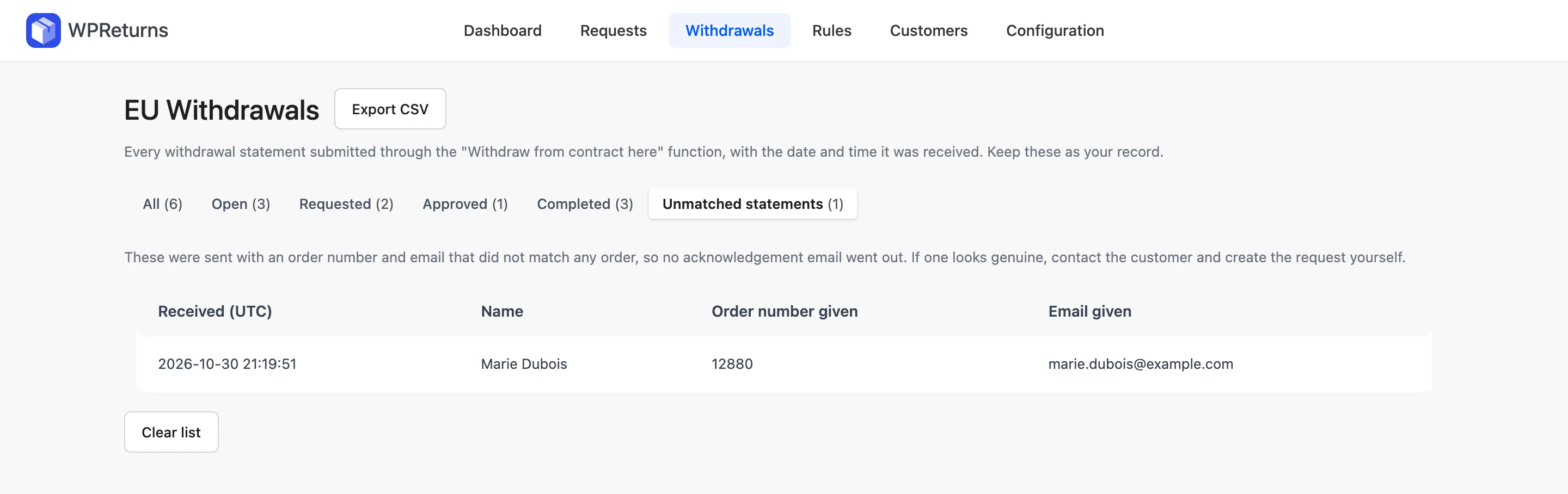
Section titled “A withdrawal shows “We could not match that order number and email address.””No email was sent, and the statement is saved under Withdrawals > Unmatched statements. If it looks genuine, contact the customer.
You can create a return request for the order, but a withdrawal must come from the customer. See Withdrawals log.
Customers do not get emails
Section titled “Customers do not get emails”- Go to WooCommerce > Settings > Emails and check that the WPReturns email is enabled.
- For status emails, check Notify for that status on the Statuses tab.
- Send a test with an SMTP plugin’s log turned on.
WPReturns emails go through WooCommerce and WordPress mail. Delivery problems usually sit with the mail setup. An SMTP plugin fixes most of them.
A refund was recorded but the customer got no money
Section titled “A refund was recorded but the customer got no money”The payment gateway does not support refunds through WooCommerce, or Record only (I pay it back myself) was selected. WooCommerce then records the refund without sending money, and you pay the customer through your payment provider.
Turn on Gateway refunds on the Resolutions tab to make the gateway the default.
The Resolve request form is missing
Section titled “The Resolve request form is missing”The user lacks the Process refunds capability. The screen says “Someone with the “Process refunds” permission needs to resolve this request.” Give the user the ddwcwr_process_refunds capability or ask an administrator. See Customers and fraud.
“Choose a label provider and add its API key in Configuration > Shipping Labels.”
Section titled ““Choose a label provider and add its API key in Configuration > Shipping Labels.””Buy return label needs EasyPost or Shippo selected as Label provider with a key saved. With “I upload labels myself” selected, upload a label file instead.
“EasyPost returned no rates for this address.” or “Shippo returned no rates for this address.”
Section titled ““EasyPost returned no rates for this address.” or “Shippo returned no rates for this address.””The provider found no carrier for that address and package. Check the customer’s address on the order, the store address in WooCommerce > Settings > General, and the default package size and weight. Check that carriers are enabled in your provider account.
Photos will not upload
Section titled “Photos will not upload”| Message | Fix |
|---|---|
| ”… is not an allowed file type.” | Add the type to Allowed file types on the Return Policy tab |
| ”… is larger than 5 MB.” | Raise Maximum size per file (MB). Your server’s upload limit still applies. |
| “You can upload up to 5 files.” | Raise Maximum files |
| ”… could not be uploaded. Please try again.” | Check the server’s upload_max_filesize and post_max_size |
SVG, HTML, JavaScript and PHP files are always refused.
Photo links open for anyone on nginx
Section titled “Photo links open for anyone on nginx”nginx ignores the .htaccess file in the private folder. Add location ~ /ddwcwr-private- { deny all; } to the server block or move the folder with the ddwcwr_private_upload_dir filter. See Private uploads.
Automation does nothing
Section titled “Automation does nothing”Reminders, auto-close and automatic resolution run through Action Scheduler once a day. Check WooCommerce > Status > Scheduled Actions for ddwcwr_daily_maintenance in the ddwcwr group.
Automation settings only apply to requests submitted after you turned them on. Older requests are left alone.
The digital consent checkbox does not show in block checkout
Section titled “The digital consent checkbox does not show in block checkout”Block checkout needs a WooCommerce version with conditional checkout fields. Older versions show the checkbox in classic checkout only. The checkbox also stays hidden when the cart has no downloadable product or the billing country is outside the withdrawal scope.
“Customers would see two withdrawal forms”
Section titled ““Customers would see two withdrawal forms””WooCommerce’s own Order withdrawal feature and the WPReturns withdrawal button are both on. Turn one of them off. The WooCommerce feature is under WooCommerce > Settings > Advanced > Features. See WooCommerce’s own withdrawal form.
WPReturns Pro shows “requires the free WPReturns plugin”
Section titled “WPReturns Pro shows “requires the free WPReturns plugin””Pro runs on top of the free plugin. Install and activate the free WPReturns plugin and keep both active. See Installation.
Still stuck
Section titled “Still stuck”Collect the RMA number, the message you see and your WordPress, WooCommerce and PHP versions. Then go to Support. Free plugin users get help there and Pro license holders open a ticket.