Returns in My Account
WPReturns adds a Returns page to the WooCommerce My Account menu, just above Log out. Logged-in customers see every request they made and start a new one from any order that can still be returned. They follow each request through approval, return shipping and the refund on the same page.
Available in: Free and Pro. Exchanges, warranty claims and the printable packing slip need Pro.
Where customers find My Account returns
Section titled “Where customers find My Account returns”Customers reach the returns flow from three places in My Account.
| Place | What the customer sees |
|---|---|
| Account menu | A Returns item that opens the Returns page |
| My Account > Orders | Action buttons on each order that can be returned, such as Return or refund and Request cancellation |
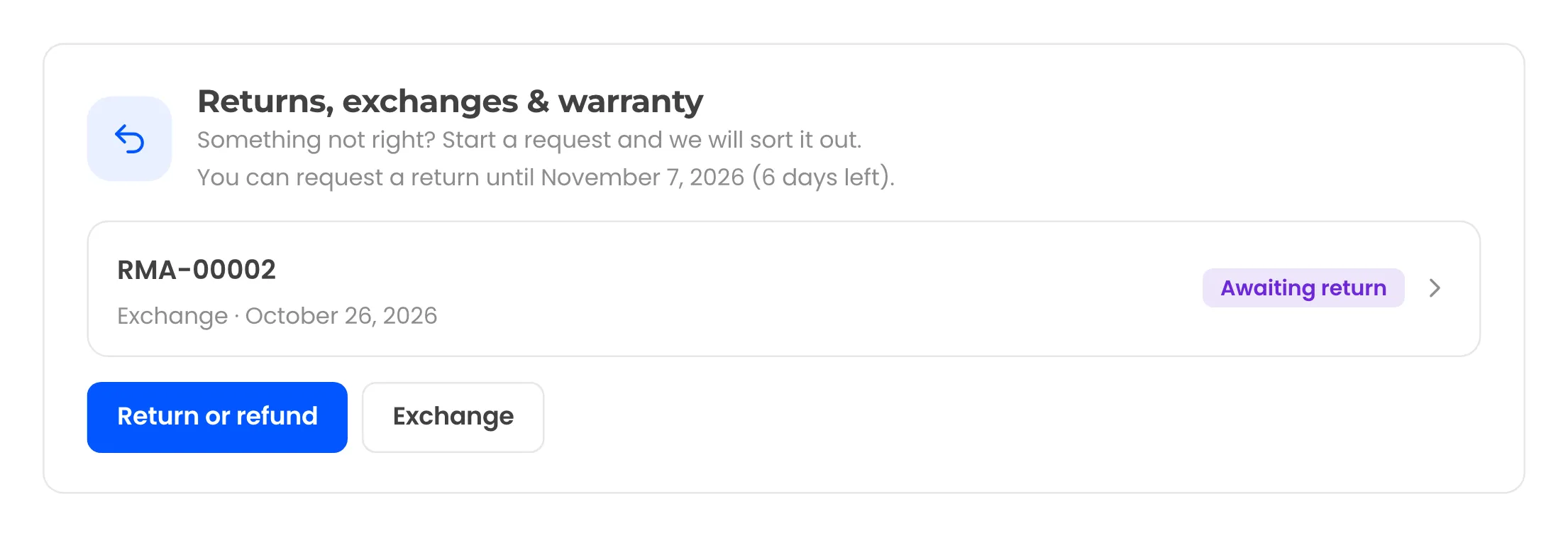
| View order | A Returns, exchanges & warranty panel under the order details |
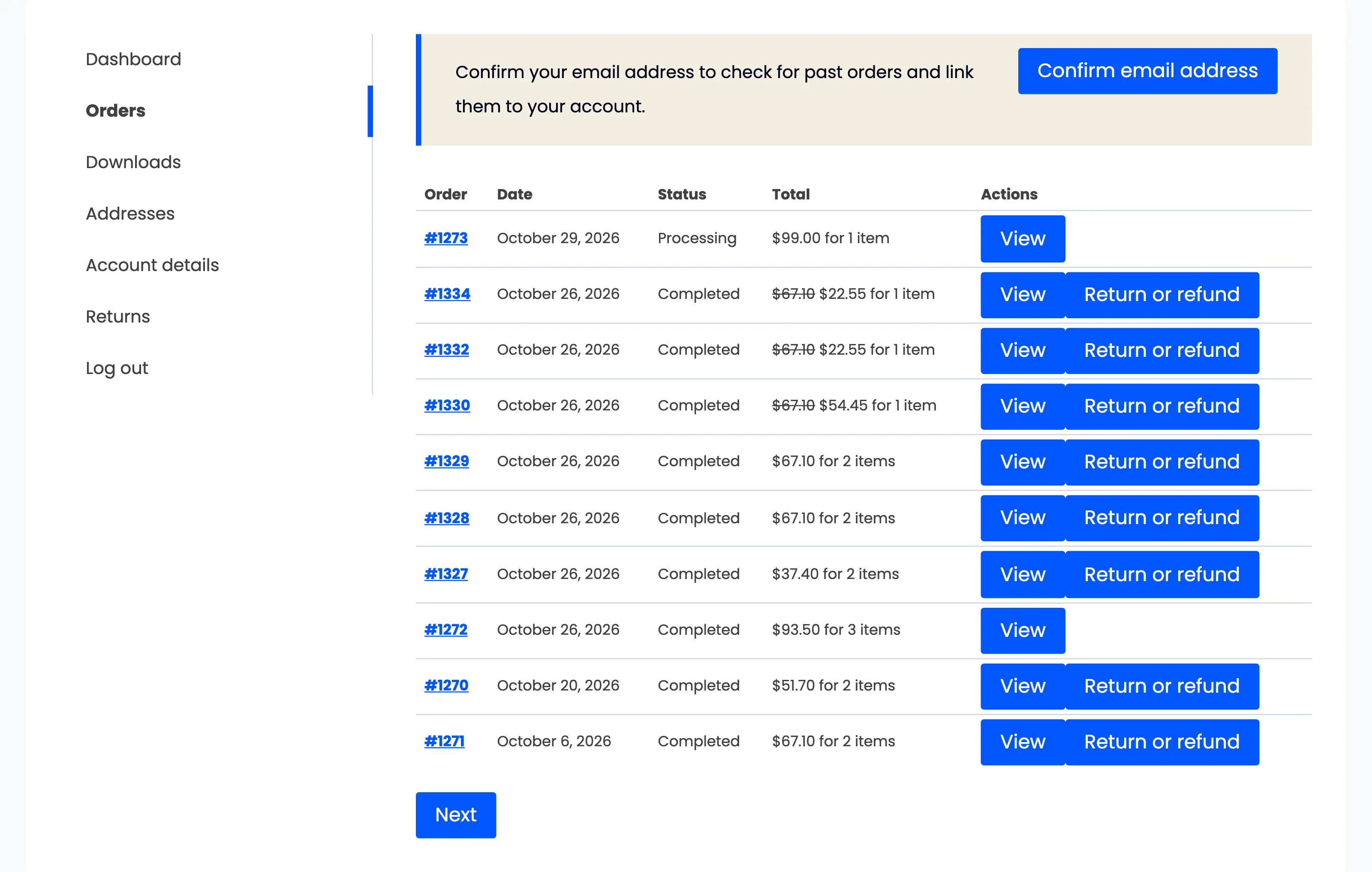
The Orders list shows the first return button for each order, plus Withdraw from contract here where it applies. The other request types sit on the Returns page and in the order panel.
The panel lists earlier requests for that order and shows how long the customer has left. EU orders get a second line with the withdrawal deadline. A typical line reads “You can request a return until November 15, 2026 (16 days left).”
You can rename the menu item with My Account menu label and change the URL part with My Account endpoint (returns by default). Both are under DevDiggers Plugins > WPReturns > Configuration > General. See General settings.
What the Returns page shows
Section titled “What the Returns page shows”The page opens with the heading “Send something back”. Once a customer has requests, three tiles appear above the tabs.
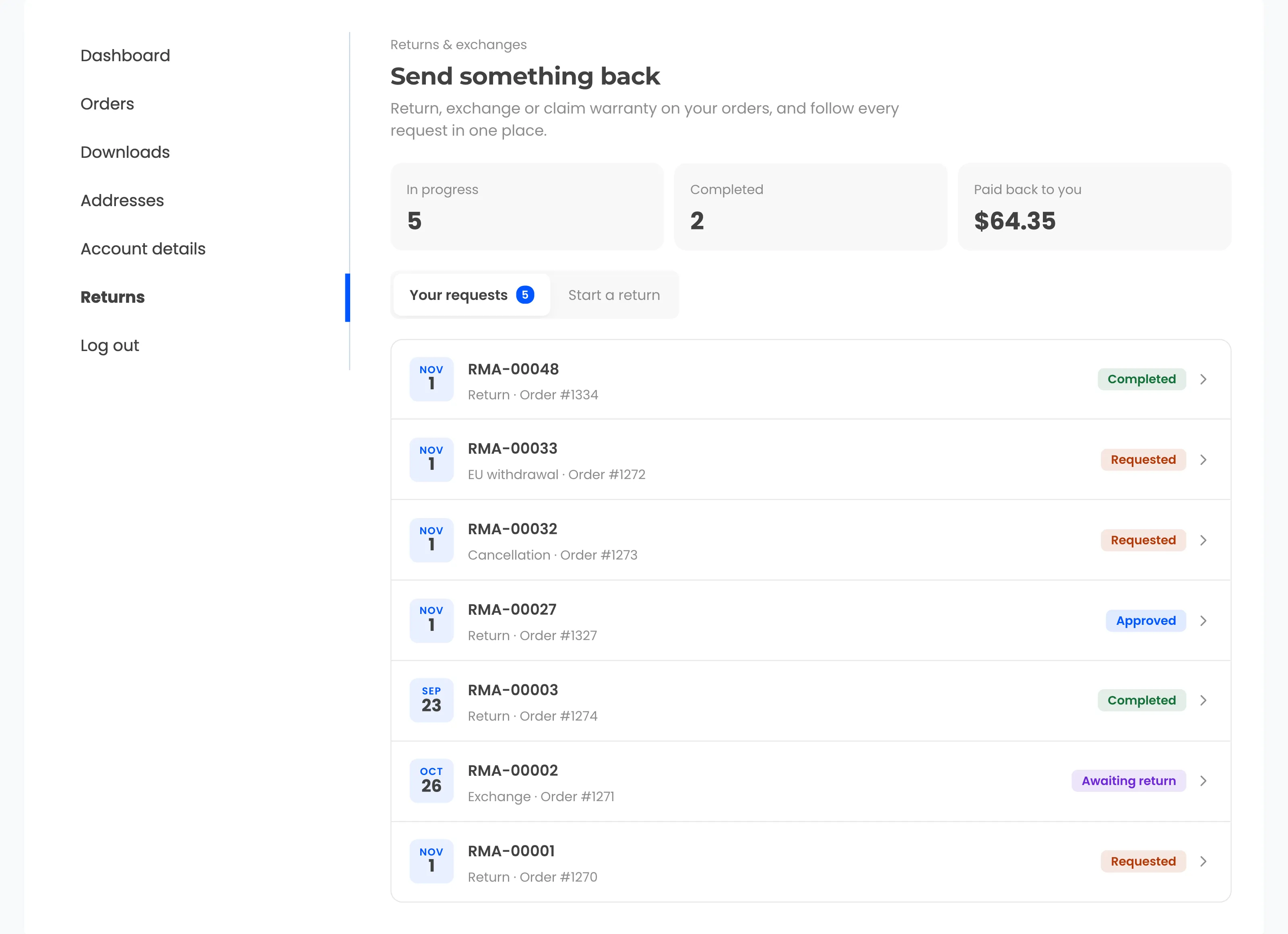
| Tile | Meaning |
|---|---|
| In progress | Requests that are not completed, rejected or canceled |
| Completed | Requests in a final status |
| Paid back to you | The total refunded across all requests |
Two tabs sit under the tiles:
- Your requests lists each request with its RMA number, type, order number and status badge. A count shows how many are still open.
- Start a return lists the latest orders that can still get a request, with one button per request type.
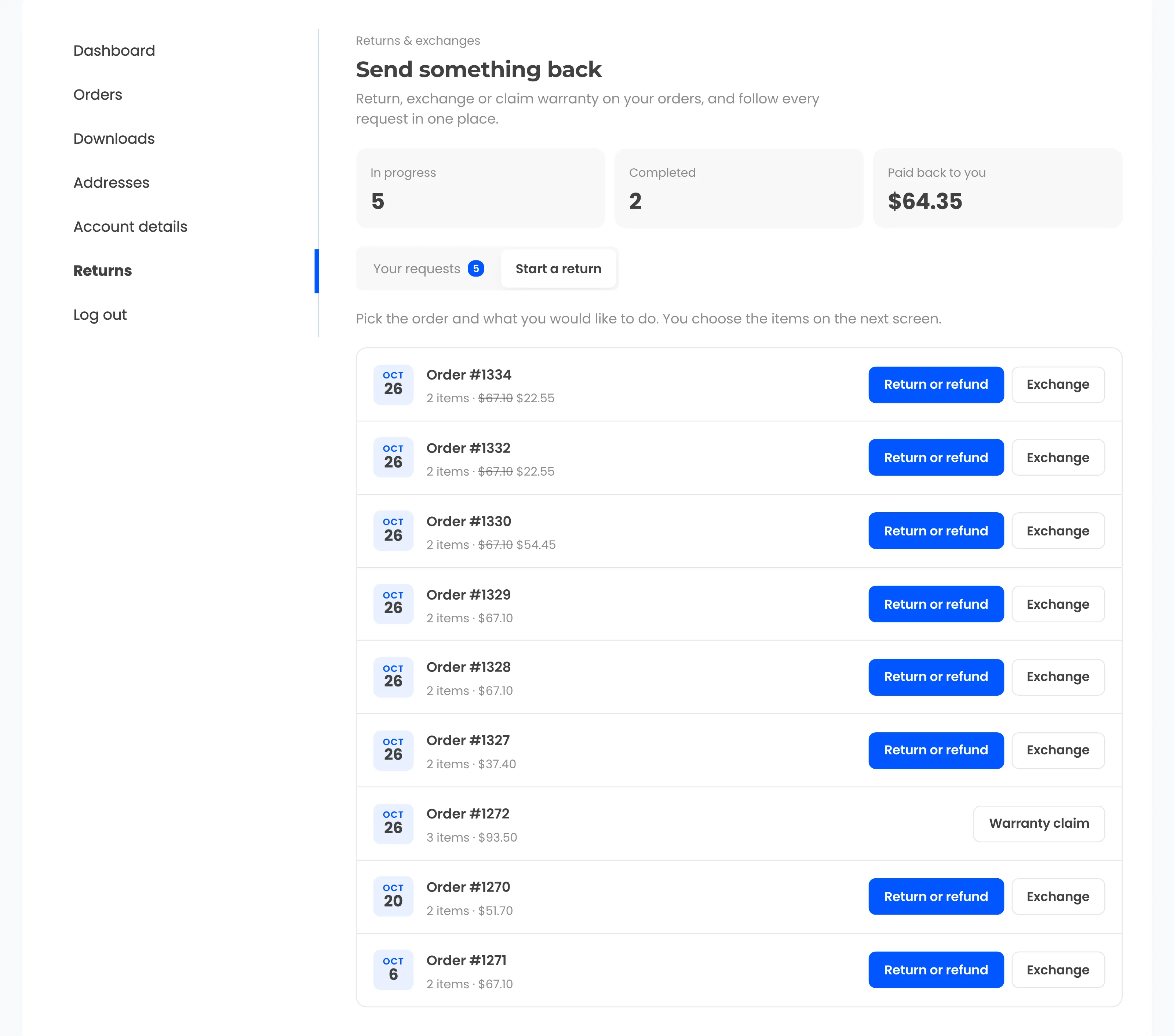
When nothing can be returned, the tab says “Nothing to return right now”. Orders show up again as soon as they can be returned.
Request types and buttons
Section titled “Request types and buttons”| Request type | Button | Available in |
|---|---|---|
| Return | Return or refund (Free: Request a return) | Free and Pro |
| Exchange | Exchange | Pro |
| Warranty claim | Warranty claim | Pro |
| Cancellation | Request cancellation | Free and Pro |
| EU withdrawal | Withdraw from contract here | Free and Pro |
A button only shows when the order status allows that type and at least one item can still be returned. Cancellation buttons follow the Cancellable order statuses setting. The withdrawal button opens the withdrawal form.
Start a return from My Account
Section titled “Start a return from My Account”- Go to My Account > Returns and open Start a return. Customers can also use the button on the order itself.
- Choose the button for the request, for example Return or refund. The form “Return items from order #1348” opens.
- Under Which items?, tick each item and set the Quantity with the − and + buttons.
- Pick a Reason for each item. It is required. Condition is optional.
- Under How should we make it right?, pick a resolution. This step only shows when more than one resolution is allowed.
- Under Anything else?, write a Note and use Add photos or videos to attach files.
- Select Submit request.
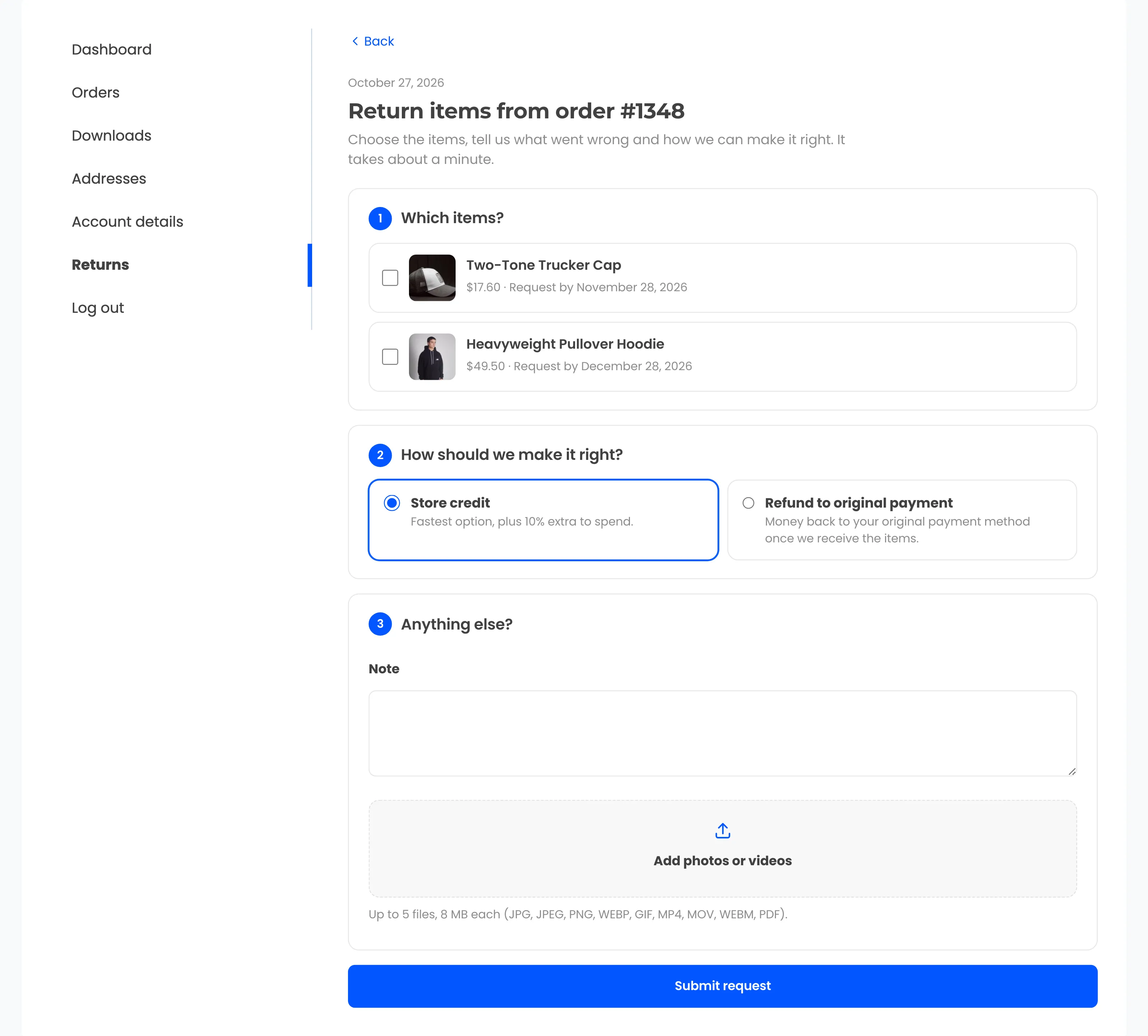
Ticking an item opens its Quantity, Reason and Condition fields. Each item also shows its price and the last day to ask, such as “Request by December 27, 2026”.
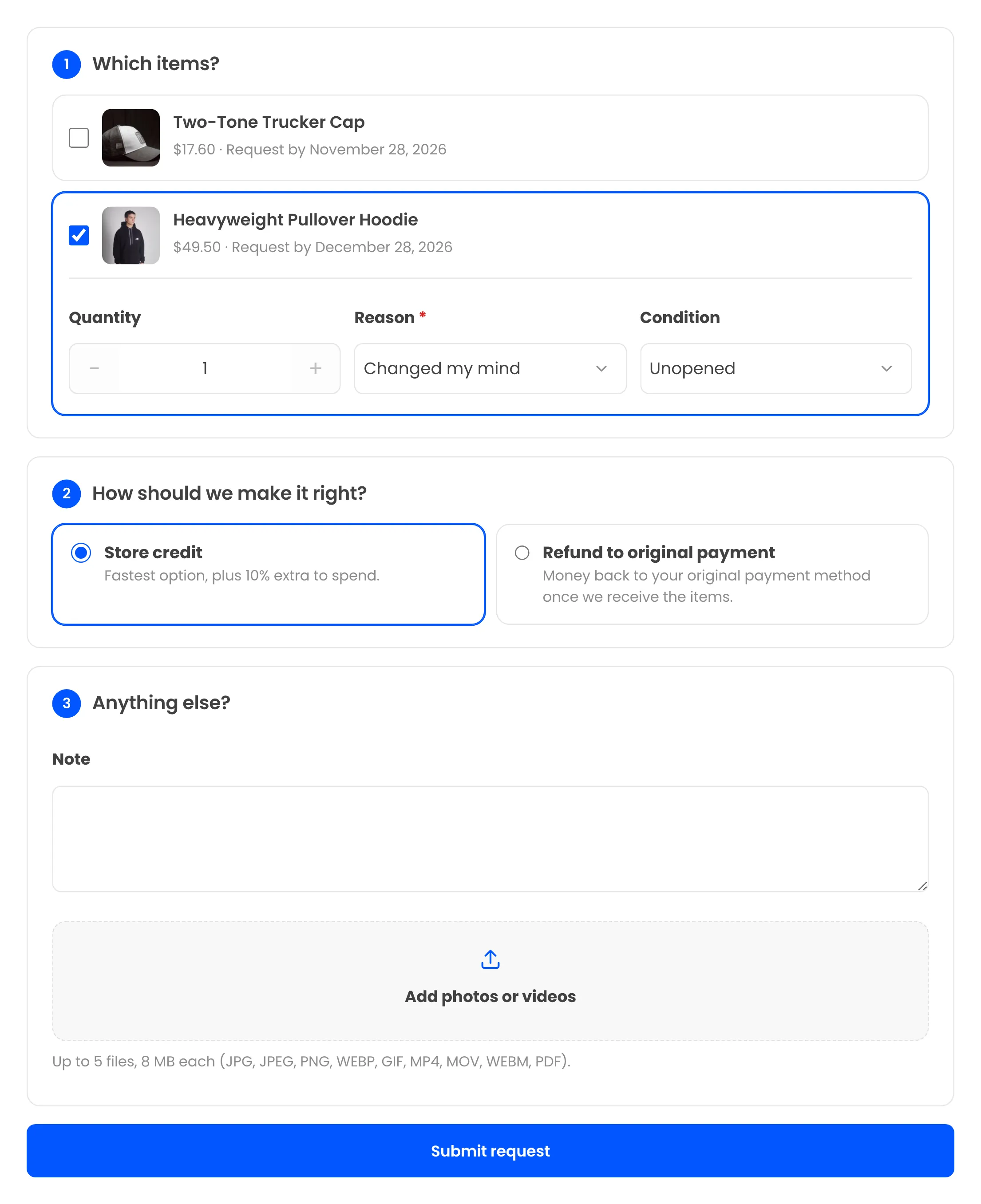
The upload box takes up to 5 files of 8 MB each. “Photos are required for this request.” only shows when a picked reason needs photos.
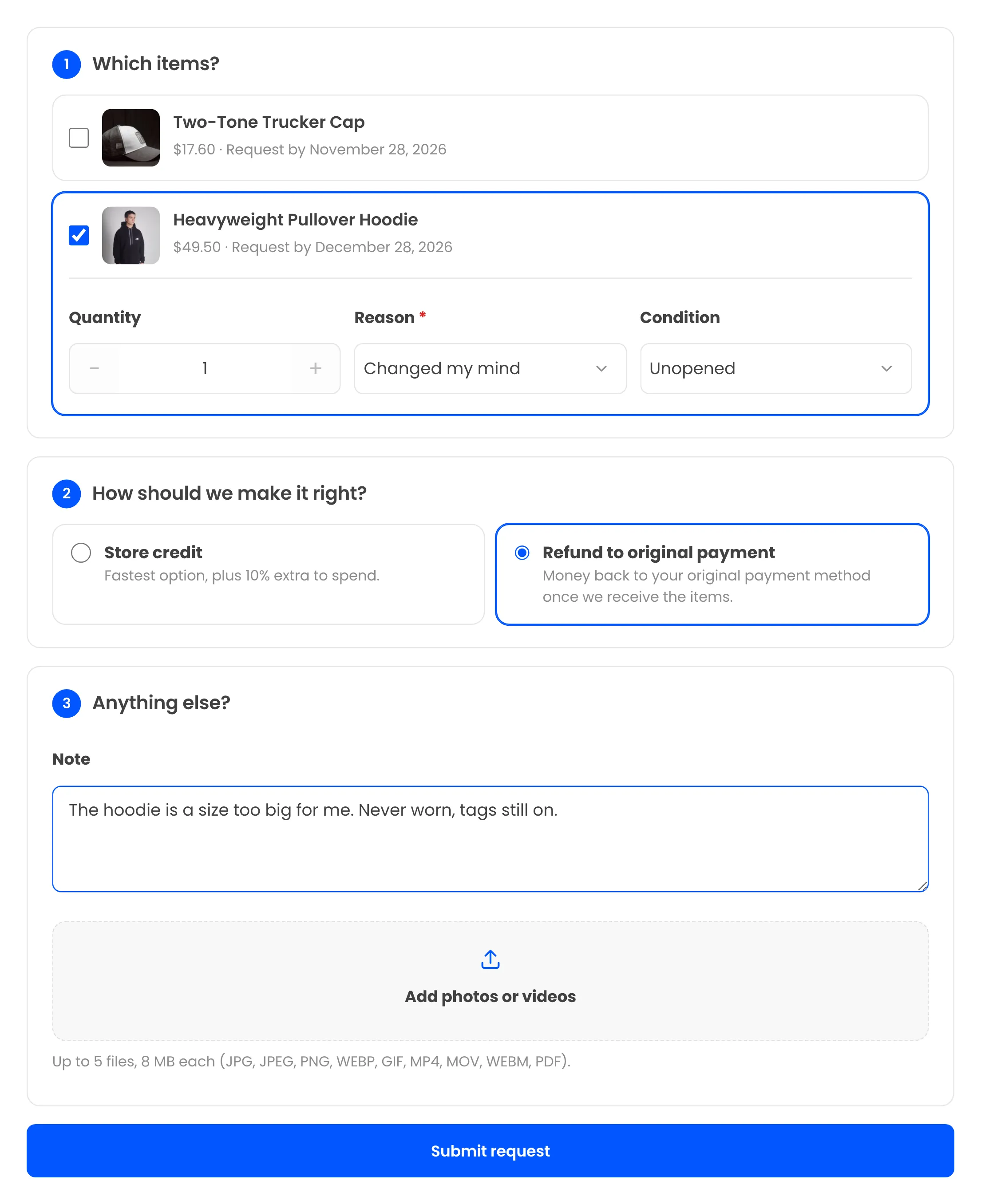
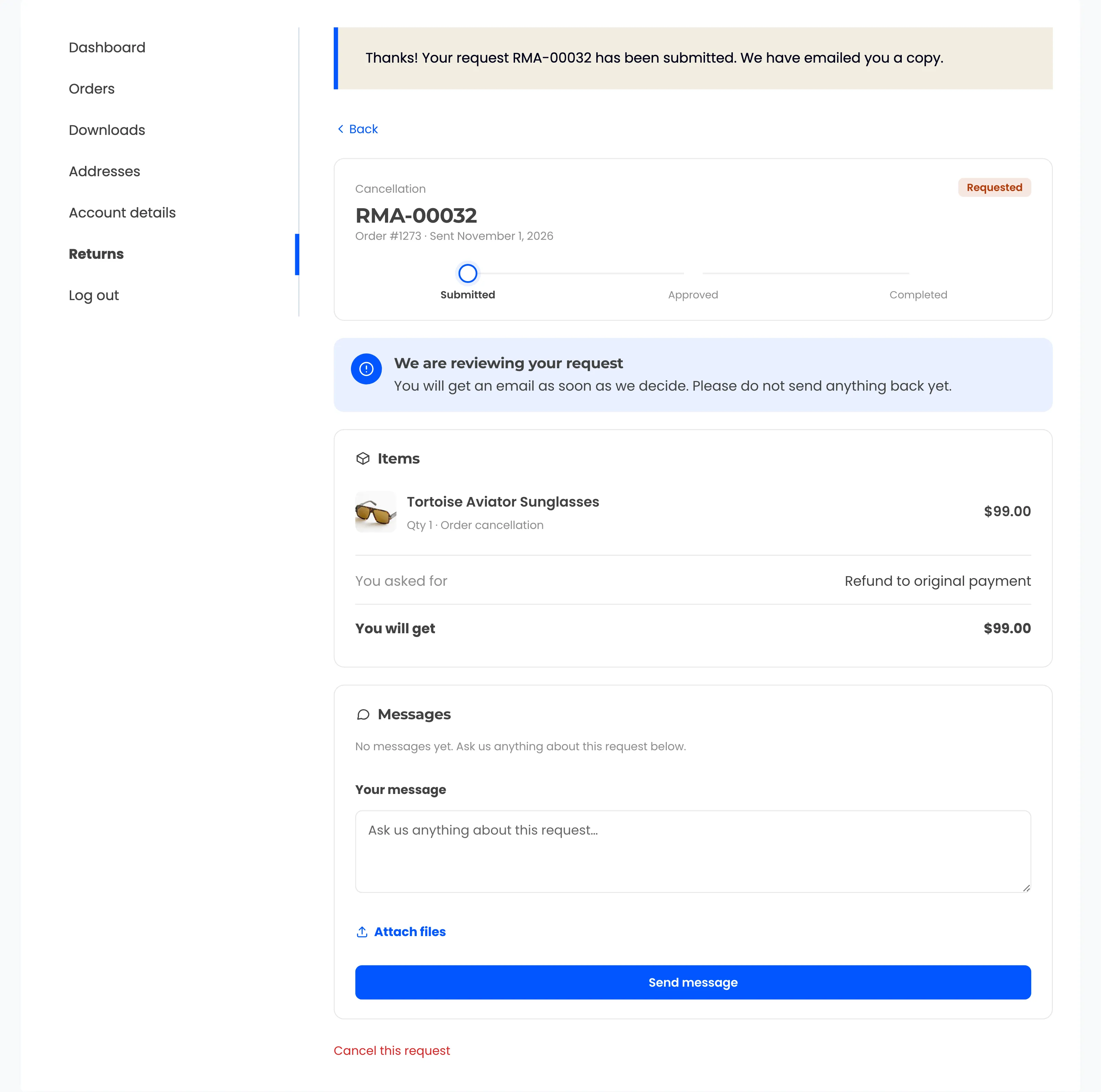
The request page opens with “Thanks! Your request RMA-00061 has been submitted. We have emailed you a copy.”
Items that cannot be picked appear grayed out with the reason. Typical reasons are a final-sale item, a closed return window or a quantity that is already in another request.
Item conditions
Section titled “Item conditions”| Condition | Stored as |
|---|---|
| Unopened | unopened |
| Opened, unused | opened |
| Used or worn | used |
| Damaged | damaged |
| Defective | defective |
Damaged and defective items are skipped when you restock on receipt.
Resolution cards
Section titled “Resolution cards”Each card carries a short line for the customer. The first allowed resolution is picked when the form opens.
| Resolution | Line on the card |
|---|---|
| Store credit (Pro) | “Fastest option: use it on your next order.” With a bonus it reads “Fastest option, plus 10% extra to spend.” |
| Refund to original payment | “Money back to your original payment method once we receive the items.” |
| Repair (Pro) | “We fix the item and send it back.” |
| Replacement (Pro) | “We send you a new one.” |
When store credit and exchanges carry a different return shipping fee than refunds, each card shows its own fee or “Free return shipping”.
Exchanges
Section titled “Exchanges”An exchange adds What would you like instead? to each item. It lists other in-stock variations of the same product. With exchanges for any product turned on, the customer can also use Or search any product.
A note under the form explains the price difference: a more expensive item gets a payment link and a cheaper one gets the difference refunded. Resolving requests explains how the exchange order is built.
The request page
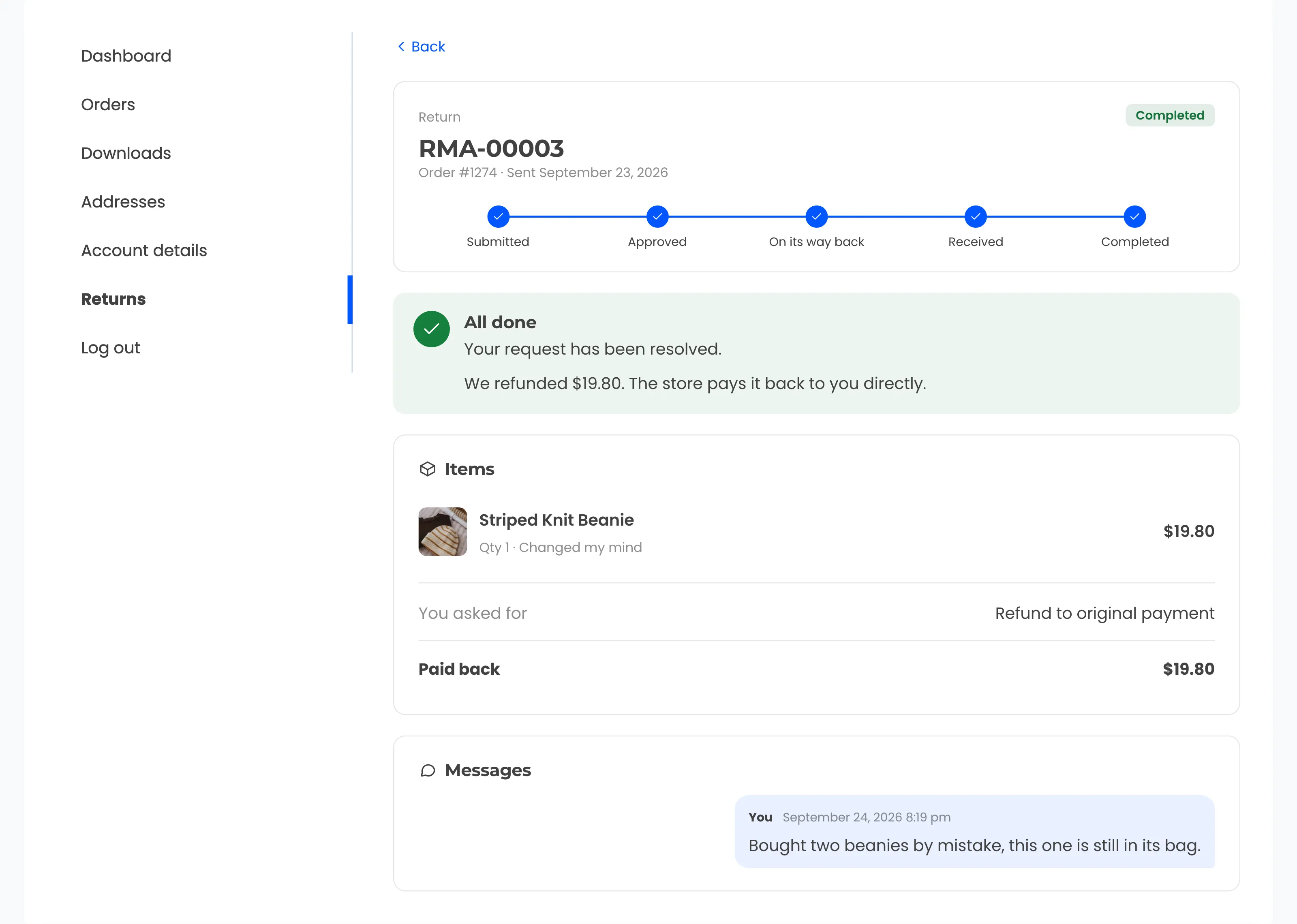
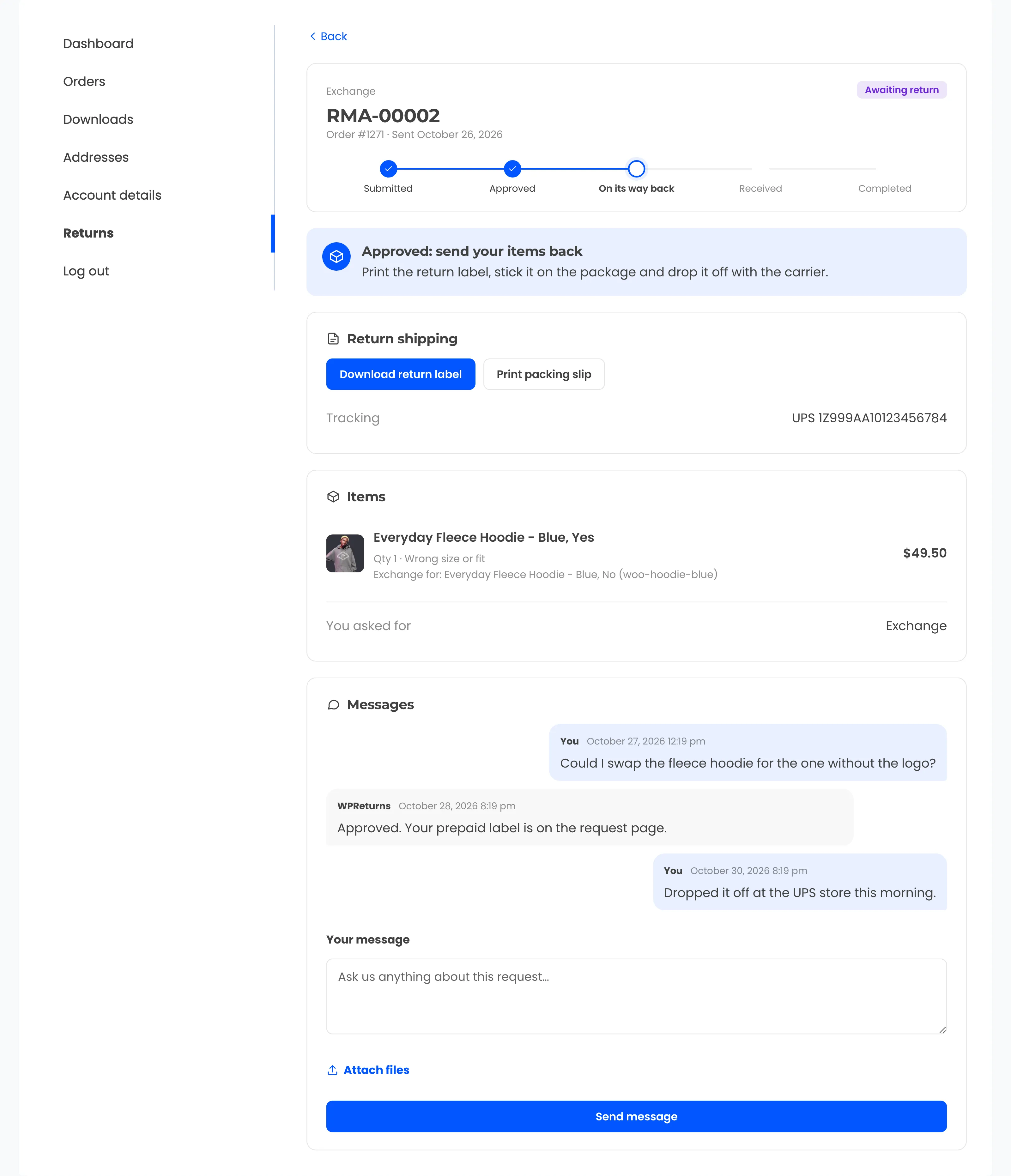
Section titled “The request page”Each request has its own page with the request type, the RMA number, the order number and the date it was sent. A status badge sits in the corner and a progress bar tracks the steps.
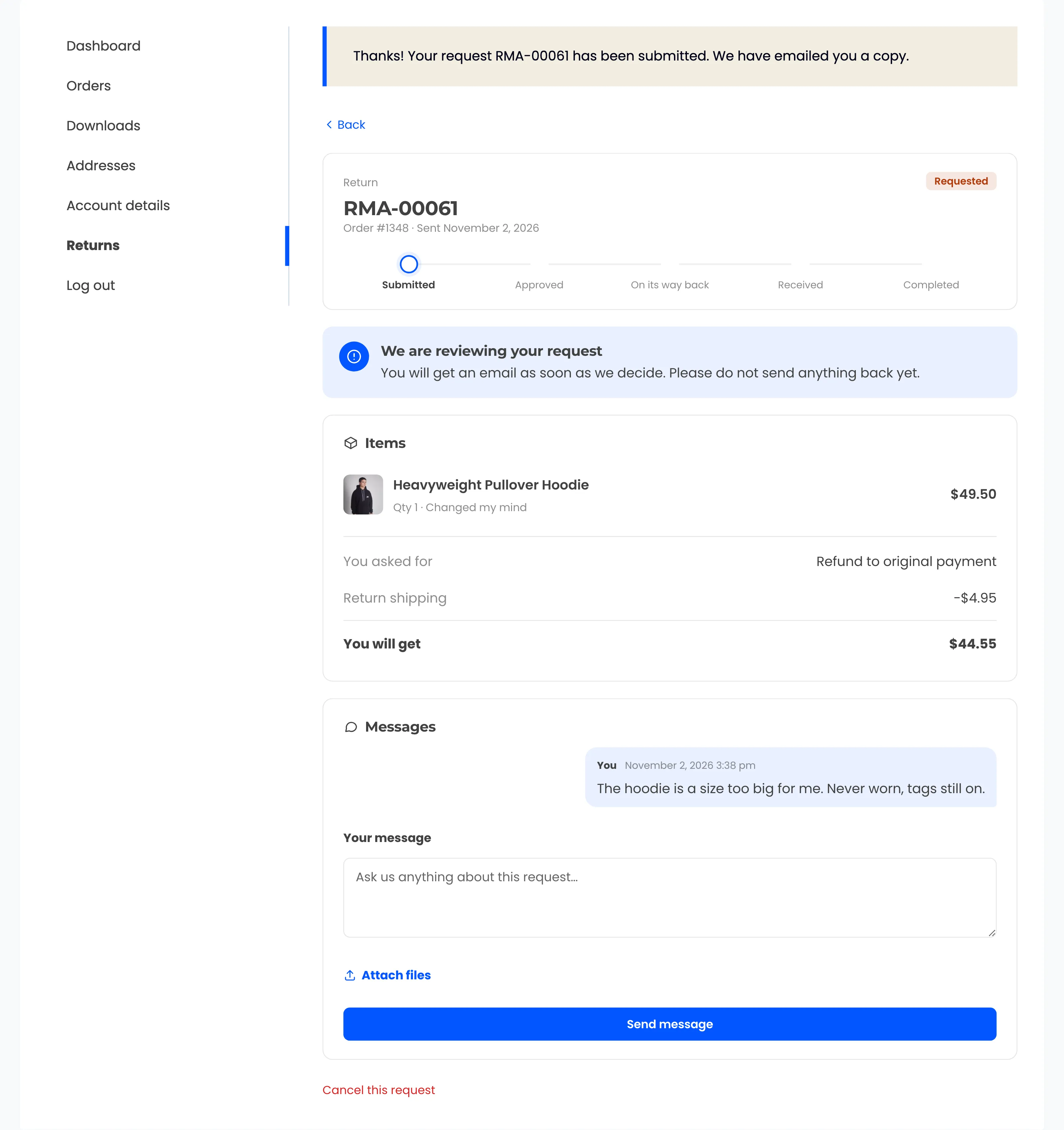
| Step | Status behind it |
|---|---|
| Submitted | Requested (pending) |
| Approved | Approved |
| On its way back | Awaiting return |
| Received | Received |
| Completed | Completed |
Cancellations and keep-it refunds skip the shipping steps. A custom status shows its own label as the current step.
A colored box under the progress bar tells the customer what to do now:
| Situation | Heading |
|---|---|
| Waiting for review | We are reviewing your request |
| Approved with items to send | Approved: send your items back |
| Items arrived | We have your items |
| Resolved | All done |
| Rejected | We could not accept this request |
| Canceled | This request was canceled |
When the request is resolved, the box also shows one of these results:
- the store credit code with “Enter it at checkout on your next order”
- the exchange order number with a Pay the difference button when money is due
- the refunded amount, worded by how the money goes back:
- through the payment gateway: “$19.80 is on its way back to your original payment method.”
- recorded in WooCommerce: “We refunded $19.80. The store pays it back to you directly.”
- to the DevDiggers Wallet: “$19.80 was added to your wallet. You can spend it on your next order.”
Return shipping and tracking
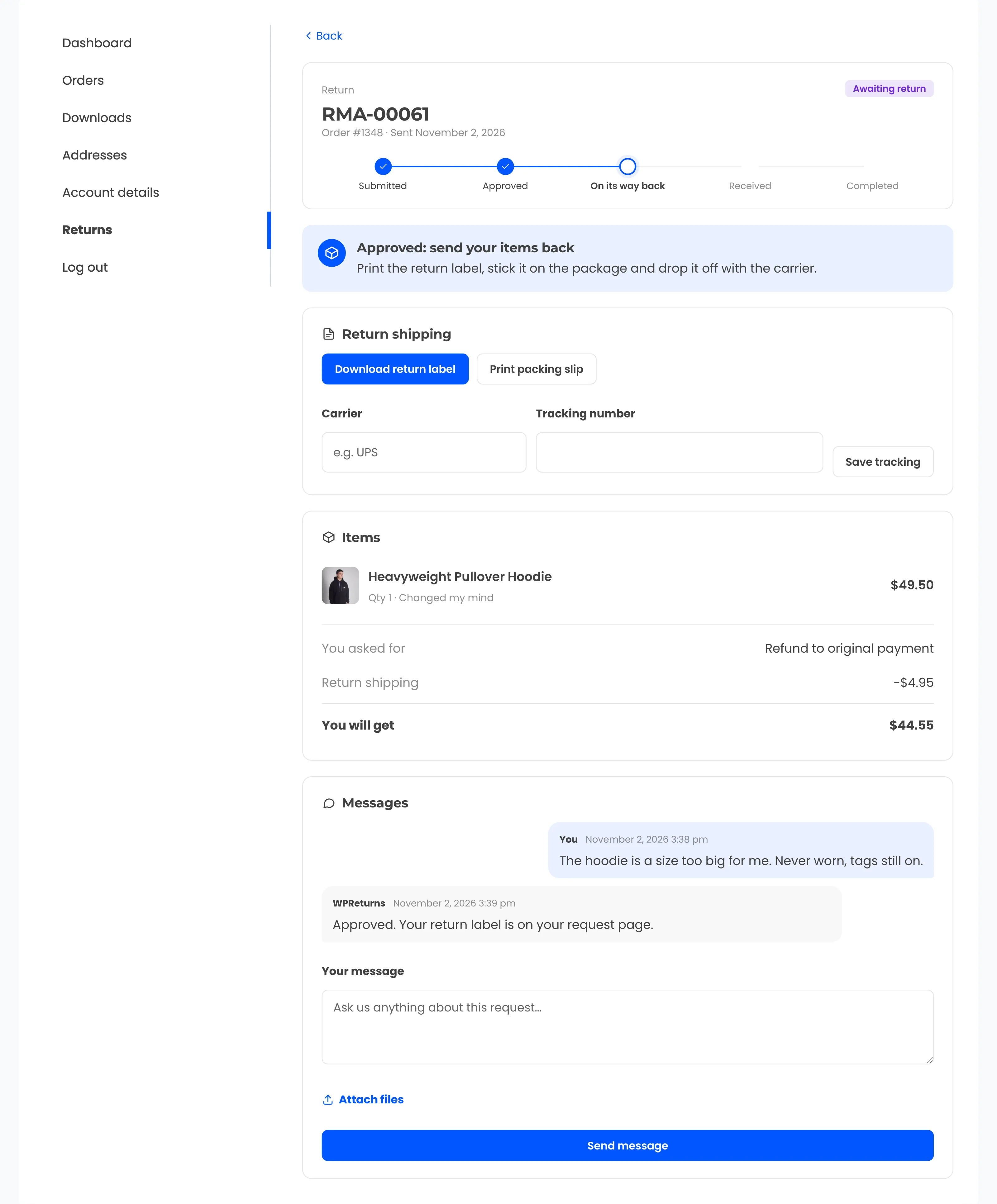
Section titled “Return shipping and tracking”While a request is approved or awaiting return, a Return shipping card appears.
- Download return label opens the label you uploaded or bought.
- Print packing slip (Pro) opens a printable slip with the return address and steps.
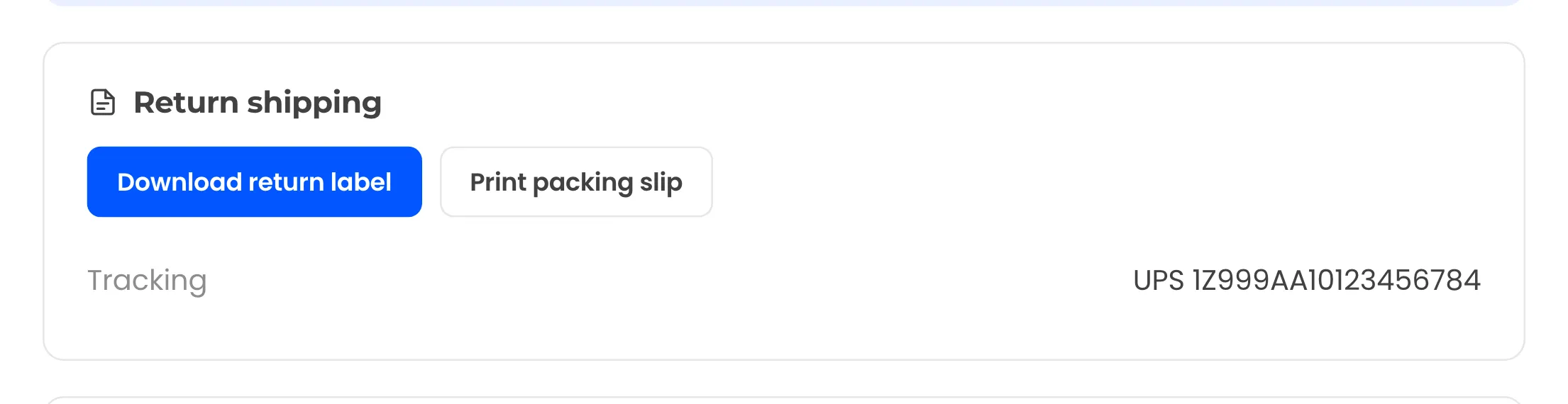
- Carrier and Tracking number fields with Save tracking let the customer record the parcel. After saving, the card shows the tracking line.
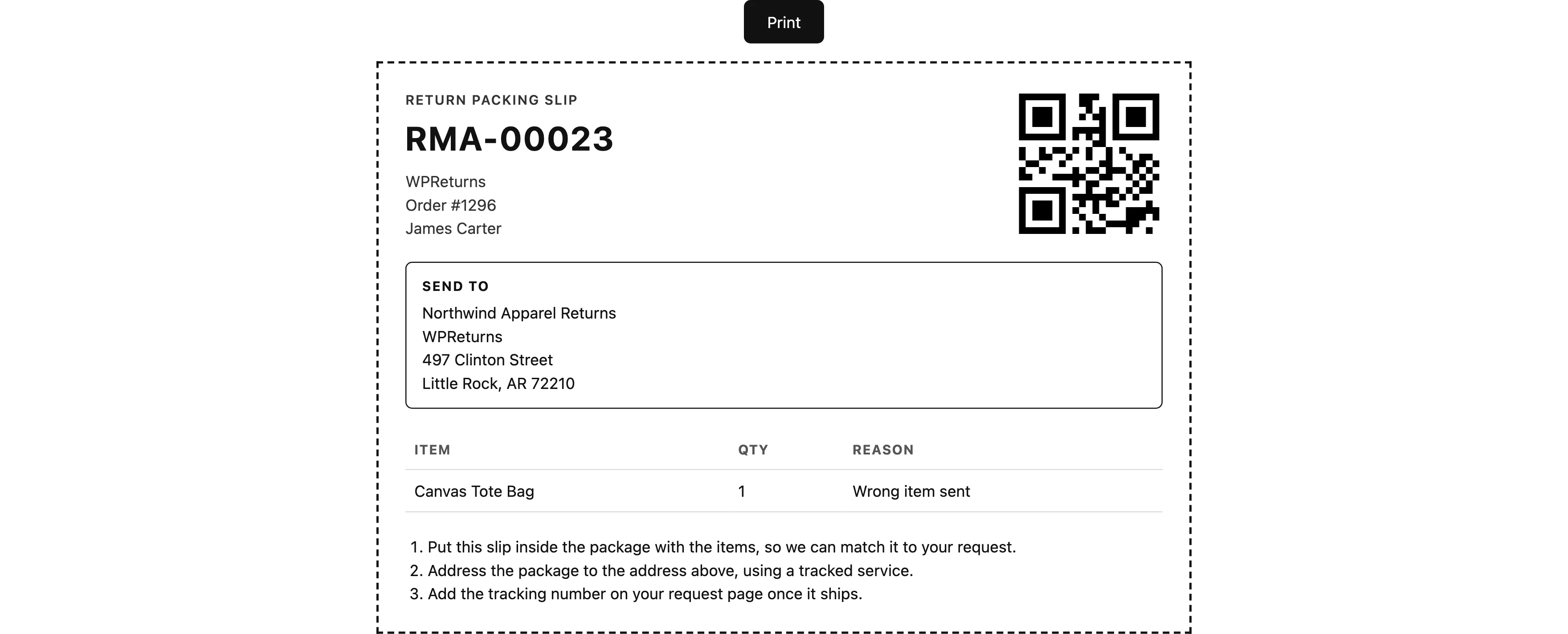
The packing slip shows the RMA number, a QR code, the Send to address and the items with their reasons. Three short steps tell the customer how to send the parcel.
Items and messages
Section titled “Items and messages”The Items card lists each item with quantity, reason and value. Totals show You asked for, any Restocking fee or Return shipping deduction, a Store credit bonus, and You will get or Paid back.
The Messages card holds the conversation with your team. Customers write in Your message, attach files with Attach files and select Send message. Their own messages show as “You” and your team’s replies show under the store name.
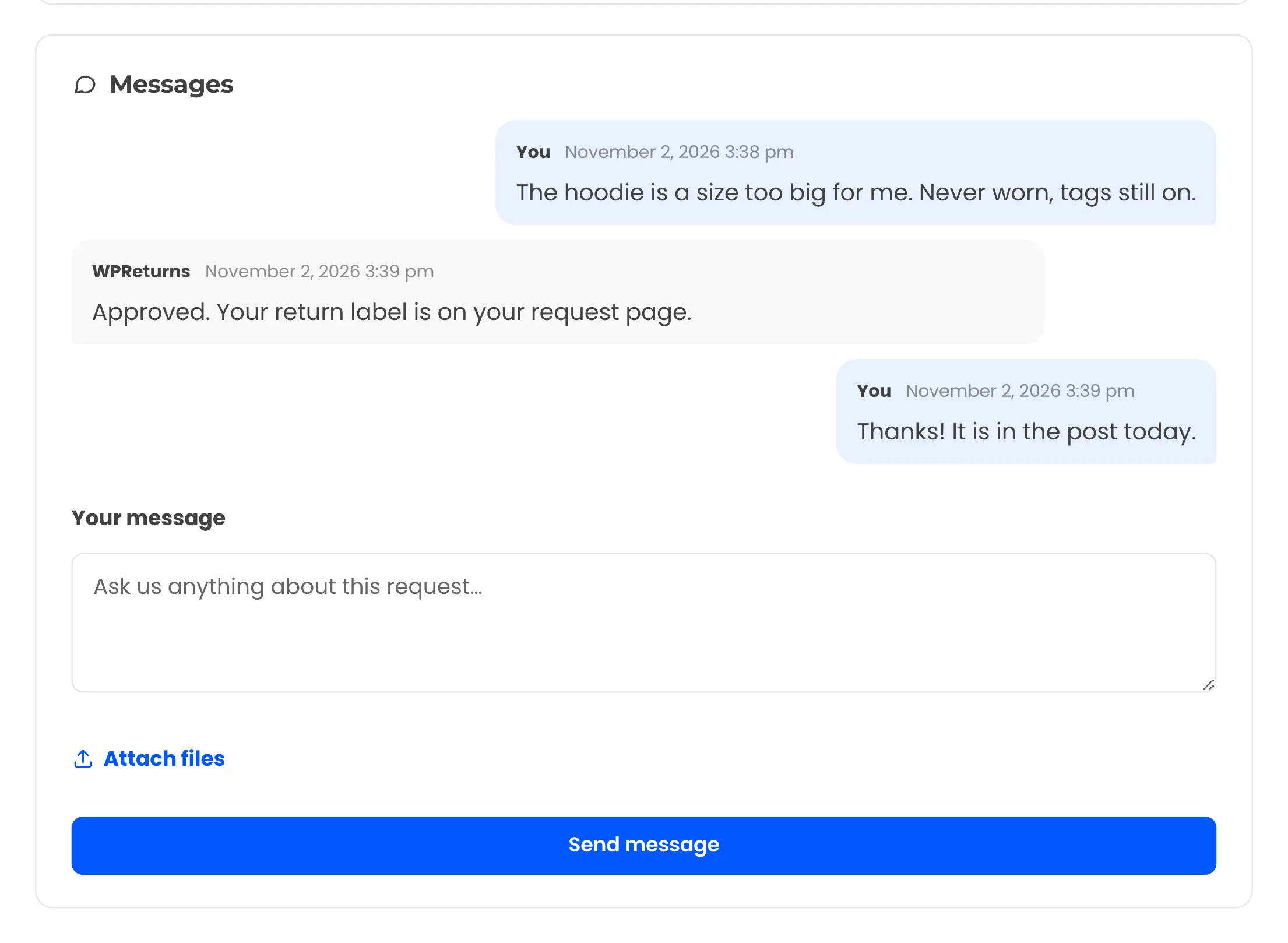
Internal notes never show here.
Exchange requests
Section titled “Exchange requests”An exchange request shows “Exchange for:” under each item with the variation the customer picked. You asked for reads Exchange.
Request an order cancellation
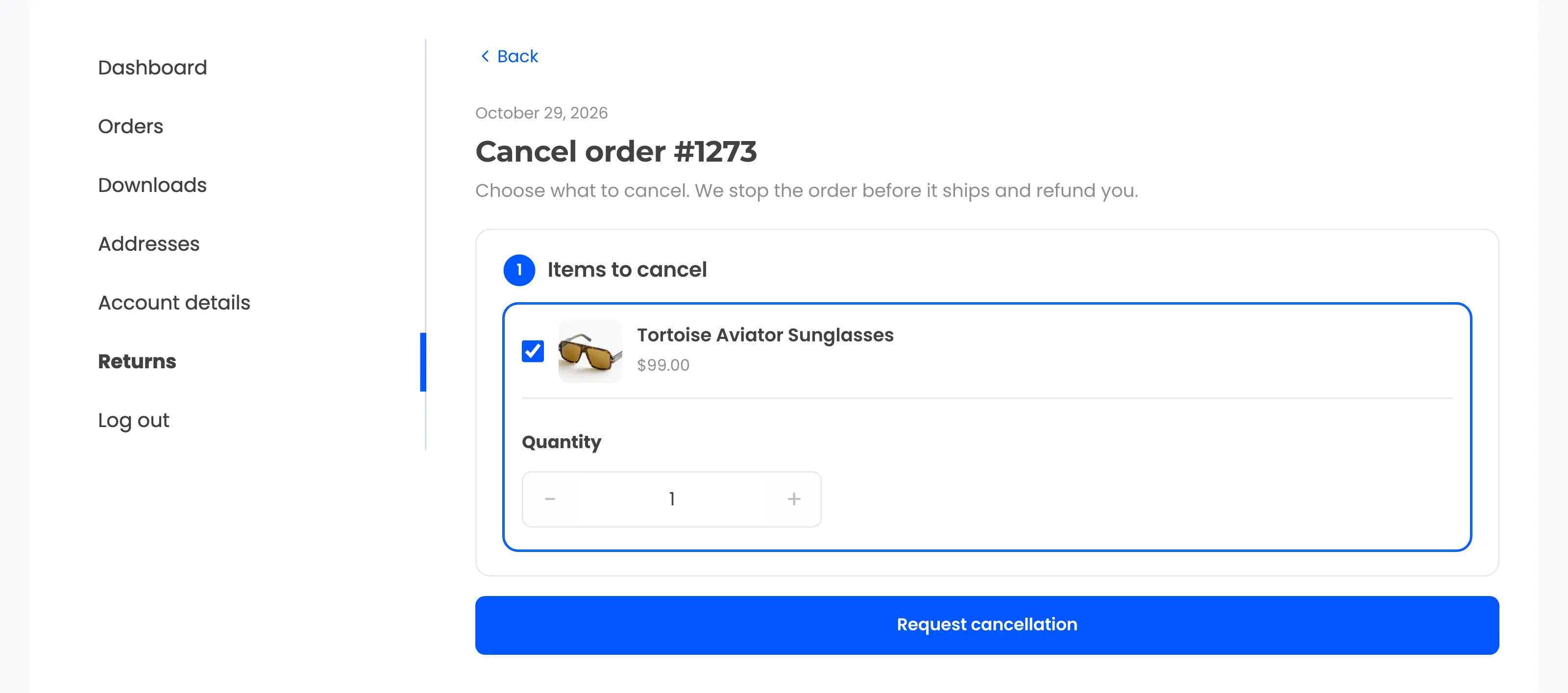
Section titled “Request an order cancellation”Request cancellation opens “Cancel order #1273” with an Items to cancel step. It asks for no reason or note.
Every item that can be canceled starts ticked. The customer unticks what to keep, sets the quantity and selects Request cancellation.
The cancellation request page has three steps: Submitted, Approved and Completed. Each item shows the reason “Order cancellation”.
Cancel a request
Section titled “Cancel a request”While a request still waits for review, the customer can select Cancel this request. The status moves to Canceled. EU withdrawals have no cancel link.