Customers and fraud
The Customers screen and the fraud checks show who returns too often before you refund. Every customer with a request gets a return rate by orders and by value. Each new request gets a risk score with flags such as Serial returner, and flagged customers’ requests wait for a person.
Available in: Pro.
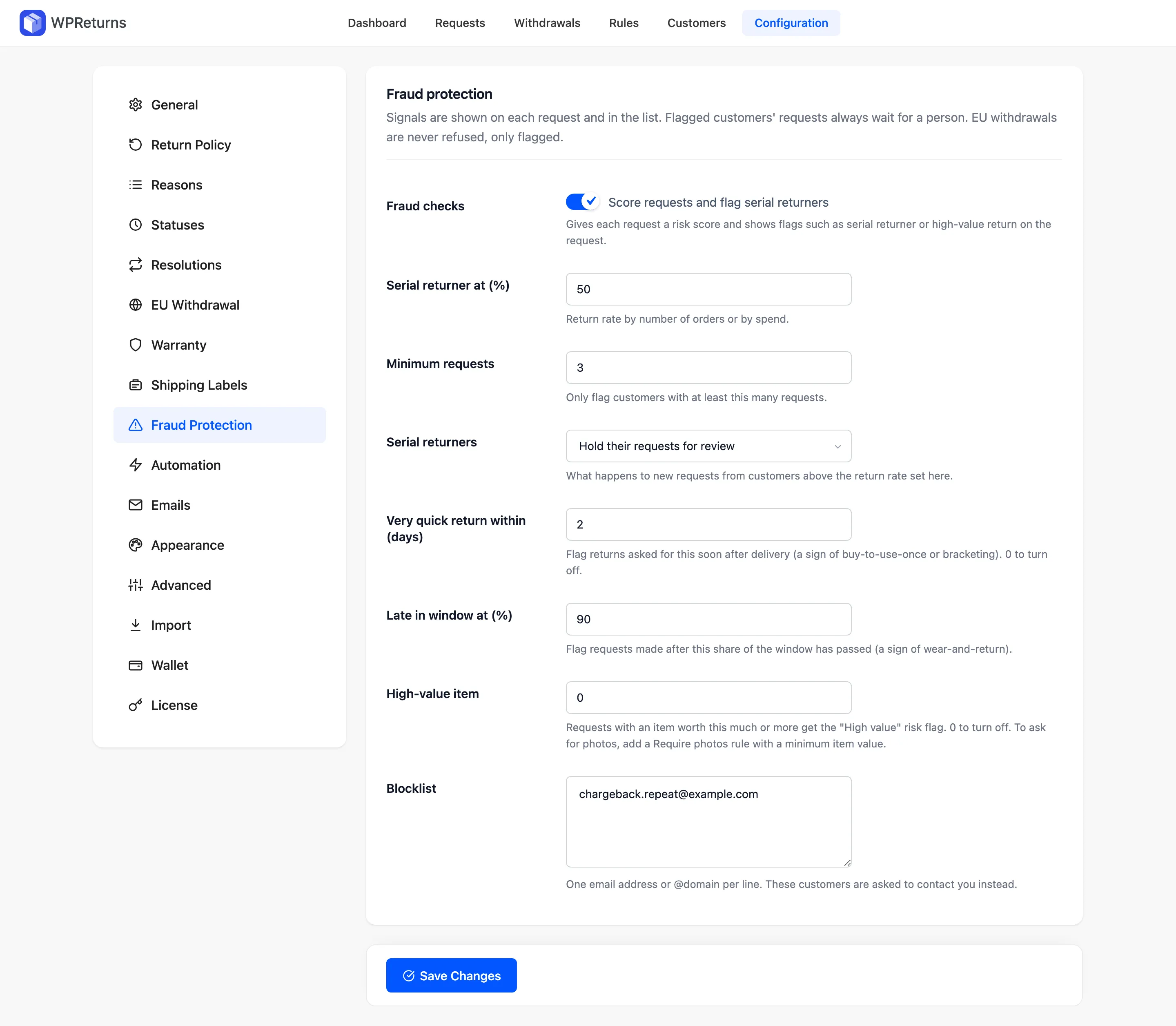
Fraud checks run when Fraud checks is on in Configuration > Fraud Protection. Its label reads Score requests and flag serial returners. See Fraud protection settings.
The Customers screen
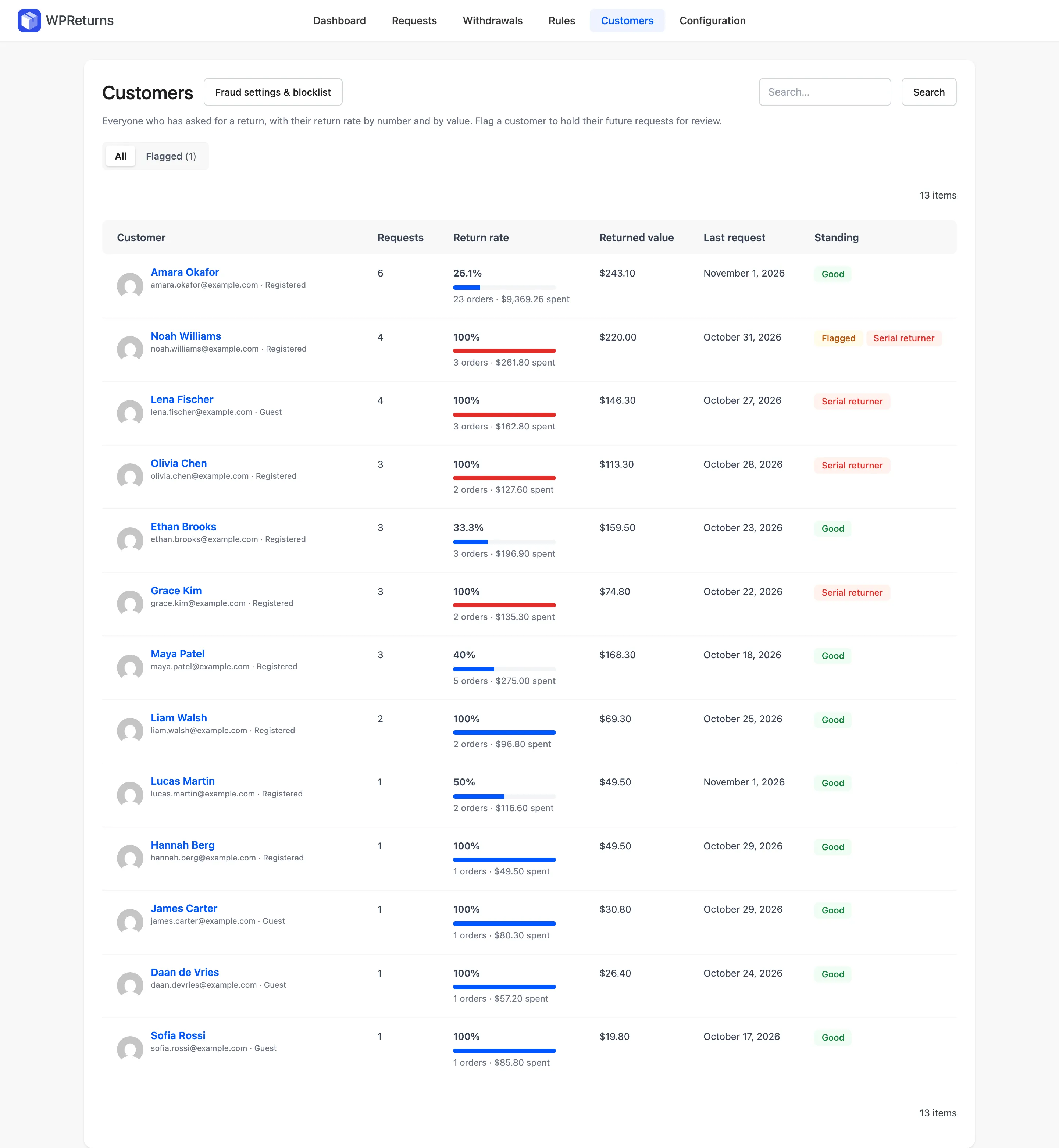
Section titled “The Customers screen”Go to DevDiggers Plugins > WPReturns > Customers. Everyone who has asked for a return appears here. All and Flagged tabs sit above the list, and search finds a customer.
| Column | What it shows |
|---|---|
| Customer | Avatar, name, and the email with a “Registered” or “Guest” label |
| Requests | Number of requests |
| Return rate | The rate in percent with a meter, and orders and spend below, for example “23 orders · $9,369.26 spent”. The meter turns red for serial returners. |
| Returned value | The value of returned items |
| Last request | When the latest request came in |
| Standing | Good, or badges such as Flagged, Serial returner and Blocked |
Row actions are View requests, Flag customer or Remove flag, and Edit account for registered customers. Fraud settings & blocklist at the top opens the Fraud Protection tab.
Return rates count returns, exchanges and withdrawals. Rejected and canceled requests are left out.
Registered customers’ return stats also show on their WordPress user profile.
Risk flags
Section titled “Risk flags”Each request gets a risk score from 0 up. The score adds the weight of every flag.
| Flag | When it is set | Weight |
|---|---|---|
| Serial returner | The return rate passes Serial returner at (%) with at least Minimum requests requests | 40 |
| Flagged customer | You flagged the customer by hand | 40 |
| On the blocklist | The email or its domain is on the blocklist. Only withdrawals and requests you create get this flag. | 40 |
| Used or worn | An item’s condition is Used or worn | 20 |
| Very quick return | The request came within Very quick return within (days) of delivery | 15 |
| Late in window | The request came after Late in window at (%) of the window passed | 15 |
| Same product returned before | The customer returned this product before | 20 |
| High value | An item is worth High-value item or more | 10 |
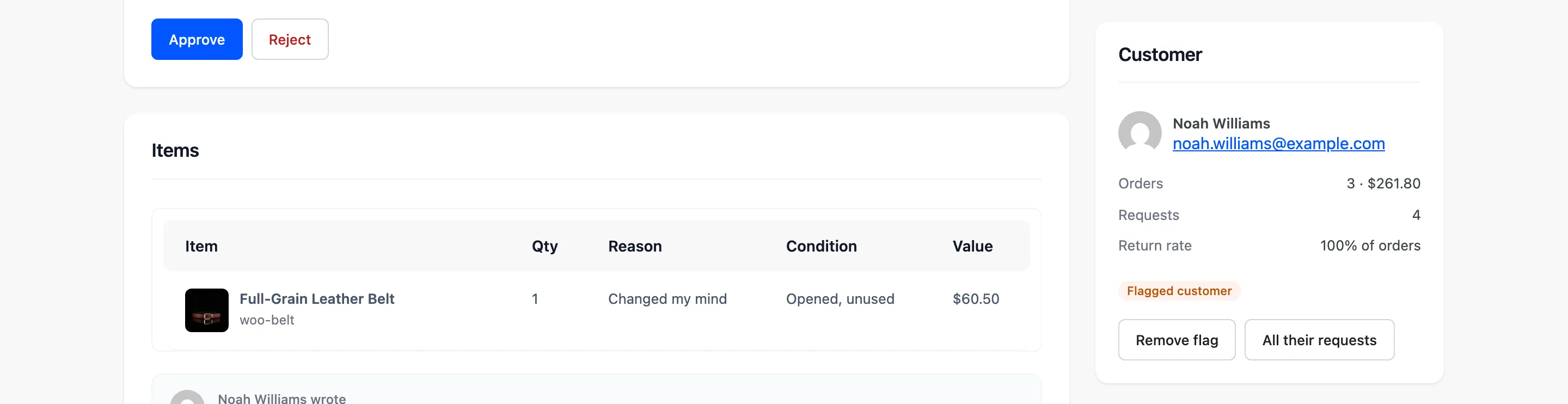
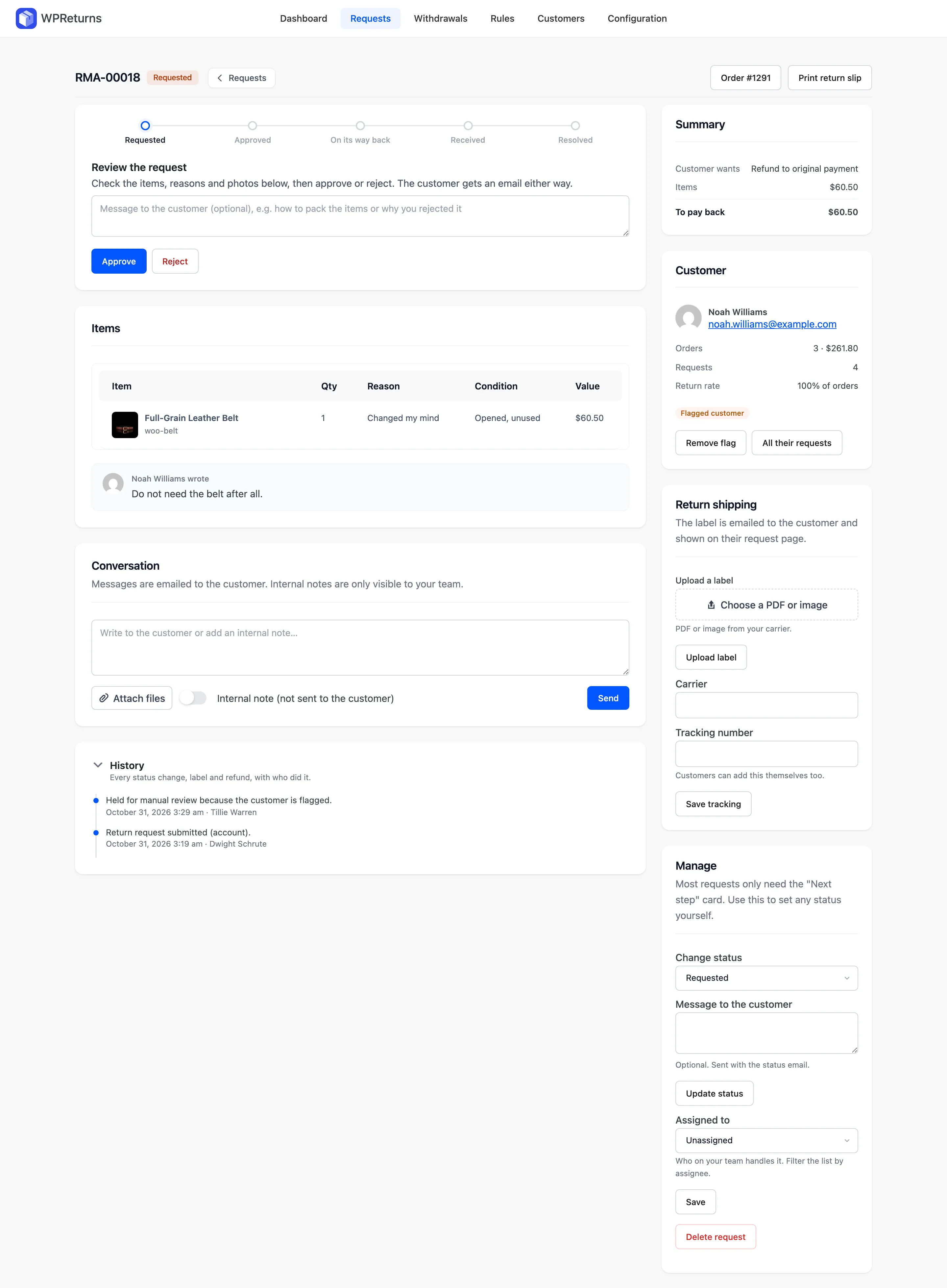
Flags show as pills on the Requests list and in the Customer section of the request screen. Use the Flagged only risk filter on the list to see them together.
What happens to flagged requests
Section titled “What happens to flagged requests”| Situation | Result |
|---|---|
| Serial returner flag with Serial returners set to Hold their requests for review | The request waits for a person. Auto-approve rules are skipped. |
| Serial returner flag with Serial returners set to Reject their requests automatically | The request is rejected with “We were not able to accept this request online. Please contact us.” |
| Customer flagged by hand | The request waits for a person with either Serial returners setting. History logs “Held for manual review because the customer is flagged.” |
| Email on the blocklist | The request is refused on the form: “We could not accept this request online. Please contact us and we will help you.” |
| Other flags only | The score and pills show. Nothing is blocked. |
Flag or unflag a customer
Section titled “Flag or unflag a customer”- Open Customers, or the Customer section on a request.
- Select Flag customer.
- To clear it later, select Remove flag.
A flag holds that customer’s future requests for review. Use it for customers you want to look at before approving.
The blocklist
Section titled “The blocklist”The Blocklist on the Fraud Protection tab takes one email address or @domain per line:
jane.cooper@example.com@example.netBlocklisted customers cannot send return, exchange, warranty or cancellation requests online. They are asked to contact you instead. You can still create a request for them from the Requests list.
The blocklist matches email addresses and domains. It does not match user IDs or street addresses.
Photos for high-value items
Section titled “Photos for high-value items”The High value flag only marks a request. To ask for photos above a price, add a Require photos rule with an Item price condition. See Return rules.
Team permissions
Section titled “Team permissions”WPReturns adds four capabilities. Administrators and shop managers get all of them on install.
| Capability | Lets a user |
|---|---|
ddwcwr_manage_requests | View and edit requests, message customers and assign requests |
ddwcwr_process_refunds | Resolve requests with refunds, credit and exchanges, and set restricted statuses |
ddwcwr_manage_settings | Change configuration, rules, reasons and statuses, and delete requests |
ddwcwr_view_reports | See the dashboard and export CSV |
Requests can only be assigned to users with ddwcwr_manage_requests. Give other roles these capabilities with a role editor plugin. The free plugin uses manage_woocommerce for everything.
Developers can add their own flags with ddwcwr_request_risk_flags and change labels and weights with ddwcwr_risk_flag_definitions. See Hooks.