Guest returns portal
The guest returns portal lets customers start a return without an account. They enter the order number and the billing email, and WPReturns opens that order with the same buttons My Account shows. The portal runs on a page with the [ddwcwr_returns_portal] shortcode or the Returns portal block.
Available in: Free and Pro. Exchanges and warranty claims in the portal need Pro.
The portal page
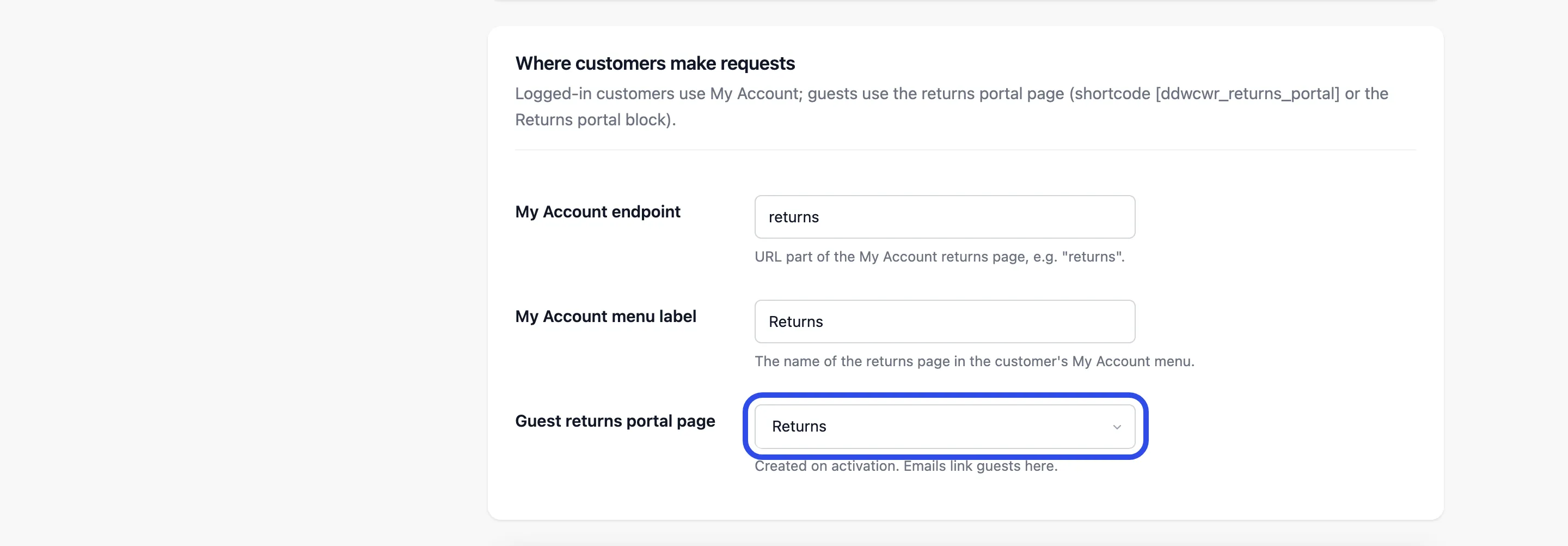
Section titled “The portal page”WPReturns creates a portal page with the shortcode on activation, at the slug returns. It also saves that page as the Guest returns portal page under DevDiggers Plugins > WPReturns > Configuration > General. Emails to guests link to this page.
To use a different page:
- Add the shortcode or the Returns portal block to the page. See Shortcodes and blocks.
- Go to Configuration > General and pick that page as the Guest returns portal page.
- Select Save Changes and add the page to your menu or footer.
How a guest starts a return
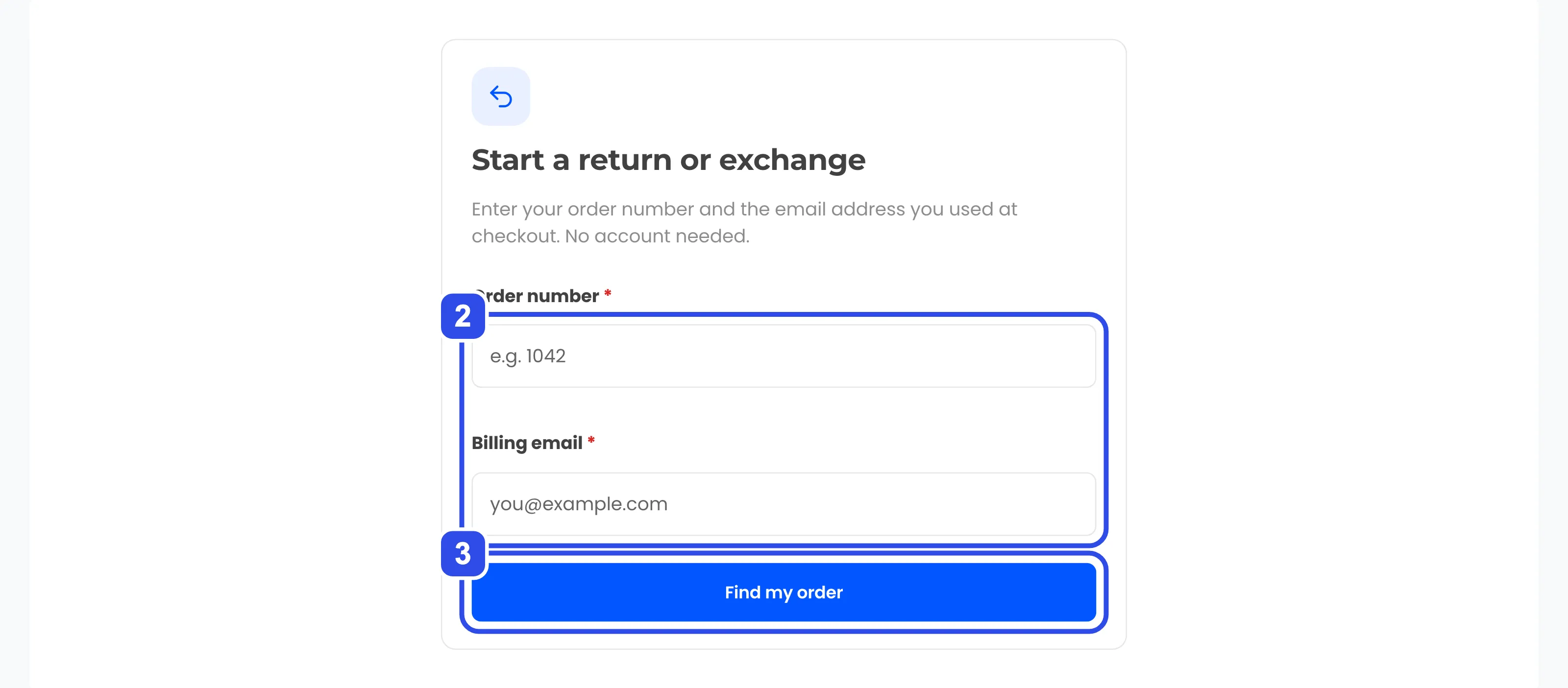
Section titled “How a guest starts a return”- The guest opens the portal page and sees Start a return or exchange.
- They fill in Order number (for example 1042) and Billing email. Both are required.
- They select Find my order.
- A Your order card lists the order number, date, status and items.
- Under it, the Returns, exchanges & warranty panel shows earlier requests, the deadline and the buttons for that order.
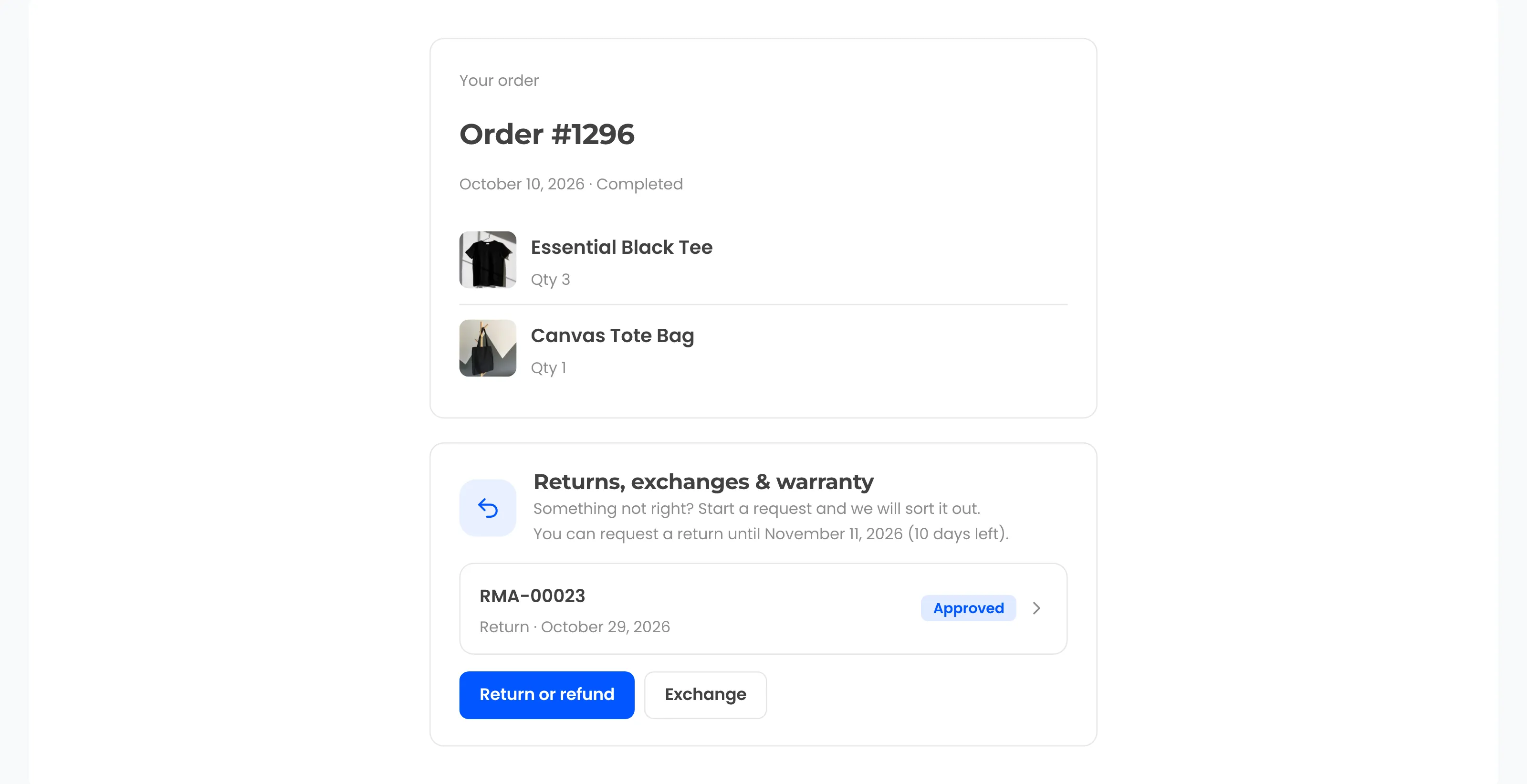
- They pick a button and fill in the request form. The form works the same as in My Account.
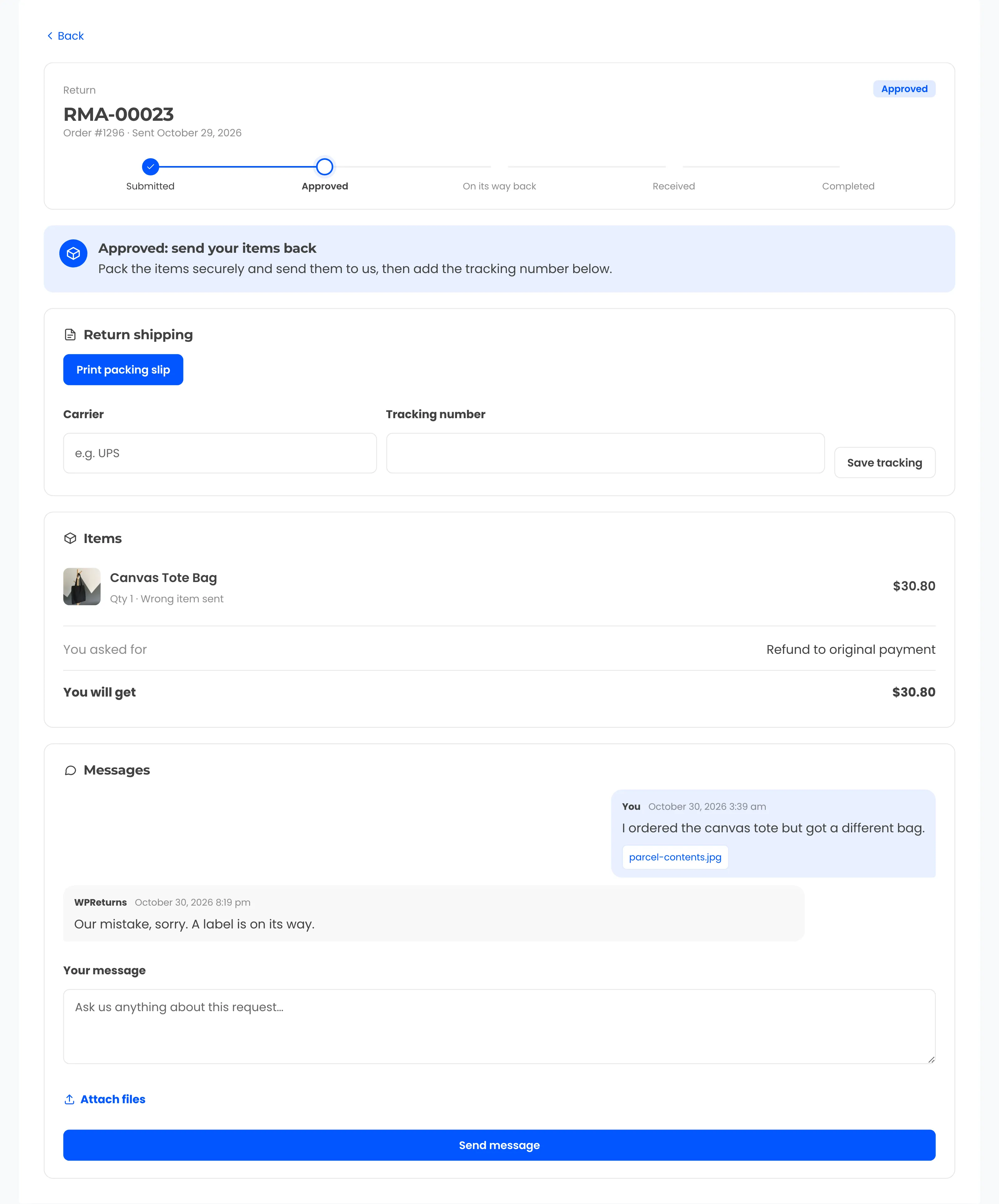
- After Submit request, they land on the request page.
The guest request page matches the My Account one, with progress, return shipping, items and messages. Without a label, the box asks them to pack the items, send them and add the tracking number.
Logged-in visitors see “Signed in? See your orders in My Account.” under the form.
How guest access works
Section titled “How guest access works”The portal asks for no password. These checks protect the order instead.
| Protection | What it does |
|---|---|
| Order and email match | The order number and billing email must belong to the same order |
| Two-hour order link | After a match, the order opens through a signed link that expires after two hours |
| Per-request secret key | Every request gets a random key. Email links carry it and open the request page without a login |
| Honeypot field | A hidden field that people leave empty. Bots that fill it get nothing |
| Rate limit | Lookups per visitor per hour, set by Attempts per hour on the EU Withdrawal tab |
When the order link expires, the guest sees “This link has expired. Look up your order again.” The request page link in emails keeps working.
Messages guests can see
Section titled “Messages guests can see”| Message | Cause |
|---|---|
| We could not find an order with that number and email address. Please check both and try again. | No order matches both values |
| Too many attempts. Please wait an hour and try again. | The rate limit was reached |
| This link is not valid. Look up your order below. | A request link with a wrong or missing key |
| Your session expired. Please try again. | The form’s security token expired (often on a cached page) |
Custom order numbers
Section titled “Custom order numbers”Stores that use a sequential order number plugin show numbers that differ from the order ID. The portal compares the number the guest types with the order’s visible number. If your plugin needs a lookup, map the number to an ID with the ddwcwr_find_order_id_by_number filter.