Import from another plugin
The Import tab copies your old requests from another WooCommerce returns plugin into WPReturns. Each request keeps its order, items, status, dates, reason and messages. After the switch your whole returns history sits in one place.
Available in: Free and Pro
Where to find it
Section titled “Where to find it”DevDiggers Plugins > WPReturns > Configuration > Import
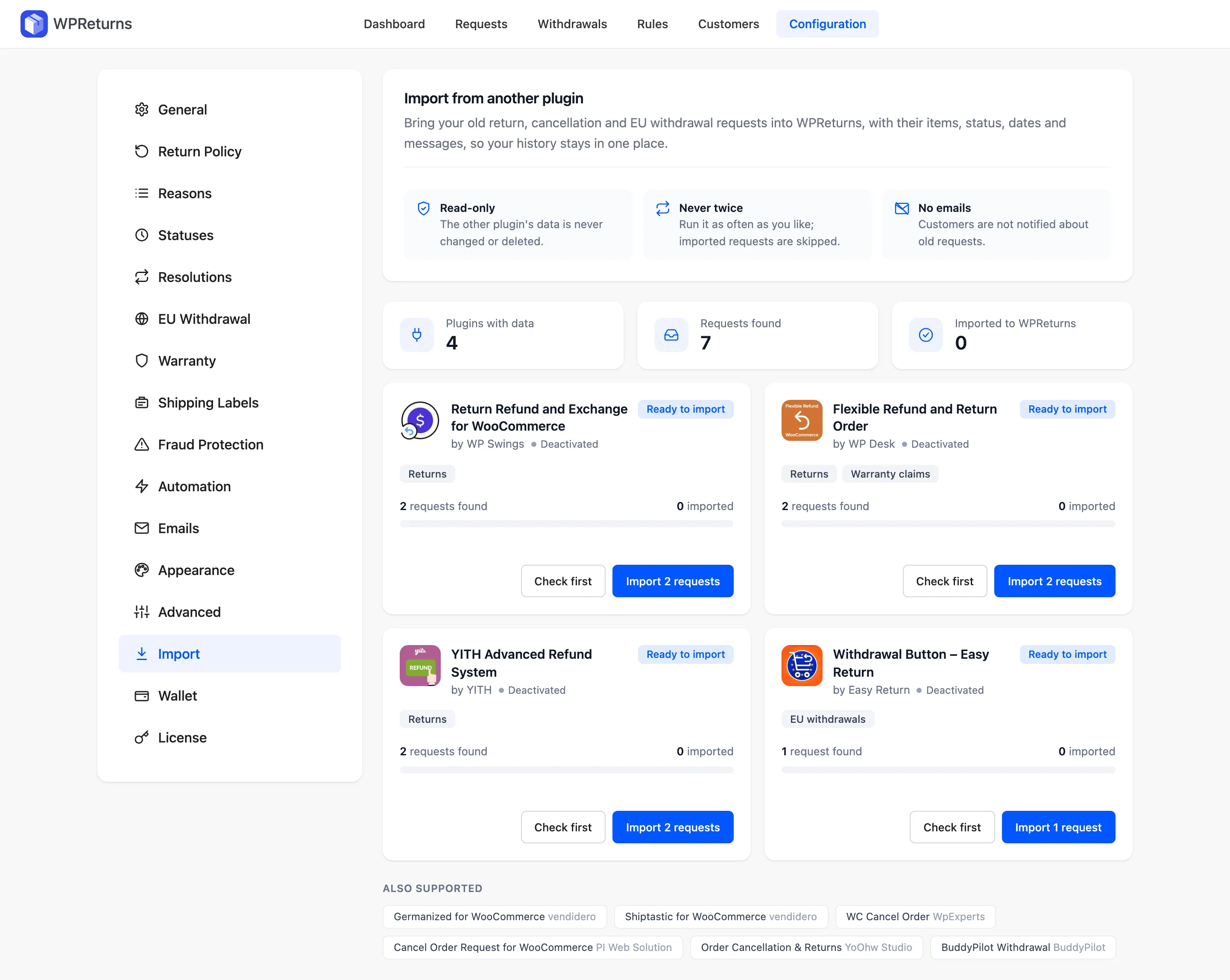
WPReturns looks for data from every supported plugin each time you open the tab. It reads the other plugin’s tables and order meta directly, while that plugin is active or after you deactivate it.
The data has to still be in the database. A plugin that deletes its data on uninstall leaves nothing to import.
What the import promises
Section titled “What the import promises”The three notes at the top of the tab are rules the importer follows on every run.
| Promise | What it means |
|---|---|
| Read-only | The other plugin’s data is never changed or deleted. You can keep using it until you switch it off. |
| Never twice | Each imported request remembers where it came from. Run the import as often as you like and requests already in WPReturns are skipped. |
| No emails | Customers get no email about old requests, and no request hooks or webhooks fire. |
Supported plugins
Section titled “Supported plugins”| Plugin | Made by | Request types |
|---|---|---|
| Return Refund and Exchange for WooCommerce (free and Pro) | WP Swings | Returns |
| Flexible Refund and Return Order (free and Pro, also its 1.x order meta) | WP Desk | Returns and warranty claims |
| YITH Advanced Refund System (free and Premium) | YITH | Returns |
| Germanized for WooCommerce (free and Pro) | vendidero | EU withdrawals |
| Shiptastic for WooCommerce | vendidero | Returns |
| WC Cancel Order | WpExperts | Cancellations |
| Cancel Order Request for WooCommerce (free and Pro) | PI Web Solution | Cancellations |
| Order Cancellation & Returns | YoOhw Studio | Cancellations and returns |
| Withdrawal Button – Easy Return | Easy Return | EU withdrawals |
| BuddyPilot Withdrawal | BuddyPilot | EU withdrawals |
Plugins with data get a card. The others are listed under Also supported. When none has data, the tab says “No other returns plugin found”.
The plugin cards
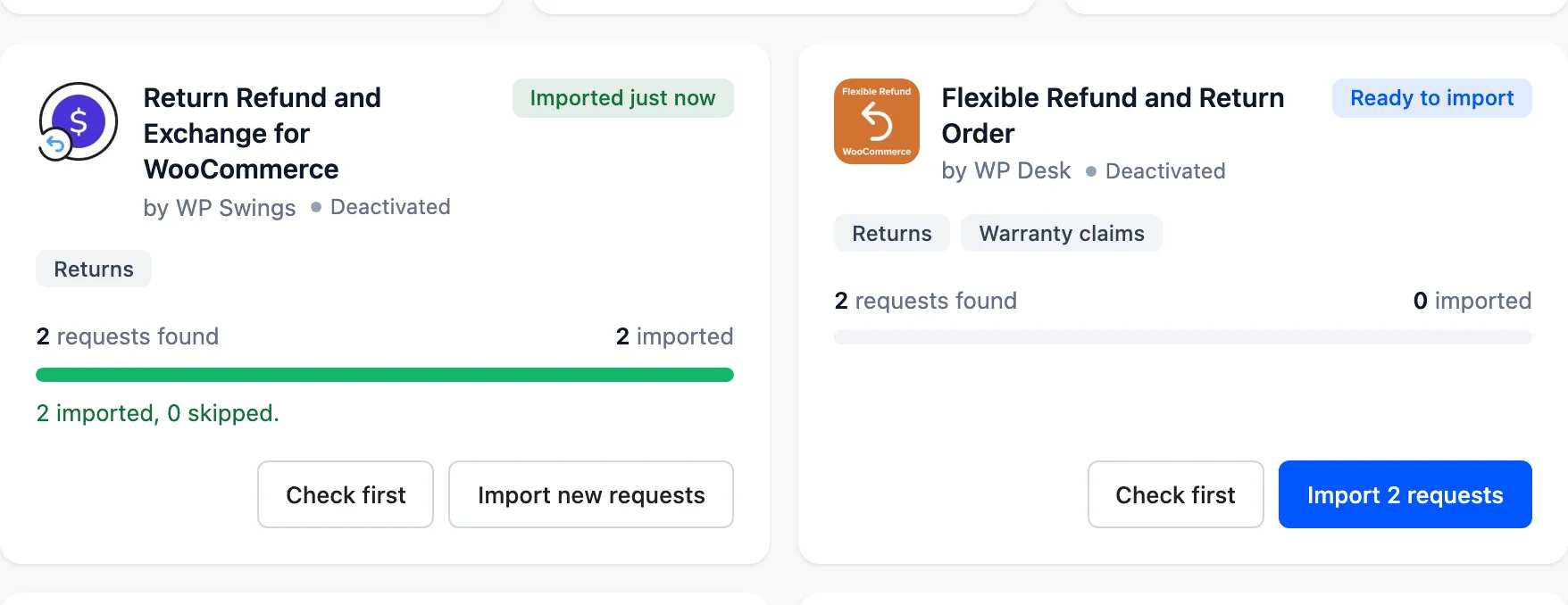
Section titled “The plugin cards”The row at the top adds up every plugin with data: Plugins with data, Requests found and Imported to WPReturns.
Each card shows:
- The plugin’s name and maker, and whether it is Active or Deactivated on your site.
- A badge: Ready to import or Partly imported before, Imported just now after a run and Imported with the date later.
- The request types the plugin holds.
- How many requests were found and how many are already imported, with a progress bar. WP Swings counts each request, even when one order holds several.
- Two buttons: Check first and Import N requests, which reads Import new requests after a full run.
Import your requests
Section titled “Import your requests”-
Open the Import tab and find the card for your old plugin.
-
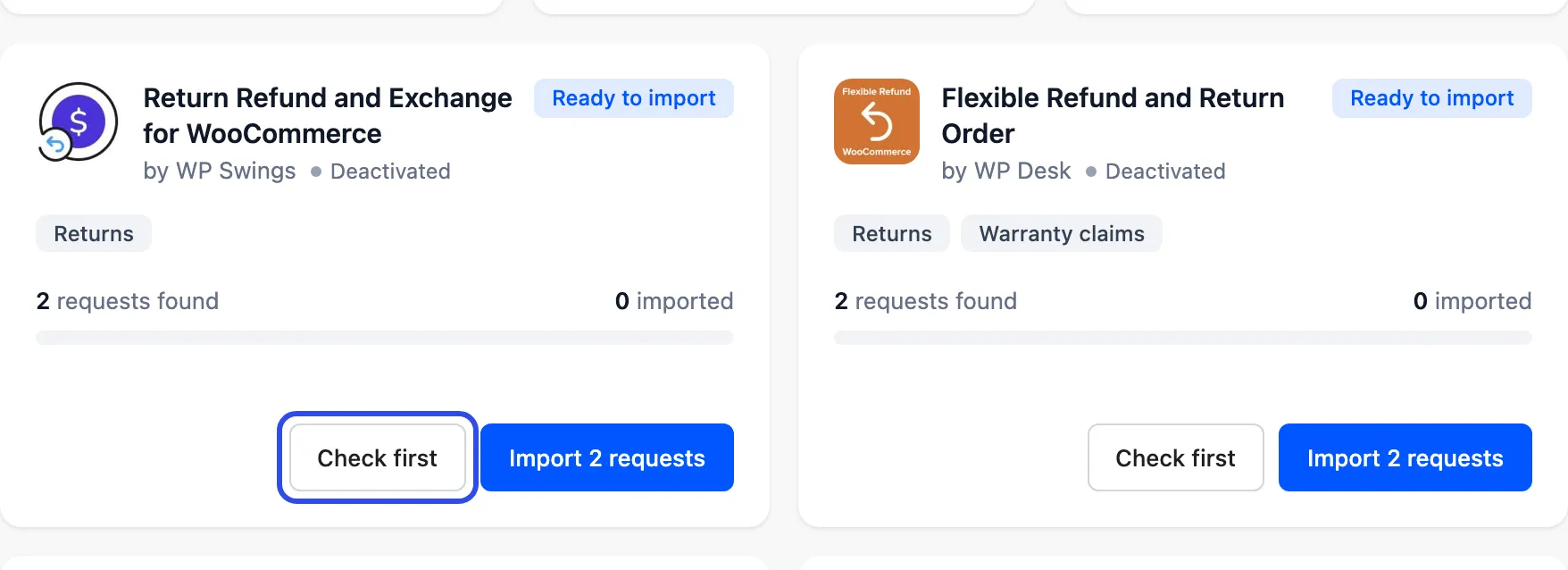
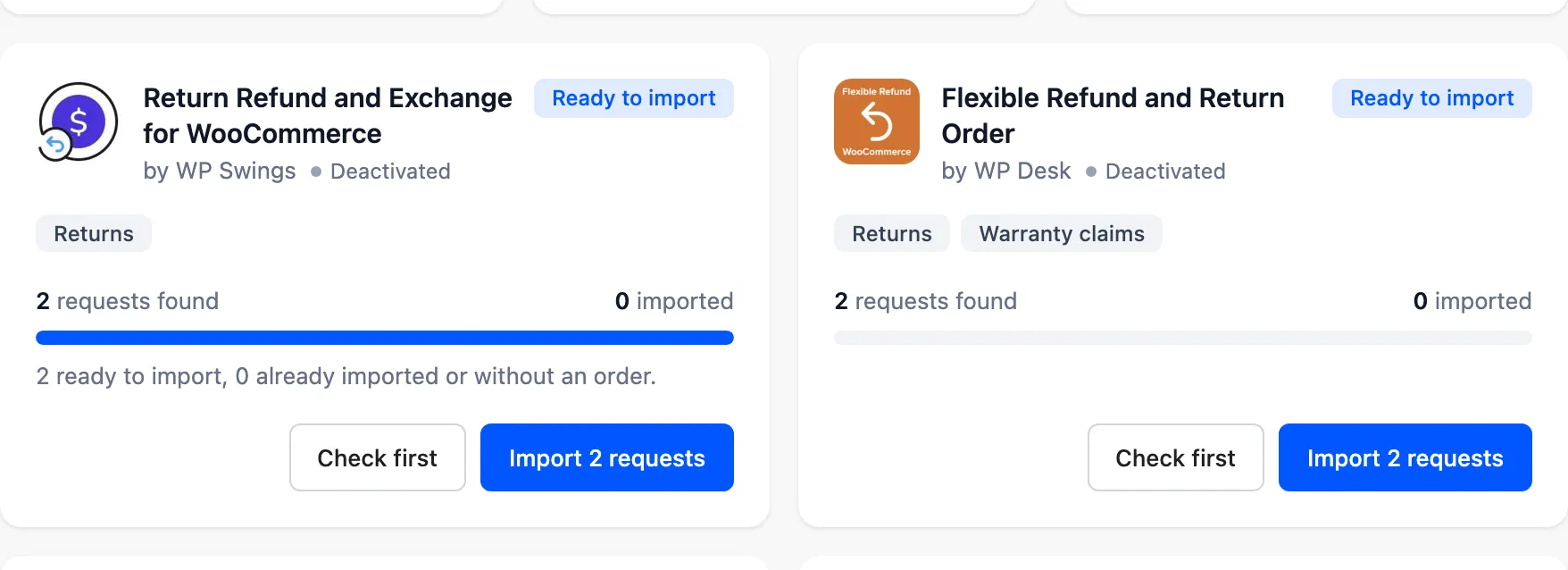
Select Check first. WPReturns reads every request without writing anything. It says how many are ready and how many it would skip: “2 ready to import, 0 already imported or without an order.”
-
Select Import N requests. The card counts up as each batch of 25 requests is copied. Keep the tab open until the badge reads Imported just now and the card says how many were imported and skipped.
-
Open DevDiggers Plugins > WPReturns > Requests to see the imported requests next to new ones.
If the import stops, for example because the page was closed, run it again. Requests already imported are skipped and it carries on with the rest. Only one import per plugin runs at a time: a second browser tab gets the message “This import is already running in another tab”.
How old requests are mapped
Section titled “How old requests are mapped”| Old data | In WPReturns |
|---|---|
| Order and items | The same order and order items. Quantities are capped at what the order line holds, and the value is the item’s paid price times the quantity. |
| Request type | The type the old plugin recorded: return, cancellation, EU withdrawal or warranty claim. |
| Status | The matching WPReturns status, such as Requested, Approved, Rejected or Completed. |
| Reason | The WPReturns reason with the same name. A reason with no match becomes Other, and the old wording is kept in the customer’s note as “Reason: …”. Reasons given per item are kept per item. |
| Customer note and messages | The note becomes the first message. Messages from the customer and the shop follow in order. The shop’s private notes stay private. |
| Photos | WP Swings and WP Desk photos are listed by name in the customer’s note under “Photos sent with the request”. WP Swings photos are matched to the request by date. |
| Dates | The request date is kept, and closed requests keep the date they were decided. |
| Refunds | Completed requests show the amount the old plugin refunded, or the order’s refunded amount up to the items’ value. When two imported requests share one order, its refunds are split between them and never counted twice. |
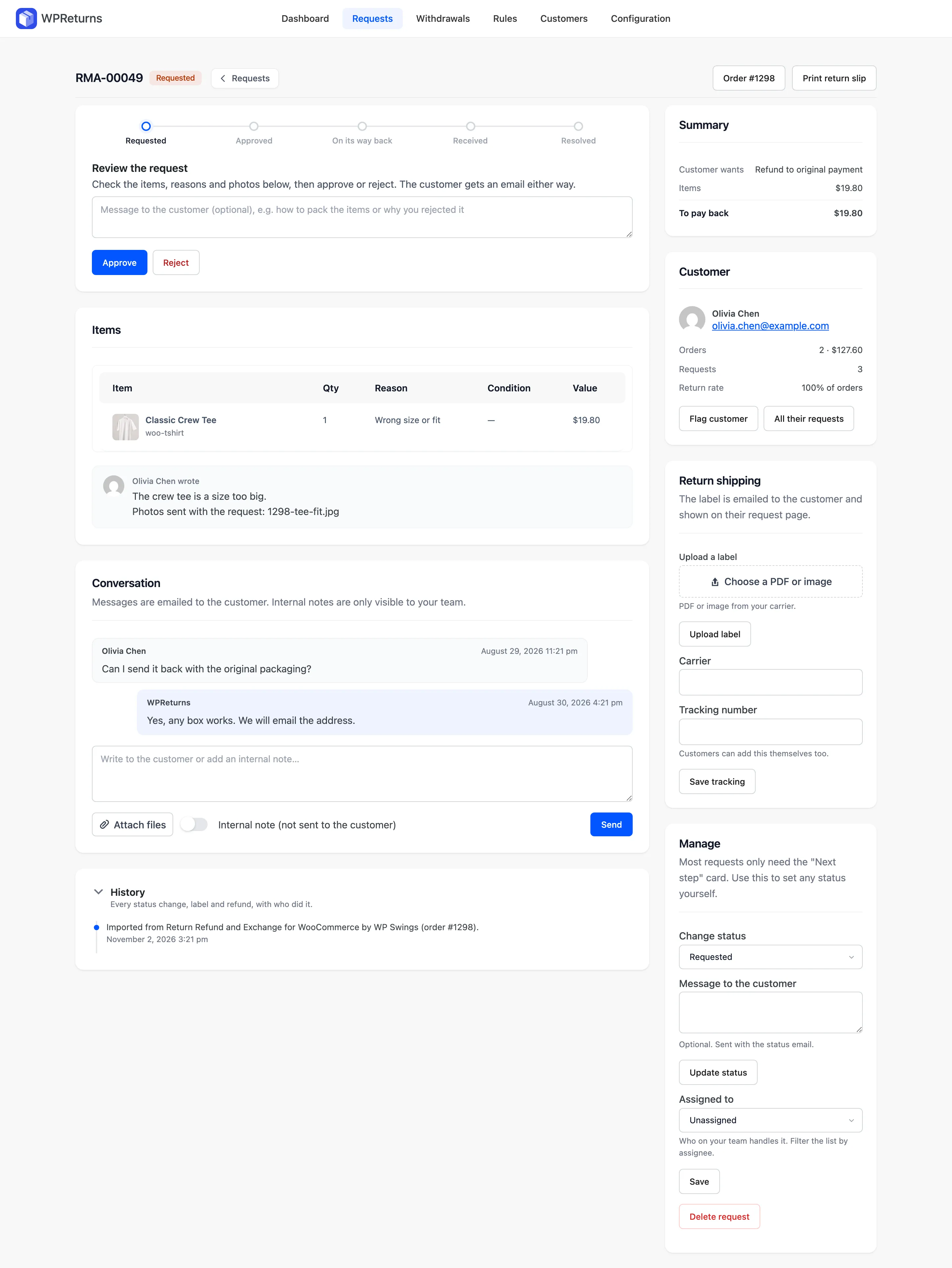
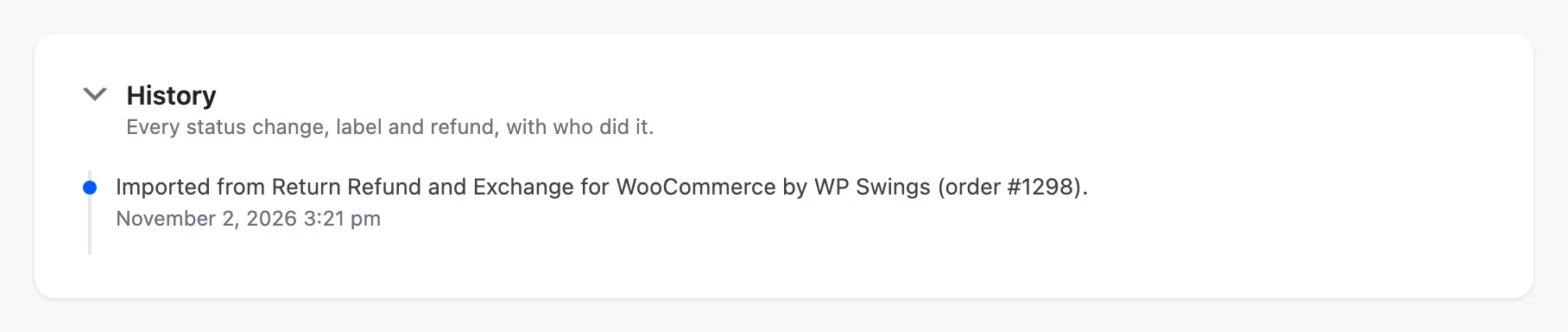
Every imported request also gets a line in its history: “Imported from [plugin] by [maker] (order #[number])”. Its source reads import.
An EU withdrawal statement that names no order WPReturns can find is kept in the withdrawals log. It keeps the name, order number, email and date the customer gave, and a second run never adds it twice. Requests on trashed orders, and requests whose items no longer exist on the order, are skipped.
After the import
Section titled “After the import”The Next steps box appears once something is imported: “Your history is in WPReturns. Two things finish the move.”
-
Handle open requests in WPReturns. The step counts imported requests that are still open and links to them. When all are closed it says new requests now come in through WPReturns.
-
Switch off the old plugin. Customers then see only one returns form, and your imported requests stay.
Orders the old plugin gave its own status, such as “Return Requested”, stay visible in WooCommerce under that status after the plugin is gone. Once the plugin is off, this step reads “Done.”
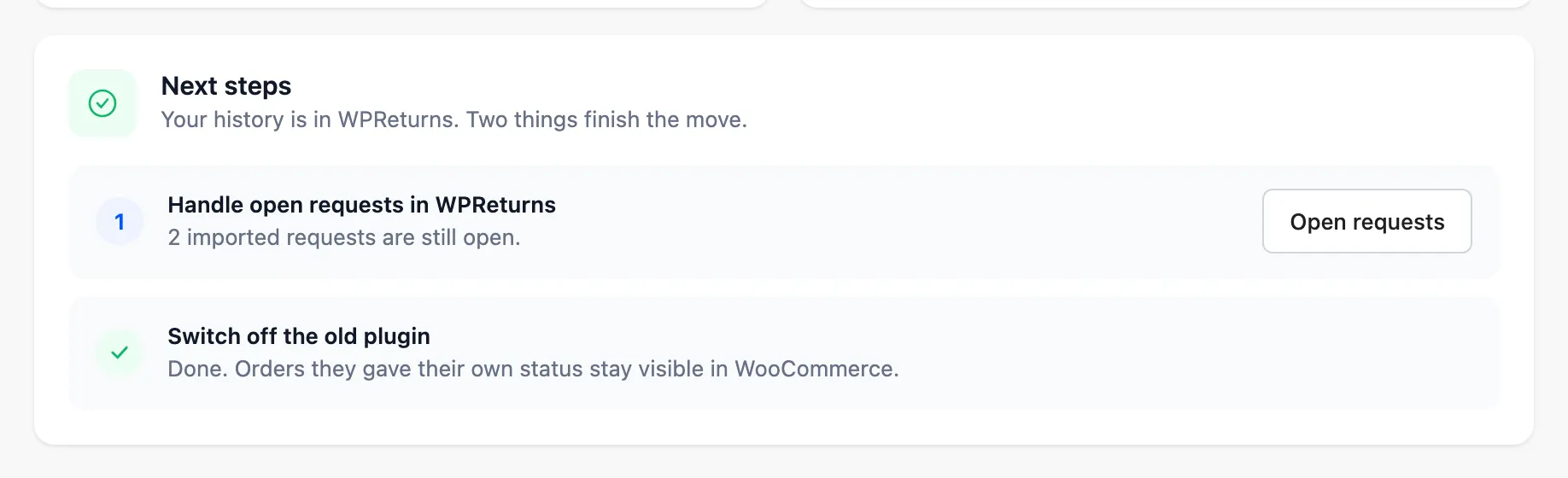
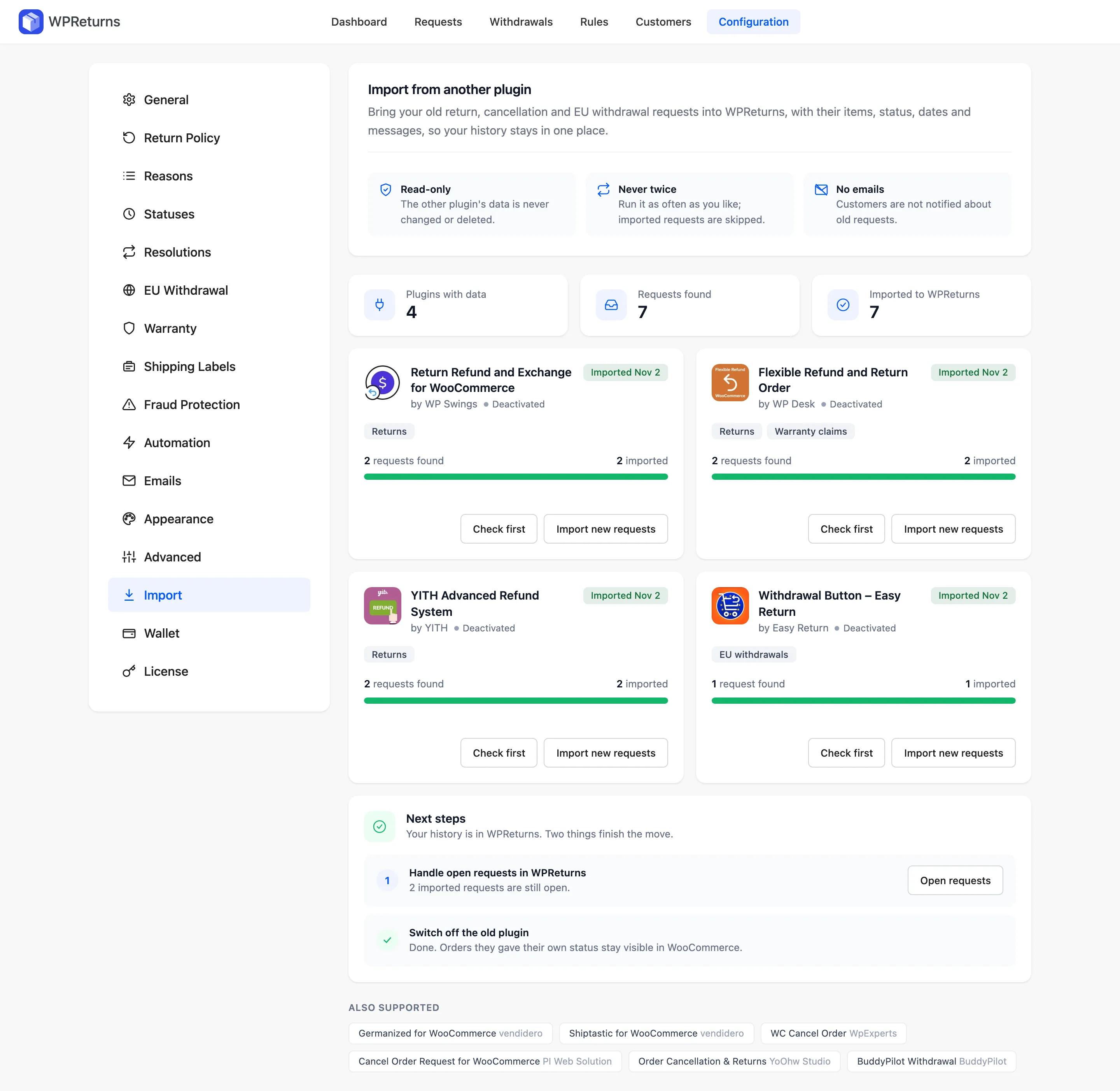
With every card imported, the tab looks like this.